Keeping drivers current on a Mac is an important part of maintaining stability, security, and performance. Unlike many Windows PCs, macOS does not usually require users to manually download individual driver packages for core hardware. Apple distributes most hardware support, firmware updates, and system-level driver improvements through macOS updates. However, printers, scanners, audio interfaces, drawing tablets, external storage devices, and other professional peripherals may still require vendor-specific software to work correctly.
TLDR: On a Mac, most driver updates are delivered through macOS Software Update, so keeping macOS current is the safest first step. For third-party devices such as printers, audio interfaces, tablets, and docks, use the manufacturer’s official website or companion app. Avoid generic “driver updater” utilities, because they are often unnecessary on macOS and may introduce security or stability risks. Always back up your Mac before major system or firmware updates.
- Why Driver Updates Matter on macOS
- Step 1: Update macOS Through Software Update
- Step 2: Install App Store Updates
- Step 3: Update Printer and Scanner Drivers
- Step 4: Update Drivers and Firmware for Professional Peripherals
- Step 5: Review System Extensions and Security Prompts
- Step 6: Check Bluetooth, Wi-Fi, and Built-In Hardware
- Step 7: Avoid Generic Driver Updater Utilities
- Step 8: Remove Old or Problematic Drivers
- Step 9: Troubleshoot After Updating Drivers
- Best Practices for a Stable, Optimized Mac
- Conclusion
Why Driver Updates Matter on macOS
A driver is software that allows macOS to communicate with hardware. This may include built-in components such as graphics, Wi-Fi, Bluetooth, storage controllers, and cameras, as well as external devices like printers, microphones, keyboards, docking stations, and professional audio equipment.
Updated drivers can improve compatibility, fix bugs, close security vulnerabilities, and support new features. For example, a printer driver update may resolve printing errors after a macOS upgrade, while an audio interface firmware update may reduce latency or prevent disconnects. In professional environments, keeping device software current can also reduce downtime and help maintain predictable performance.
That said, Mac driver management is different from traditional driver maintenance on other operating systems. Apple controls much of the hardware and software integration, so users should approach driver updates carefully and rely on trusted sources.

Step 1: Update macOS Through Software Update
The most important driver-related maintenance task on a Mac is keeping macOS up to date. Apple includes many driver, firmware, and security improvements in regular system updates.
To check for macOS updates:
- Click the Apple menu in the top-left corner of the screen.
- Open System Settings.
- Select General.
- Click Software Update.
- If an update is available, review the details and click Update Now or Upgrade Now.
On older versions of macOS, you may need to open System Preferences and choose Software Update. If your Mac is managed by an organization, updates may be controlled by an IT administrator.
Important: Before installing major macOS upgrades, such as moving from one annual release to another, create a backup using Time Machine or another trusted backup method. While updates are generally reliable, a backup protects your data if something unexpected occurs.
Step 2: Install App Store Updates
Some hardware-related utilities and manufacturer apps are distributed through the Mac App Store. These apps may control printers, scanners, cameras, storage devices, keyboards, mice, or other accessories.
To check for updates:
- Open the App Store.
- Click Updates in the sidebar.
- Install any available updates for hardware-related apps.
This step is especially useful if you use software from well-known peripheral brands or professional tools that rely on companion apps. Keeping these apps updated can improve device detection, configuration features, and compatibility with newer macOS releases.
Step 3: Update Printer and Scanner Drivers
Printers and scanners are among the most common devices that need attention after a macOS update. In many cases, macOS automatically installs compatible printer software when you add the device. However, advanced features such as duplex printing, color calibration, scanning controls, or maintenance tools may require software from the manufacturer.
To check your printer or scanner:
- Open System Settings.
- Select Printers & Scanners.
- Choose your device from the list.
- Confirm that it appears online and functions correctly.
If the device is not working properly, visit the official support website of the printer or scanner manufacturer. Search for your exact model and download only software that is listed as compatible with your version of macOS.
Avoid downloading printer drivers from unofficial mirror websites. These sources may provide outdated packages or bundle unwanted software. For business environments, it is also wise to confirm that the driver supports your organization’s current macOS version before deployment.
Step 4: Update Drivers and Firmware for Professional Peripherals
Many advanced external devices depend on more than a basic driver. Audio interfaces, MIDI controllers, video capture devices, drawing tablets, calibration tools, RAID storage systems, and docking stations may require firmware updates, control panels, or system extensions.
For these devices, use the following process:
- Identify the exact model: Check the label, packaging, receipt, or the device information page in the manufacturer’s utility.
- Confirm macOS compatibility: Make sure the update supports your macOS version and your Mac’s processor, whether Apple silicon or Intel.
- Download from the official source: Use the manufacturer’s website or official support app.
- Read release notes: Look for fixes related to your issue, known limitations, and installation instructions.
- Update firmware carefully: Keep the device connected and avoid shutting down your Mac during the update.
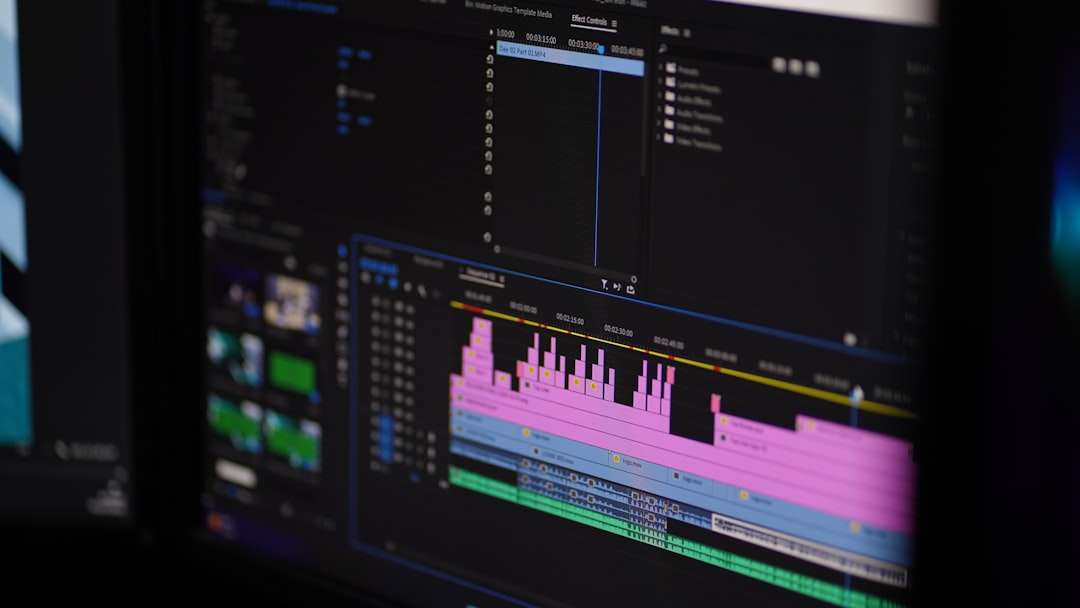
Firmware updates deserve particular caution because they modify software stored inside the device itself. Interrupting a firmware update can occasionally make a device unusable until it is serviced or restored. If the device is critical for work, schedule the update during a maintenance window rather than immediately before a deadline.
Step 5: Review System Extensions and Security Prompts
Modern versions of macOS use security controls to limit what third-party drivers can do. Some hardware products require System Extensions, DriverKit extensions, or, on older systems, kernel extensions. After installing driver software, macOS may ask you to approve the developer or allow system software in Privacy & Security settings.
To check for blocked software:
- Open System Settings.
- Go to Privacy & Security.
- Scroll down and look for a message about blocked system software.
- If you recognize and trust the developer, click Allow.
- Restart your Mac if prompted.
Only approve software from vendors you trust and intentionally installed. If you do not recognize the developer name, do not approve it until you verify the source. This is a critical security step because low-level device software may have broad access to the system.
Step 6: Check Bluetooth, Wi-Fi, and Built-In Hardware
For built-in Mac hardware, such as Wi-Fi, Bluetooth, trackpad, keyboard, camera, graphics, and storage controllers, you generally do not need to search for individual drivers. Apple supplies these updates through macOS itself.
If built-in hardware is behaving incorrectly after an update, try these actions before looking for third-party tools:
- Restart the Mac: A simple restart can reload services and resolve temporary driver issues.
- Install pending macOS updates: Apple often releases supplemental fixes after major updates.
- Disconnect external accessories: A faulty hub or peripheral can interfere with built-in functions.
- Test in Safe Mode: Safe Mode can help determine whether third-party software is involved.
- Create a new user account: This helps identify whether the issue is system-wide or user-specific.
On Apple silicon Macs, many low-level components are tightly integrated into the system. This makes official macOS updates even more important. Installing unofficial or unsupported driver software is rarely helpful and can make troubleshooting more difficult.
Step 7: Avoid Generic Driver Updater Utilities
Many websites advertise automatic driver updater tools. On macOS, these utilities are usually unnecessary and may be harmful. Since Apple manages most system-level drivers, a third-party utility cannot legitimately update many internal Mac drivers outside Apple’s update process.
Potential risks include:
- Installing outdated or incompatible software.
- Requesting excessive system permissions.
- Bundling unwanted applications or browser extensions.
- Misidentifying hardware and recommending incorrect updates.
- Creating instability after macOS upgrades.
A safer approach is to use Software Update, the Mac App Store, and official manufacturer support pages. This keeps your Mac aligned with Apple’s security model and reduces the chance of installing unverified software.
Step 8: Remove Old or Problematic Drivers
Sometimes optimization means removing obsolete drivers rather than adding new ones. Old printer utilities, abandoned audio drivers, outdated VPN components, or legacy kernel extensions can slow startup, cause crashes, or prevent macOS upgrades.
If a device is no longer used, uninstall its software using the manufacturer’s official uninstaller when available. Dragging an app to the Trash may not remove background services, launch agents, extensions, or preference files. Check the vendor’s documentation for proper removal instructions.
You can also review login items and background software:
- Open System Settings.
- Select General.
- Click Login Items & Extensions.
- Disable items you no longer need or do not recognize.
Be cautious when removing system files manually. Deleting the wrong file can create new problems. If you are unsure, consult the device manufacturer, Apple Support, or a qualified technician.
Step 9: Troubleshoot After Updating Drivers
If a device stops working after a driver or firmware update, proceed methodically. First, restart your Mac and reconnect the device directly, avoiding hubs or adapters. Then test a different cable or port, especially with USB, Thunderbolt, and external display equipment.
If the issue continues, check the manufacturer’s support page for known problems with your macOS version. Some vendors publish compatibility statements shortly after Apple releases a major macOS upgrade. If the latest driver is unstable, the vendor may recommend a specific earlier version or a temporary workaround.
For printers and scanners, removing and re-adding the device can help:
- Open System Settings.
- Go to Printers & Scanners.
- Select the device and remove it.
- Restart your Mac.
- Add the device again and test basic functions.
For audio, video, and creative hardware, check both the driver and the application that uses the device. A recording app, editing suite, or conferencing tool may need permission to access the microphone, camera, or external interface.
Best Practices for a Stable, Optimized Mac
Driver updates should be part of a broader maintenance strategy. To keep macOS optimized, follow these best practices:
- Back up regularly: Use Time Machine or a reliable backup system before major updates.
- Keep macOS current: Install security updates promptly, especially on internet-connected Macs.
- Use official sources: Download drivers and firmware only from Apple or the device manufacturer.
- Update critical devices carefully: Read release notes before updating hardware used for work.
- Remove unused software: Old drivers and background utilities can create conflicts.
- Document changes: In professional settings, record driver versions and update dates.
It is also sensible to delay major macOS upgrades for a short period if you rely on specialized hardware. Waiting until manufacturers confirm compatibility can prevent interruptions, especially in audio production, design, printing, engineering, and video workflows.
Conclusion
Updating drivers on a Mac is less about chasing individual driver files and more about following a disciplined, secure update process. Start with macOS Software Update, then check the App Store and official manufacturer sources for peripherals that need dedicated support. Be especially careful with firmware updates, system extensions, and software that requests deep system access.
By avoiding untrusted driver updater tools, removing obsolete components, and verifying compatibility before major changes, you can keep your Mac stable, secure, and optimized. A careful approach may take a little longer, but it is the most reliable way to maintain performance and protect the integrity of your macOS environment.



Leave a Reply