Few screen problems are as instantly noticeable as a blue tint. Whites look icy, skin tones appear washed out, and everything from web pages to photos feels slightly “off.” The good news is that a blue-tinted display is usually caused by a setting, cable, driver, color profile, or calibration issue—not necessarily a dying monitor. With a few careful checks, you can often restore natural colors in minutes.
TLDR: A blue tint on your screen is commonly caused by display settings, night light filters, incorrect color profiles, graphics driver issues, or faulty cables. Start by disabling color filters and checking your monitor’s color temperature, then update or reinstall your graphics driver. If the issue remains, test another cable, reset monitor settings, and calibrate your display for more accurate color.
- Why Does Your Screen Look Blue?
- 1. Check Your Monitor’s Built In Color Settings
- 2. Turn Off Night Light, Blue Light Filters, and Color Filters
- 3. Check the Cable and Ports
- 4. Update or Reinstall Your Graphics Driver
- 5. Reset or Change the Color Profile
- 6. Calibrate Your Display
- 7. Check App Specific and Video Settings
- 8. Test With Another Device or Monitor
- 9. Consider Hardware Problems
- Quick Fix Checklist
- Final Thoughts
Why Does Your Screen Look Blue?
A blue tint means the display is showing too much blue light compared with red and green. This can happen because the screen’s color temperature is set too cool, your operating system is applying a color filter, or your monitor is receiving an incorrect signal. In some cases, the problem is hardware-related, such as a damaged HDMI cable, a loose connector, or a panel that is beginning to fail.
Before assuming the worst, it helps to identify whether the tint affects everything on the screen or only certain apps, images, videos, or games. If the entire display looks blue from startup to shutdown, the issue is likely system-wide. If only one app looks strange, the problem may be related to that app’s color management or video settings.
1. Check Your Monitor’s Built In Color Settings
Most external monitors have built-in menus controlled by physical buttons or a joystick on the side, bottom, or back of the display. These menus often include picture modes such as Cool, Normal, Warm, Reading, Movie, or Game. A “Cool” preset increases blue tones, which can make the whole screen look icy.
Open your monitor’s on-screen display menu and look for options like:
- Color Temperature: Choose Normal, Warm, or 6500K instead of Cool.
- RGB Controls: Reduce the blue channel slightly or increase red and green if needed.
- Picture Mode: Try Standard or sRGB for more accurate color.
- Reset: Restore factory settings if you are unsure what changed.
If the blue tint appeared after experimenting with gaming, movie, or eye-care modes, switching back to a standard profile may fix it immediately.
2. Turn Off Night Light, Blue Light Filters, and Color Filters
This may sound backwards, but software designed to reduce blue light can sometimes create strange color shifts if it is misconfigured or conflicts with other display tools. Windows, macOS, graphics drivers, and third-party apps can all adjust screen color.
On Windows
- Open Settings.
- Go to System > Display.
- Turn Night light off.
- Then go to Accessibility > Color filters.
- Make sure Color filters are disabled.
You should also check if High contrast themes or accessibility color settings are active. These can dramatically change how colors appear.
On macOS
- Open System Settings.
- Go to Displays.
- Check Night Shift and turn it off temporarily.
- Go to Accessibility > Display.
- Disable any color filters or unusual contrast settings.
If your screen color returns to normal after disabling one of these options, the tint was software-based. You can re-enable features one at a time and adjust their strength until the display looks comfortable again.
3. Check the Cable and Ports
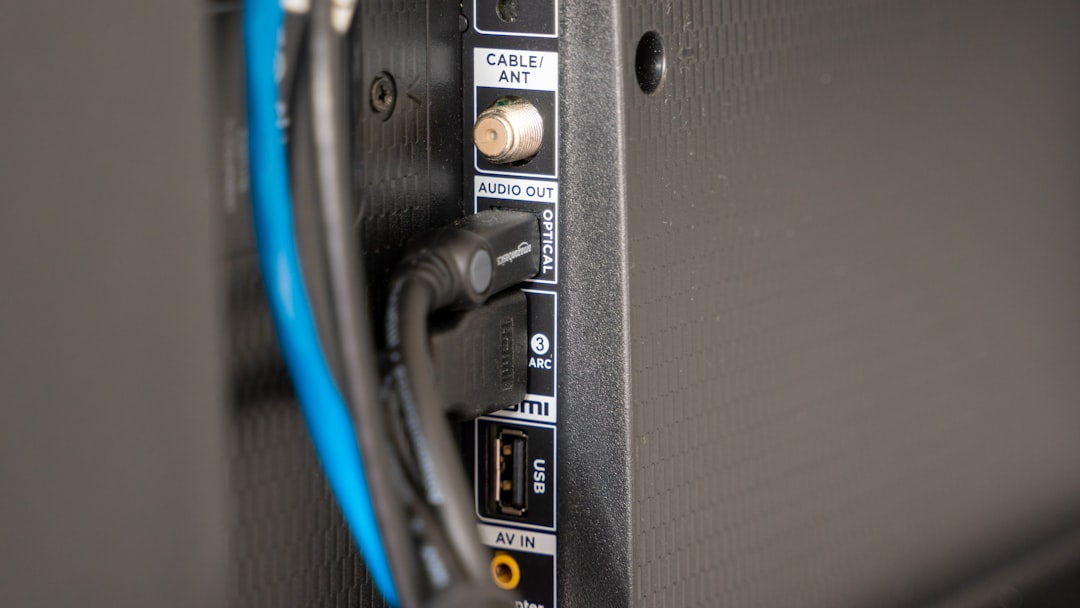
A bad or loose cable is one of the most overlooked causes of display tint. If a VGA, HDMI, DisplayPort, USB-C, or DVI cable is damaged, bent, or not fully seated, the monitor may receive incomplete color information. This can result in a blue, green, red, or purple cast.
Try the following:
- Unplug the display cable from both the computer and monitor, then reconnect it firmly.
- Inspect the connector for bent pins, dust, or visible damage.
- Try a different cable of the same type.
- Switch to another port on your computer or monitor if available.
- If using an adapter or dock, connect the monitor directly to the computer to test it.
This step is especially important for older VGA connections, where individual color channels depend on pin contact. A loose VGA cable can easily make a screen look overly blue because the red or green signal is weak or missing.
4. Update or Reinstall Your Graphics Driver
Your graphics driver controls how your computer communicates with your display. If the driver is outdated, corrupted, or recently updated incorrectly, colors may appear wrong. This is common after major operating system updates, new graphics card installations, or switching monitors.
For Windows Users
- Right-click the Start button.
- Select Device Manager.
- Expand Display adapters.
- Right-click your GPU and choose Update driver.
- Select Search automatically for drivers.
For better results, visit the official website of your graphics card manufacturer—such as NVIDIA, AMD, or Intel—and download the latest driver directly. If the tint started right after a driver update, consider rolling back the driver from the adapter’s Properties menu.
If updating does not help, uninstalling and reinstalling the driver can clear corrupted color settings. Restart your computer after reinstalling so the display configuration refreshes properly.
5. Reset or Change the Color Profile
Operating systems use color profiles to describe how a display reproduces color. A wrong or corrupted profile can make the screen look too blue, too warm, too dark, or oversaturated. This is especially common if you have installed photo editing software, monitor utilities, or custom ICC profiles.
Change Color Profile on Windows
- Open the Start menu and search for Color Management.
- Select your monitor from the device list.
- Check Use my settings for this device.
- Remove suspicious or unfamiliar profiles.
- Add or select sRGB IEC61966-2.1 as a basic default profile.
After applying the profile, restart your computer or sign out and back in. If the blue tint disappears, the previous color profile was likely the cause.
Change Color Profile on macOS
- Open System Settings.
- Go to Displays.
- Select your display.
- Look for the Color profile option.
- Choose a standard profile, such as the default for your display or sRGB.
Mac users can also use the built-in calibration assistant if available. This lets you fine-tune white point and gamma for a more natural-looking display.
6. Calibrate Your Display
If your screen is only slightly blue, calibration may be the best fix. Calibration adjusts brightness, contrast, gamma, and color balance so the display shows more realistic tones. While professional colorimeters are ideal for photographers, designers, and video editors, built-in tools are good enough for everyday use.
On Windows, search for Calibrate display color in the Start menu. The wizard will guide you through gamma, brightness, contrast, and color balance adjustments. Pay close attention to the final color balance step, where you can reduce blue or increase red and green.
On macOS, use the display color profile tools in System Settings. Depending on your version, you may have access to a calibration assistant. Choose a warmer white point if your display looks too cold.
When calibrating, view your screen in normal room lighting. Avoid calibrating in direct sunlight or a completely dark room unless that is how you usually use the computer.
7. Check App Specific and Video Settings
If the blue tint appears only in videos, games, or certain creative apps, your main display may be fine. Video players, streaming apps, games, and photo editors can apply their own color settings. Some graphics control panels also allow per-app color adjustments.
Look for settings such as:
- Color enhancement in video playback software.
- HDR mode, which can look strange on unsupported displays.
- Game filters or custom visual presets.
- Hardware acceleration, which may cause color glitches in browsers or video apps.
- Photo editor proofing profiles that simulate another device or print format.
Try disabling enhancements and returning the app to default visual settings. If browser videos look blue, test another browser. If a game looks blue, reset its graphics settings or disable post-processing filters.
8. Test With Another Device or Monitor
To determine whether the problem comes from the computer or the display, test your setup in two directions. First, connect your computer to another monitor or TV. If the second screen looks normal, your original monitor or its cable is likely responsible. If the second screen also looks blue, the problem is probably in your computer’s software, graphics driver, or GPU.
Next, connect another device—such as a laptop, game console, or streaming box—to the original monitor. If the monitor still looks blue with a different device, the display’s settings or hardware are the likely cause.
This simple comparison can save you a lot of time because it narrows the issue quickly.
9. Consider Hardware Problems
If none of the software, cable, profile, or calibration fixes work, hardware may be involved. A monitor with aging backlights, internal board issues, or panel damage can develop persistent color casts. Laptops can also suffer from display ribbon cable problems, especially if the tint changes when you move the lid.
Signs of a possible hardware issue include:
- The blue tint appears before the operating system loads.
- The monitor menu itself looks blue.
- The tint changes when moving the laptop screen.
- Only part of the screen is affected.
- Colors flicker, shift, or disappear randomly.
If your monitor is under warranty, contact the manufacturer before attempting repairs. For laptops, a technician can check the screen cable, panel, and graphics hardware.
Quick Fix Checklist
- Switch monitor color temperature from Cool to Normal, Warm, or 6500K.
- Disable Night Light, Night Shift, and color filters temporarily.
- Reconnect or replace the display cable.
- Update, roll back, or reinstall the graphics driver.
- Reset the color profile to sRGB or the display default.
- Run display calibration and reduce the blue channel if necessary.
- Test another monitor or device to isolate the source.
Final Thoughts
A blue tint can make even a high-quality screen look cheap and uncomfortable, but it is usually fixable without replacing hardware. Start with the easiest possibilities: monitor presets, operating system filters, and cable connections. Then move on to drivers, color profiles, and calibration. By working through the problem step by step, you can identify whether the tint is caused by a simple setting, a faulty connection, or a deeper hardware issue—and get your display back to clean, balanced color.


Leave a Reply