Remote Desktop in Windows 11 is like a magic cable between two computers. You sit at one PC. You control another PC. You can open apps, move files, fix problems, or grab that one document you forgot. It feels a bit like teleporting into your desktop chair.
TL;DR: Remote Desktop lets you control a Windows 11 PC from another device. To use it, turn on Remote Desktop in Settings, note the PC name, and connect with the Remote Desktop app or mstsc. Windows 11 Pro, Enterprise, and Education can host Remote Desktop. Windows 11 Home can connect to other PCs, but it cannot be used as the host with the built-in feature.
- What Is Remote Desktop?
- Before You Start
- Step 1: Turn On Remote Desktop
- Step 2: Find Your PC Name
- Step 3: Choose Who Can Connect
- Step 4: Connect from Another Windows PC
- Step 5: Connect from a Mac, Phone, or Tablet
- Using Remote Desktop on the Same Network
- Using Remote Desktop Over the Internet
- Handy Remote Desktop Tips
- Common Problems and Easy Fixes
- Security Rules You Should Follow
- How to Turn Remote Desktop Off
- Final Thoughts
What Is Remote Desktop?
Remote Desktop is a built-in Windows feature. It lets one device connect to another device over a network. The remote computer shows up in a window. You use your mouse and keyboard as if you were sitting in front of it.
Think of it as a tiny robot version of you. It travels through the network. It sits at your other PC. Then it clicks things for you. Very polite. Very useful.
You might use Remote Desktop to:
- Work from a laptop while your main PC stays at your desk.
- Help a family member fix a setting.
- Use powerful software on a stronger computer.
- Access files on your office PC.
- Manage a small home server or office machine.
It is simple once you know the steps. There are just a few important rules.
Before You Start
First, check your version of Windows 11. This matters a lot.
Windows 11 has a few editions. Not all editions can host Remote Desktop sessions. Hosting means the computer accepts the remote connection.
- Windows 11 Pro: Can host and connect.
- Windows 11 Enterprise: Can host and connect.
- Windows 11 Education: Can host and connect.
- Windows 11 Home: Can connect, but cannot host with built-in Remote Desktop.
If your main PC has Windows 11 Home, you will not see the right hosting options. That is not your fault. Windows is simply being Windows.
To check your edition:
- Click the Start button.
- Open Settings.
- Go to System.
- Click About.
- Look for Windows specifications.
You should also make sure the computer has a password. Remote Desktop does not like blank passwords. That is good. Blank passwords are like leaving your front door open with a sign that says, “Snacks inside.”
Step 1: Turn On Remote Desktop
Now let us wake up the feature.
- On the PC you want to control, open Settings.
- Click System.
- Click Remote Desktop.
- Turn on the switch beside Remote Desktop.
- Click Confirm if Windows asks.
That is the big switch. Once it is on, your PC can listen for Remote Desktop connections.
You may also see an option called Require devices to use Network Level Authentication to connect. Keep it on. It is safer. It checks the user before opening the full remote session.
In simple words, it asks, “Who are you?” before letting someone into the room. Good little bouncer.
Step 2: Find Your PC Name
Next, you need the name of the PC. This is how the other device finds it on the network.
Stay on the Remote Desktop settings page. Look for PC name. Write it down. You can also copy it.
It may look like this:
- DESKTOP-7HAPPYPC
- OFFICE-PC
- LAPTOP-MANGO
Okay, maybe not LAPTOP-MANGO. But it should be.
You can also connect by using the computer’s local IP address. This can help if the PC name does not work.
To find the local IP address:
- Right-click the Start button.
- Click Terminal or Windows Terminal.
- Type ipconfig.
- Press Enter.
- Look for IPv4 Address.
It may look like 192.168.1.25. That is your PC’s address on your home or office network.
Step 3: Choose Who Can Connect
By default, administrator accounts can connect. But you can allow other users too.
On the Remote Desktop settings page, click Remote Desktop users. Then click Add. Type the user name. Click OK.
Use an account with a strong password. Short passwords are weak. Password123 is not a password. It is a welcome mat.
A better password is long and strange. Use a phrase. Add numbers or symbols. Make it memorable, but not obvious.
For example:
- BlueCoffeeRunsAt7!
- MyCatVotesForPizza42
- RainyDeskRocket99!
Do not use those exact ones. The internet has now seen them. Sorry, pizza cat.
Step 4: Connect from Another Windows PC
Now grab the computer you want to connect from. This can be another Windows 11 PC. It can also be Windows 10.
You have two easy options.
Option A: Use Remote Desktop Connection
This classic tool is already in Windows. Its file name is mstsc. It sounds like a tiny sneeze. But it works well.
- Press Windows + R.
- Type mstsc.
- Press Enter.
- In the Computer box, type the PC name or IP address.
- Click Connect.
- Enter your user name and password.
- Click OK.
You may see a certificate warning the first time. This is common on local networks. If you trust the computer, click Yes.
After that, the remote PC desktop should appear. Ta-da. You are now driving another computer from your chair.
Option B: Use the Microsoft Remote Desktop App
You can also use the newer Remote Desktop app from the Microsoft Store. It has a cleaner look. It is nice if you manage several computers.
- Open the Microsoft Store.
- Search for Remote Desktop.
- Install the Microsoft Remote Desktop app.
- Open it.
- Click Add or Add PC.
- Enter the PC name or IP address.
- Add your user account if you want.
- Save and connect.
The app can remember connections. That saves time. It is very handy if you connect to the same PC often.
Step 5: Connect from a Mac, Phone, or Tablet
Remote Desktop is not just for Windows. You can connect from other devices too.
Microsoft has Remote Desktop apps for:
- macOS
- iPhone and iPad
- Android phones and tablets
The steps are similar. Install the app. Add the PC name or IP address. Enter your Windows user name and password. Connect.
On a small phone screen, the remote desktop can feel tiny. It is like trying to run a control room through a keyhole. Still, it works. For quick fixes, it can be a lifesaver.
Using Remote Desktop on the Same Network
The easiest setup is on the same network. For example, both computers are connected to your home Wi-Fi. Or both are in the same office.
In that case, use the PC name or local IP address. You usually do not need extra router setup.
If the connection fails, check these things:
- Is the remote PC turned on?
- Is Remote Desktop enabled?
- Are both devices on the same network?
- Are you using the right PC name or IP address?
- Are you using a valid user account with a password?
Also check sleep settings. A sleeping PC may not accept the connection.
To adjust sleep:
- Open Settings.
- Go to System.
- Click Power or Power and battery.
- Set sleep to a longer time.
You do not need to keep the screen on forever. But the PC must be awake enough to answer the door.
Using Remote Desktop Over the Internet
This is where things get spicy.
You can use Remote Desktop over the internet. But do not just open Remote Desktop to the whole world if you can avoid it. The default port is 3389. Bad bots scan for it all day. They are not cute. They are not invited.
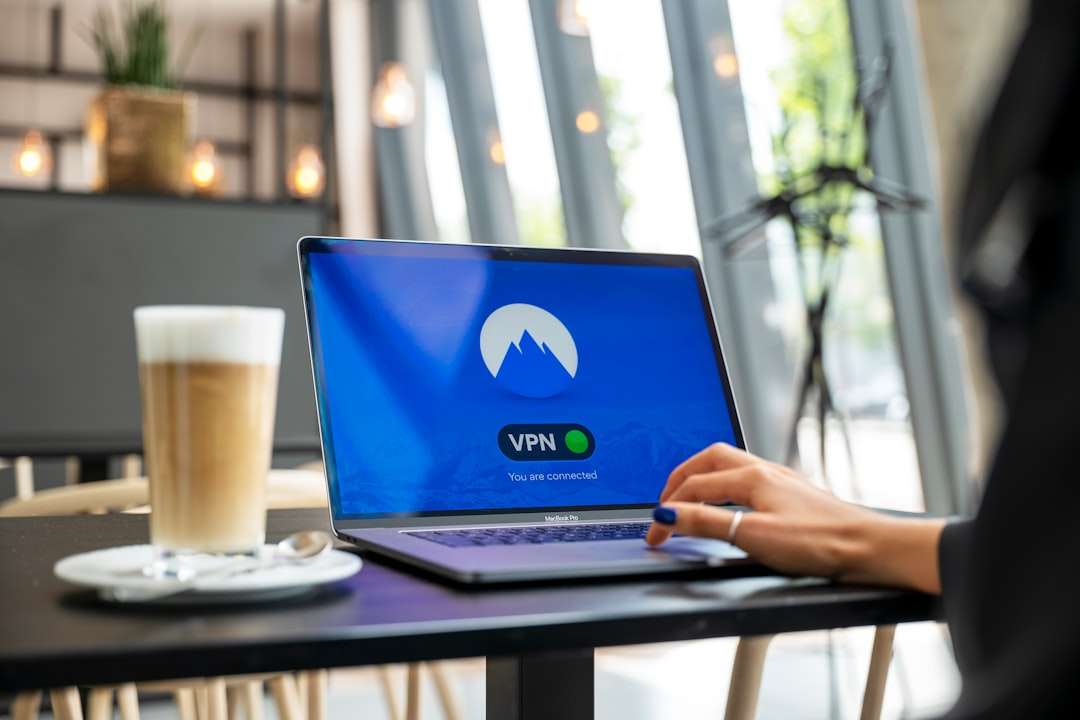
The safer choice is to use a VPN. A VPN creates a private tunnel into your home or office network. Then Remote Desktop works as if you are nearby.
Good options include:
- A VPN built into your router.
- A business VPN from your workplace.
- A trusted mesh VPN service.
Once connected to the VPN, use the PC name or local IP address. Then start Remote Desktop as usual.
If you must use port forwarding, be careful. Use strong passwords. Keep Windows updated. Limit access if your router allows it. Better yet, ask someone with networking experience. Port forwarding Remote Desktop is not a toy. It is more like giving your house a secret tunnel. Make sure it has a very strong lock.
Handy Remote Desktop Tips
Remote Desktop has useful settings. Click Show Options in the classic Remote Desktop Connection tool.
Here are some fun knobs to turn:
- Display: Change the screen size. Full screen is great.
- Local Resources: Share your clipboard, printer, or drives.
- Experience: Tune performance for slower networks.
- General: Save your connection settings.
The clipboard option is especially useful. It lets you copy text from one computer and paste it into the other. It feels like magic. Low-budget magic, but still magic.
You can also share local drives. This lets you move files between computers. Be careful with this. Only share what you need. Less sharing means less risk.
Common Problems and Easy Fixes
Remote Desktop is usually smooth. But sometimes it gets grumpy. Here are common problems.
“Remote Desktop can’t connect to the remote computer”
Check that the remote PC is on. Then check that Remote Desktop is enabled. Also check the network. Try the IP address instead of the PC name.
“Your credentials did not work”
Use the correct user name and password. If you use a Microsoft account, try your full email address. For a local account, use the local user name.
The screen is black
Wait a few seconds. If it stays black, disconnect and reconnect. Update graphics drivers if it happens often.
The connection is slow
Lower the display quality. Turn off visual effects. Use a wired connection if possible. Wi-Fi is convenient, but cables are calm and reliable.
Security Rules You Should Follow
Remote access is powerful. Treat it with respect.
- Use strong passwords.
- Keep Windows updated.
- Use Network Level Authentication.
- Do not expose Remote Desktop directly to the internet if possible.
- Use a VPN for remote access from outside.
- Remove users who no longer need access.
- Lock your PC when you are done.
Also remember this: when someone connects with Remote Desktop, the local screen may lock. That is normal. Windows is saying, “One driver at a time, please.”
How to Turn Remote Desktop Off
If you are done using it, you can turn it off. This reduces risk.
- Open Settings.
- Click System.
- Click Remote Desktop.
- Turn off Remote Desktop.
Simple. The magic door is closed.
Final Thoughts
Remote Desktop in Windows 11 is one of those features that feels fancy, but is not hard. Turn it on. Note the PC name. Connect from another device. Use a strong password. Keep it safe.
For home use, it is great on the same network. For outside access, use a VPN when you can. That keeps the goblins away from port 3389.
Once you have it set up, you may wonder how you lived without it. Your desktop can be upstairs, across town, or at the office. You can still reach it. No running. No panic. Just click, connect, and carry on.

Leave a Reply