Slow web browsing is not always caused by a weak internet connection. In many cases, the delay happens before a website even begins to load, when a device asks the internet where that website is located. By changing DNS settings, a user may reduce lookup time, improve reliability, and sometimes gain better privacy or security features.
TLDR: DNS settings control which server translates website names into IP addresses. Switching from a default internet provider DNS server to a faster public DNS provider can make browsing feel quicker and more reliable. The process usually takes only a few minutes on Windows, macOS, Android, iOS, or a router. After changing DNS, a user should test browsing speed, clear the DNS cache if needed, and choose a provider that balances speed, privacy, and security.
- What DNS Means and Why It Affects Browsing
- Popular DNS Providers to Consider
- How to Change DNS Settings on Windows
- How to Change DNS Settings on macOS
- How to Change DNS Settings on Android
- How to Change DNS Settings on iPhone or iPad
- How to Change DNS Settings on a Router
- Clearing the DNS Cache After a Change
- How to Test Whether DNS Is Faster
- Benefits Beyond Faster Browsing
- Possible Downsides and Things to Watch For
- Best Practices for Choosing DNS Settings
- Conclusion
-
FAQ
- What is DNS in simple terms?
- Can changing DNS really make browsing faster?
- Is it safe to use public DNS?
- Which DNS provider is the fastest?
- Should DNS be changed on a device or the router?
- Can DNS changes break internet access?
- Does DNS affect gaming or streaming?
- What should a user do if nothing improves?
What DNS Means and Why It Affects Browsing
DNS stands for Domain Name System. It works like the internet’s address book. When someone enters a website name such as example.com, the device does not automatically know where that site lives. It must ask a DNS server to translate the domain name into an IP address, which is the numerical address used to connect to the correct server.
If the DNS server responds slowly, the browser may pause before loading a page. The actual download speed may still be good, but the start of each connection can feel delayed. This is especially noticeable when opening websites with many external resources, such as images, ads, analytics scripts, fonts, and embedded media from different domains.
Most devices automatically use DNS servers provided by the internet service provider. These default servers may work well, but they are not always the fastest or most reliable option. Public DNS providers often operate large global networks designed to answer DNS requests quickly.

Popular DNS Providers to Consider
Before changing DNS settings, a user should choose a provider. The best choice depends on location, privacy preferences, security needs, and performance. Some of the most common public DNS services include:
- Cloudflare DNS: Primary
1.1.1.1, secondary1.0.0.1. Known for speed and a strong privacy-focused approach. - Google Public DNS: Primary
8.8.8.8, secondary8.8.4.4. Widely available and reliable. - Quad9: Primary
9.9.9.9, secondary149.112.112.112. Focuses on blocking known malicious domains. - OpenDNS: Primary
208.67.222.222, secondary208.67.220.220. Offers filtering and security options.
There is no single fastest DNS provider for everyone. A service that performs well in one country or city may not be the best in another. For that reason, testing a few options can be useful.
How to Change DNS Settings on Windows
On a Windows computer, DNS settings can be changed through the network adapter settings. The process may vary slightly depending on the version of Windows, but the general steps are similar.
- Open Settings and go to Network & Internet.
- Select the active connection, such as Wi-Fi or Ethernet.
- Find DNS server assignment and choose Edit.
- Change the setting from automatic to Manual.
- Enable IPv4.
- Enter the preferred DNS address and alternate DNS address.
- Save the changes.
For example, if a user selects Cloudflare, the preferred DNS would be 1.1.1.1 and the alternate DNS would be 1.0.0.1. If Google Public DNS is selected, the preferred DNS would be 8.8.8.8 and the alternate DNS would be 8.8.4.4.
After saving the settings, the computer should begin using the new DNS service. If websites do not load correctly, restarting the browser or the computer may help.
How to Change DNS Settings on macOS
On macOS, DNS settings are managed in the network section of System Settings. The process is straightforward and can be reversed at any time.
- Open System Settings.
- Select Network.
- Choose the active connection, such as Wi-Fi.
- Click Details or Advanced, depending on the macOS version.
- Open the DNS tab.
- Click the plus button to add DNS server addresses.
- Add the preferred and alternate DNS addresses.
- Remove old DNS entries if necessary, then click OK or Apply.
Once complete, macOS should use the new DNS servers for future lookups. If a site still appears to load slowly, the device may be using cached DNS results from before the change.
How to Change DNS Settings on Android
Modern Android devices often support a feature called Private DNS. This can improve privacy by using encrypted DNS when the provider supports it. Instead of entering simple IP addresses, Android may require a DNS hostname.
- Open Settings.
- Go to Network & Internet or Connections.
- Choose Private DNS.
- Select Private DNS provider hostname.
- Enter the provider hostname.
- Save the setting.
For Cloudflare, the hostname is often one.one.one.one. For Google, it is dns.google. For Quad9, it is commonly dns.quad9.net.
Some Android versions also allow DNS changes for individual Wi-Fi networks. In that case, the user can open the Wi-Fi network details, change IP settings from DHCP to static, and enter DNS addresses manually. However, Private DNS is generally more convenient because it applies more broadly.
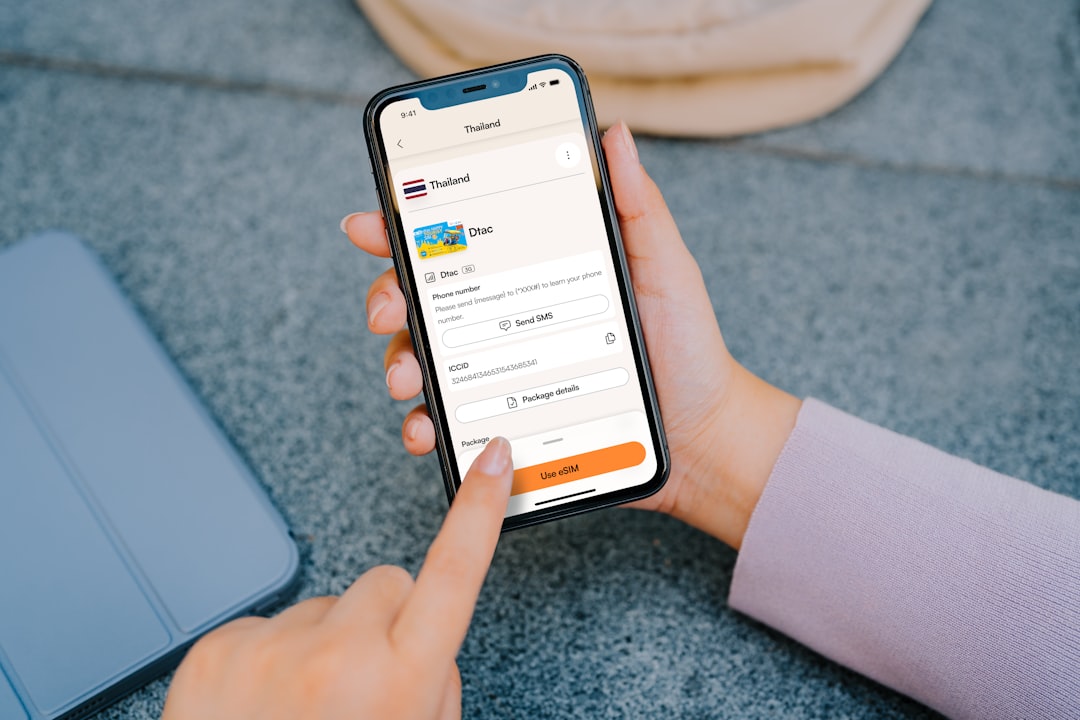
How to Change DNS Settings on iPhone or iPad
On iOS and iPadOS, DNS settings are usually changed per Wi-Fi network. This means the setting applies to the selected network but may not automatically apply to mobile data.
- Open Settings.
- Tap Wi-Fi.
- Tap the information icon next to the connected network.
- Scroll to Configure DNS.
- Select Manual.
- Remove existing DNS servers if appropriate.
- Add the new DNS server addresses.
- Tap Save.
This method is useful for home, office, or school Wi-Fi networks where faster DNS may improve day-to-day browsing. If the device connects to another Wi-Fi network, DNS settings may need to be adjusted again for that network.
How to Change DNS Settings on a Router
Changing DNS settings on a router can be the most efficient option for a household or small office. When DNS is changed at the router level, many connected devices can use the new DNS service automatically. This includes laptops, phones, tablets, smart TVs, and game consoles.
The exact steps depend on the router brand and firmware, but the general process usually looks like this:
- Open a browser and enter the router’s local address, such as
192.168.1.1or192.168.0.1. - Log in using the router administrator credentials.
- Find a section called Internet, WAN, Network, or DHCP.
- Locate the DNS server fields.
- Enter the preferred and alternate DNS addresses.
- Save the settings and restart the router if required.
Router-level DNS changes are convenient, but users should be careful. Incorrect router settings can disrupt connectivity for every device on the network. If the router was provided by an internet service provider, some options may be locked or limited.
Clearing the DNS Cache After a Change
Devices often store DNS results temporarily in a cache. This helps websites load faster during repeat visits, but it can also delay the effect of a DNS change. If browsing does not seem different after switching DNS servers, clearing the DNS cache may help.
On Windows, a user can open Command Prompt and run:
ipconfig /flushdns
On macOS, the command varies by version, but restarting the device is often the simplest solution for most users. Browsers may also have their own DNS cache, so closing and reopening the browser can be useful.
How to Test Whether DNS Is Faster
After changing DNS settings, a user should test performance rather than assuming the new service is faster. A simple test is to open several websites that were previously slow and observe whether they begin loading more quickly. However, casual testing can be affected by browser cache, website traffic, and internet congestion.
More accurate testing can be done with DNS benchmark tools. These tools compare response times from different DNS providers and show which ones perform best from the user’s location. The fastest result is not always the best overall choice, though. Reliability, privacy policy, malware blocking, and uptime should also matter.

Benefits Beyond Faster Browsing
While speed is the main reason many people change DNS settings, there are additional benefits. Some DNS providers offer malware domain blocking, which can prevent access to known dangerous websites. Others provide content filtering, which may help families or organizations restrict certain categories of sites.
Privacy may also improve depending on the provider. Some internet providers may log DNS requests for analytics, advertising, or network management. Public DNS providers also may log data, but their policies vary widely. A privacy-conscious user should review a provider’s data retention practices before switching.
Encrypted DNS technologies, such as DNS over HTTPS and DNS over TLS, can make DNS requests harder for third parties to inspect. These features are increasingly supported by browsers, operating systems, and public DNS providers.
Possible Downsides and Things to Watch For
Changing DNS is usually safe, but it is not a magic fix for every speed problem. If a connection is slow because of poor Wi-Fi signal, outdated hardware, limited bandwidth, or a congested internet plan, DNS changes may have little effect.
Some networks rely on internal DNS records, especially in workplaces, schools, hotels, and corporate VPN environments. Using a public DNS server in those settings may prevent access to internal websites, printers, or shared systems. In managed environments, it is better for users to follow the organization’s network policy.
Another consideration is location-based content delivery. Some websites and streaming services use DNS information to route visitors to nearby servers. A poorly chosen DNS provider could occasionally send traffic to a less ideal server, although major providers usually handle this well.
Best Practices for Choosing DNS Settings
- Test more than one provider: Speed varies by region and network.
- Use both primary and secondary DNS: A backup server improves reliability.
- Consider privacy: The fastest service is not always the most privacy-friendly.
- Check security features: Malware blocking can add useful protection.
- Keep old settings available: If problems occur, reverting should be easy.
- Restart devices when needed: Caches may delay the effect of new settings.
Conclusion
Changing DNS settings is a simple adjustment that can make browsing feel faster and more responsive. It works by improving how quickly a device finds the IP addresses behind website names. For many users, public DNS services such as Cloudflare, Google Public DNS, Quad9, or OpenDNS offer better speed, reliability, security, or privacy than default internet provider DNS servers.
The best approach is to choose a reputable provider, change settings on the device or router, clear caches if necessary, and test the results. While DNS changes cannot solve every internet performance issue, they are one of the easiest optimizations to try and can provide noticeable improvements with very little risk.
FAQ
What is DNS in simple terms?
DNS is the system that turns website names into IP addresses. It allows browsers to find the correct server when someone enters a domain name.
Can changing DNS really make browsing faster?
Yes, it can make browsing feel faster if the new DNS server responds more quickly than the old one. The improvement is usually most noticeable when opening websites, not when downloading large files.
Is it safe to use public DNS?
Using a reputable public DNS provider is generally safe. However, users should review privacy policies and choose providers with strong reliability and security practices.
Which DNS provider is the fastest?
There is no universal fastest provider. Speed depends on the user’s location, internet provider, and network conditions. Benchmark testing can help identify the best option.
Should DNS be changed on a device or the router?
Changing DNS on a device affects only that device. Changing DNS on a router can apply the setting to many devices on the network, making it more convenient for homes and small offices.
Can DNS changes break internet access?
Incorrect DNS addresses can prevent websites from loading properly. If that happens, the user can switch back to automatic DNS settings or enter a different provider’s addresses.
Does DNS affect gaming or streaming?
DNS may improve how quickly gaming services or streaming apps connect, but it usually does not reduce in-game latency or increase streaming bandwidth directly.
What should a user do if nothing improves?
If DNS changes do not help, the problem may involve Wi-Fi signal, router performance, internet plan limits, browser issues, or the website itself. Further troubleshooting may be needed.



Leave a Reply