Sound effects can turn a simple AI game into an unforgettable experience. A jump feels bigger. A win feels sweeter. Even a tiny click feels satisfying. In this guide, you will learn how to add sound effects to your AI game in a fun and simple way.
TLDR: Sound effects make AI games feel alive and exciting. You can create sounds with AI tools or download them from sound libraries. Then you edit, optimize, and import them into your game engine. Follow a simple step-by-step process and test everything carefully for the best player experience.
Why Sound Effects Matter in AI Games
AI games are smart. They react to the player. They adapt. But without sound, they can feel flat.
Sound effects do several important things:
- Give feedback. A sound confirms an action.
- Build emotion. Music and effects set the mood.
- Improve immersion. Players feel inside the world.
- Guide attention. Sounds tell players where to look.
Imagine an AI enemy spotting the player. Without sound, it feels dull. With a sharp alert noise, tension rises instantly.
That is the power of sound.
Types of Sound Effects You May Need
Before adding anything, know what you need. Most AI games use these categories:
- UI Sounds – clicks, menu transitions, notifications
- Character Sounds – footsteps, attacks, jumps
- Environment Sounds – wind, rain, city noise
- Reaction Sounds – AI alerts, damage sounds
- Reward Sounds – level up, coins, achievements
Make a short list. Keep it organized. This saves time later.

Tools You Can Use
You have many options. Some tools create sounds. Some edit them. Some manage them inside the game engine.
1. AI Sound Generators
- Generate custom sound effects from text prompts.
- Fast and flexible.
- Great for unique AI behaviors.
Example uses: “robot alert beep”, “fantasy magic burst”, “soft sci fi button click”.
2. Sound Libraries
- Download pre-made sound effects.
- Large collections.
- Often royalty-free options available.
Perfect if you need something common. Like footsteps or explosions.
3. Audio Editing Software
- Edit length.
- Adjust volume.
- Remove noise.
- Convert formats.
This step is important. Raw audio is rarely perfect.
4. Game Engine Audio Systems
- Unity Audio System
- Unreal Engine Audio Tools
- Godot AudioStreamPlayer
These let you attach sounds to actions and AI events.
Comparison Chart of Popular Sound Tools
| Tool Type | Best For | Skill Level | Cost |
|---|---|---|---|
| AI Sound Generators | Custom unique effects | Beginner | Free and paid options |
| Sound Libraries | Quick ready made sounds | Beginner | Free and paid |
| Audio Editors | Polishing and trimming | Beginner to Intermediate | Often free |
| Game Engine Audio Tools | Integration and control | Intermediate | Included in engine |
Step-by-Step Guide to Adding Sound Effects
Step 1: Plan Your Audio Map
Start with a simple list.
- What action triggers the sound?
- Is the sound 2D or 3D?
- Should it loop?
Example:
- AI spots player → alert beep
- Player attacks → sword swipe
- AI defeated → digital burst
This becomes your audio map.
Step 2: Create or Download the Sound
Now produce the sound.
If you use an AI sound generator:
- Write a short clear description.
- Generate multiple versions.
- Pick the best one.
If you use a sound library:
- Search with simple keywords.
- Preview carefully.
- Check licensing.
Download in WAV format if possible. It keeps higher quality.
Step 3: Edit and Optimize
This step makes your game feel polished.
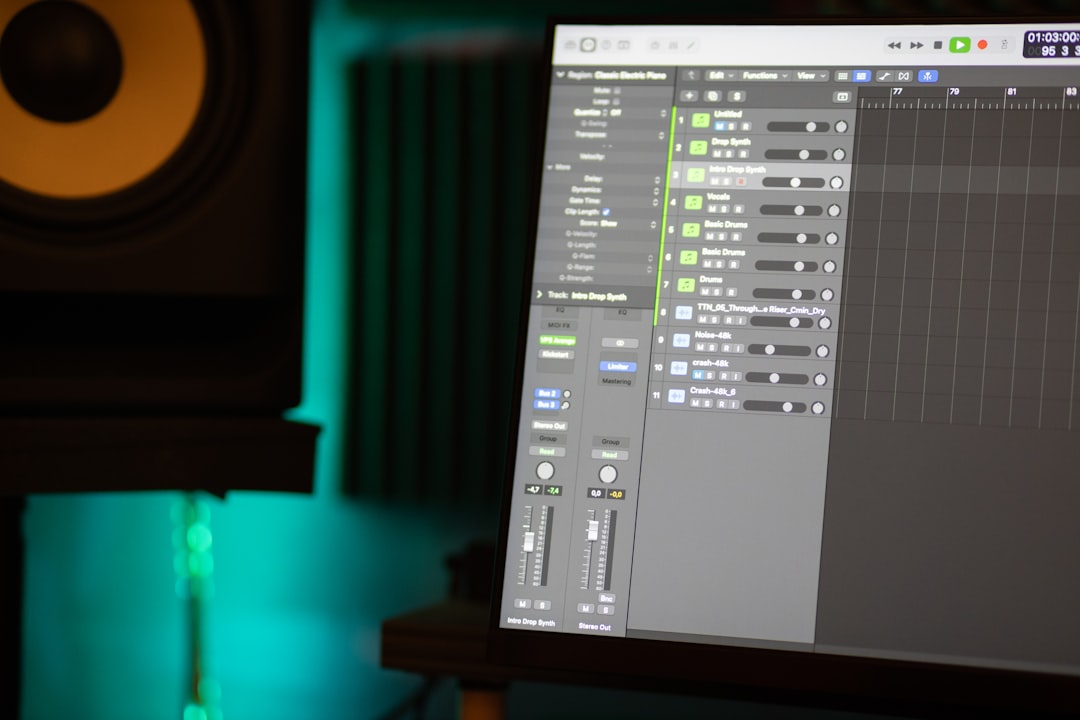
Open the sound in your audio editor.
Then:
- Trim silence at the start and end.
- Normalize volume levels.
- Add fade in or fade out if needed.
- Compress file size for performance.
Short sounds are better for action games. Long sounds work for ambience.
Export to a format your engine supports. Common formats:
- WAV
- MP3
- OGG
For mobile games, compressed formats help reduce size.
Step 4: Import into Your Game Engine
Drag the file into your project’s asset folder.
In Unity:
- Select the file.
- Adjust import settings.
- Set compression and quality.
In Unreal:
- Import into Content Browser.
- Create a Sound Cue.
- Adjust attenuation.
Organize your assets into folders:
- Audio/UI
- Audio/Characters
- Audio/Environment
Clean structure saves headaches later.
Step 5: Attach Sound to AI Behavior
This is where the magic happens.
Your AI likely uses:
- State machines
- Behavior trees
- Event systems
Add a sound trigger inside the correct state.
Example logic:
If AI detects player
→ Play alert sound
Or:
When AI health reaches zero
→ Play defeat sound
Make sure sounds do not overlap too much. That creates chaos.
Step 6: Add 3D Spatial Audio (Optional but Powerful)
This step makes your AI feel real.
3D audio changes volume based on distance.
For example:
- Enemy far away → quiet footsteps
- Enemy close → loud footsteps
Adjust:
- Min distance
- Max distance
- Spatial blend
This adds depth to your world.
Step 7: Test Everything
Testing is crucial.
Play your game with headphones.
Ask:
- Are sounds too loud?
- Do they trigger at the right time?
- Do they repeat too often?
Also test on different devices:
- Desktop
- Mobile
- Tablet
What sounds good on speakers may be too sharp on headphones.
Common Mistakes to Avoid
- Too many sounds. Keep it clean.
- Inconsistent volume. Normalize levels.
- Low quality files. Avoid distortion.
- No audio variation. Repetition feels robotic.
For AI enemies, create 2–3 variations of the same sound. Rotate them randomly. This feels natural.
Pro Tips for Better AI Sound Design
Layer Sounds
Combine a bass hit with a digital click. It feels richer.
Use Silence Wisely
Silence builds tension before a big event.
Match Sound to Personality
- Friendly AI → soft tones
- Enemy AI → sharp mechanical sounds
- Fantasy AI → magical textures
Use Dynamic Audio
Let music change based on AI behavior. Calm during exploration. Intense during combat.
Example Mini Workflow
Let’s say you made a stealth AI game.
- Plan sounds for patrol, alert, and chase.
- Generate alert sound using AI tool.
- Edit and trim in audio editor.
- Import into Unity.
- Attach to “Alert State” in AI state machine.
- Add 3D spatial settings.
- Test while moving around enemy.
Done. That is it.
Final Thoughts
Adding sound effects to an AI game is not hard. It just needs planning and polish.
Start simple. Add basic effects first. Then improve them.
Sound makes AI feel intelligent. It makes actions feel important. It transforms simple code into emotional moments.
And the best part? You do not need to be a sound engineer. Just follow the steps. Use the right tools. Keep testing.
Your AI game will not just look smart.
It will sound alive.



Leave a Reply