Apple Music is usually smooth and fun. Tap a song. It plays. Easy. But sometimes things go wrong. One annoying problem is Apple Music Error 4007. It pops up. Music stops. Your vibe is ruined. Don’t worry. This guide will walk you through fixing it in a simple way.
TLDR: Apple Music Error 4007 is often caused by network issues, outdated apps, or account sync problems. Start by checking your internet and restarting your device. Then update Apple Music and iOS, and sign out and back into your Apple ID. In most cases, one of these quick fixes solves the issue fast.
- What Is Apple Music Error 4007?
- 1. Check Your Internet Connection
- 2. Force Close Apple Music
- 3. Restart Your iPhone or iPad
- 4. Update iOS and Apple Music
- 5. Sign Out and Back Into Your Apple ID
- 6. Turn Sync Library Off and On
- 7. Reset Network Settings
- 8. Check Apple System Status
- Quick Comparison of Fix Options
- Extra Tips to Avoid Error 4007 in the Future
- When to Contact Apple Support
- Final Thoughts
What Is Apple Music Error 4007?
Error 4007 usually shows up when Apple Music cannot connect properly to Apple’s servers. It may appear while streaming, downloading songs, or syncing your library.
In simple terms: your app and Apple’s servers are not talking nicely to each other.
This can happen because of:
- Weak or unstable internet
- Outdated iOS or app version
- Apple ID glitches
- Corrupted cache
- Temporary Apple server issues
The good news? Most fixes take just a few minutes.
1. Check Your Internet Connection
This sounds basic. But it works more often than you think.
Apple Music needs a stable connection. If your Wi‑Fi drops for even a moment, you may get Error 4007.
What to do:
- Turn Wi‑Fi off and back on
- Switch between Wi‑Fi and mobile data
- Restart your router
- Move closer to your router
Quick test: Open Safari and load a website. If it loads slowly, your internet is the problem.
If your internet is stable but the error remains, move to the next step.
2. Force Close Apple Music
Sometimes apps just freeze silently. A quick restart can clear temporary glitches.
How to force close:
- Swipe up from the bottom of your screen
- Find the Apple Music app
- Swipe it up to close
- Reopen the app
This refreshes the app’s connection to Apple servers.
Still seeing 4007? Keep going.
3. Restart Your iPhone or iPad
Yes. The classic fix. And yes, it works.
Restarting clears temporary memory bugs and resets network connections.
How to restart:
- Hold the power button and volume button together
- Slide to power off
- Wait 30 seconds
- Turn the device back on
This simple step fixes many mysterious Apple issues.
4. Update iOS and Apple Music
Outdated software is a big cause of Error 4007.
Apple regularly patches bugs. If you skip updates, small issues can grow.
To update iOS:
- Go to Settings
- Tap General
- Tap Software Update
- Install any available update
To update Apple Music:
- Open the App Store
- Tap your profile icon
- Scroll down to see updates
- Update Apple Music if listed
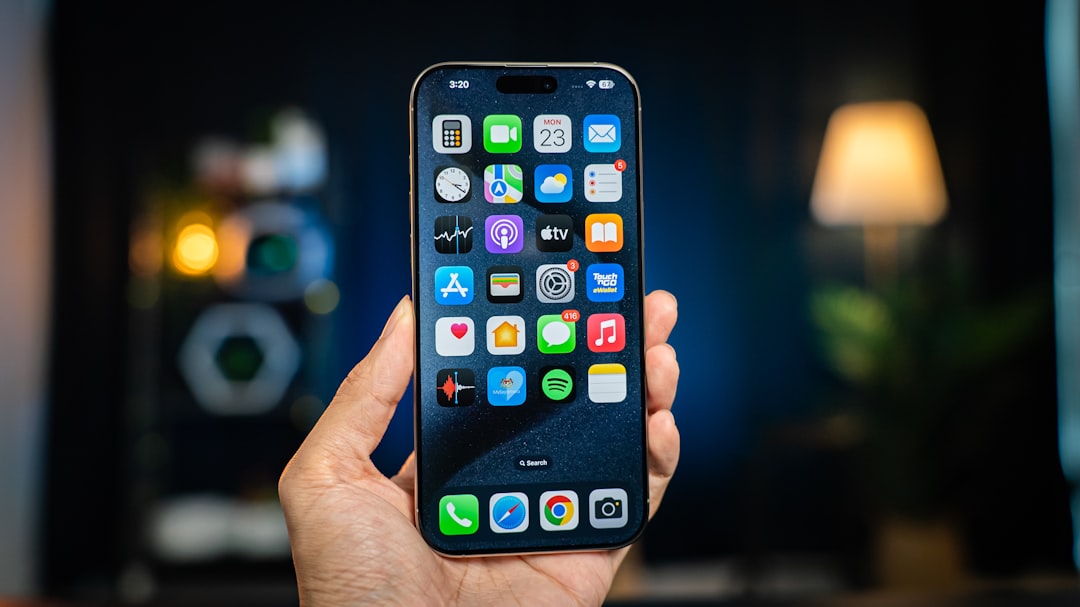
After updating, open Apple Music again and test it.
5. Sign Out and Back Into Your Apple ID
This fix is powerful.
Error 4007 is often linked to account authentication problems. Signing out refreshes your connection to Apple’s servers.
Steps:
- Go to Settings
- Tap your name at the top
- Scroll down and tap Sign Out
- Restart your device
- Sign back in
This may re-sync your Apple Music library.
Warning: Make sure you remember your Apple ID password before signing out.
6. Turn Sync Library Off and On
Sometimes the issue lies in your music library sync.
Resetting it can clear cloud errors.
To toggle Sync Library:
- Go to Settings
- Tap Music
- Turn off Sync Library
- Wait 1 minute
- Turn it back on
This forces your device to reconnect and refresh your music data.
7. Reset Network Settings
If nothing has worked so far, your network settings may be corrupted.
Resetting them can clear stubborn network glitches.
Important: This will erase saved Wi‑Fi passwords.
Steps:
- Go to Settings
- Tap General
- Tap Transfer or Reset iPhone
- Select Reset
- Choose Reset Network Settings
Your phone will restart automatically.
Reconnect to Wi‑Fi and test Apple Music again.
8. Check Apple System Status
Sometimes the issue is not you.
It’s Apple.
If Apple Music servers are down, you cannot fix it. You just wait.
Visit Apple’s System Status page in Safari and look for Apple Music.
Green dot? Apple is fine.
Red or yellow? There’s a live outage.
If it’s an outage, relax. Make coffee. Try again later.
Quick Comparison of Fix Options
| Fix Method | Difficulty | Time Needed | Best For |
|---|---|---|---|
| Check Internet | Very Easy | 2 minutes | Streaming problems |
| Restart App | Very Easy | 1 minute | App freezing |
| Restart Device | Easy | 3 minutes | Random glitches |
| Update iOS | Medium | 10–20 minutes | Outdated software |
| Sign Out Apple ID | Medium | 5 minutes | Account sync issues |
| Reset Network | Advanced | 5 minutes | Persistent network errors |
Extra Tips to Avoid Error 4007 in the Future
Prevention is better than fixing.
Here are simple habits that help:
- Keep iOS updated
- Update apps regularly
- Avoid public Wi‑Fi for streaming
- Restart your phone once a week
- Do not use unofficial music tweaks or jailbreak tools

These small habits keep your music flowing smoothly.
When to Contact Apple Support
If you tried everything and still see Error 4007, it may be a deeper account issue.
Contact Apple Support if:
- The error appears on multiple devices
- You cannot access your Apple ID
- Your subscription appears inactive incorrectly
- The issue lasts more than 48 hours
Apple Support can check server logs linked to your account. That’s something you cannot do yourself.
Final Thoughts
Apple Music Error 4007 looks scary. But it usually isn’t.
Most of the time, it’s just:
- A weak connection
- A small software bug
- A syncing hiccup
Start simple. Check your internet. Restart the app. Update your device.
Work step by step. Do not skip ahead. One of the early fixes usually solves it.
Soon enough, your favorite songs will be back. Loud. Clear. And interruption‑free.
Now go press play.



Leave a Reply