Upgrading your home entertainment setup is no longer just about bigger screens and sharper resolutions. With immersive lighting technology like the Govee AI Sync Box 2, your TV experience can expand beyond the screen and into the entire room. This smart ambient lighting system syncs in real time with what’s playing on your TV, creating dynamic colors and effects that match on-screen action. Whether you’re watching movies, gaming, or streaming sports, the right setup makes all the difference.
TLDR: The Govee AI Sync Box 2 enhances your TV viewing by syncing LED backlights and light bars with on-screen content in real time. Setup involves connecting the Sync Box between your HDMI devices and TV, attaching the LED strips properly, and configuring everything through the Govee Home app. For best results, optimize color calibration, HDMI settings, and scene modes. With a few fine-tuned adjustments, you can transform your living room into an immersive entertainment hub.
- What Is the Govee AI Sync Box 2?
- What Comes in the Box?
- Step 1: Connect the HDMI Devices Properly
- Step 2: Attach the LED Strip Correctly
- Step 3: Download and Configure the Govee Home App
- Step 4: Calibrate for Accurate Color Matching
- Step 5: Optimize HDMI and TV Settings
- Understanding AI Lighting Modes
- How to Group With Other Govee Lights
- Troubleshooting Common Issues
- Placement Tips for Maximum Impact
- Is the Govee AI Sync Box 2 Worth It?
- Final Thoughts
What Is the Govee AI Sync Box 2?
The Govee AI Sync Box 2 is an advanced HDMI sync device that connects between your media sources and your TV. Unlike camera-based ambient lighting systems, it reads video signals directly through HDMI for more accurate and responsive lighting effects. This results in:
- Lower latency for gaming
- More precise color matching
- Support for higher resolutions and refresh rates
- AI-driven lighting effects tailored to scenes and genres
It typically supports HDMI 2.1 features such as 4K at 120Hz (depending on model specifications), making it suitable for next-gen consoles like the PlayStation 5 and Xbox Series X.
What Comes in the Box?
Before starting setup, confirm that you have all included components:
- Govee AI Sync Box 2
- LED light strip (TV backlight)
- Light bars (in some bundles)
- Power adapter
- HDMI cables
- Mounting clips and adhesives
- User manual
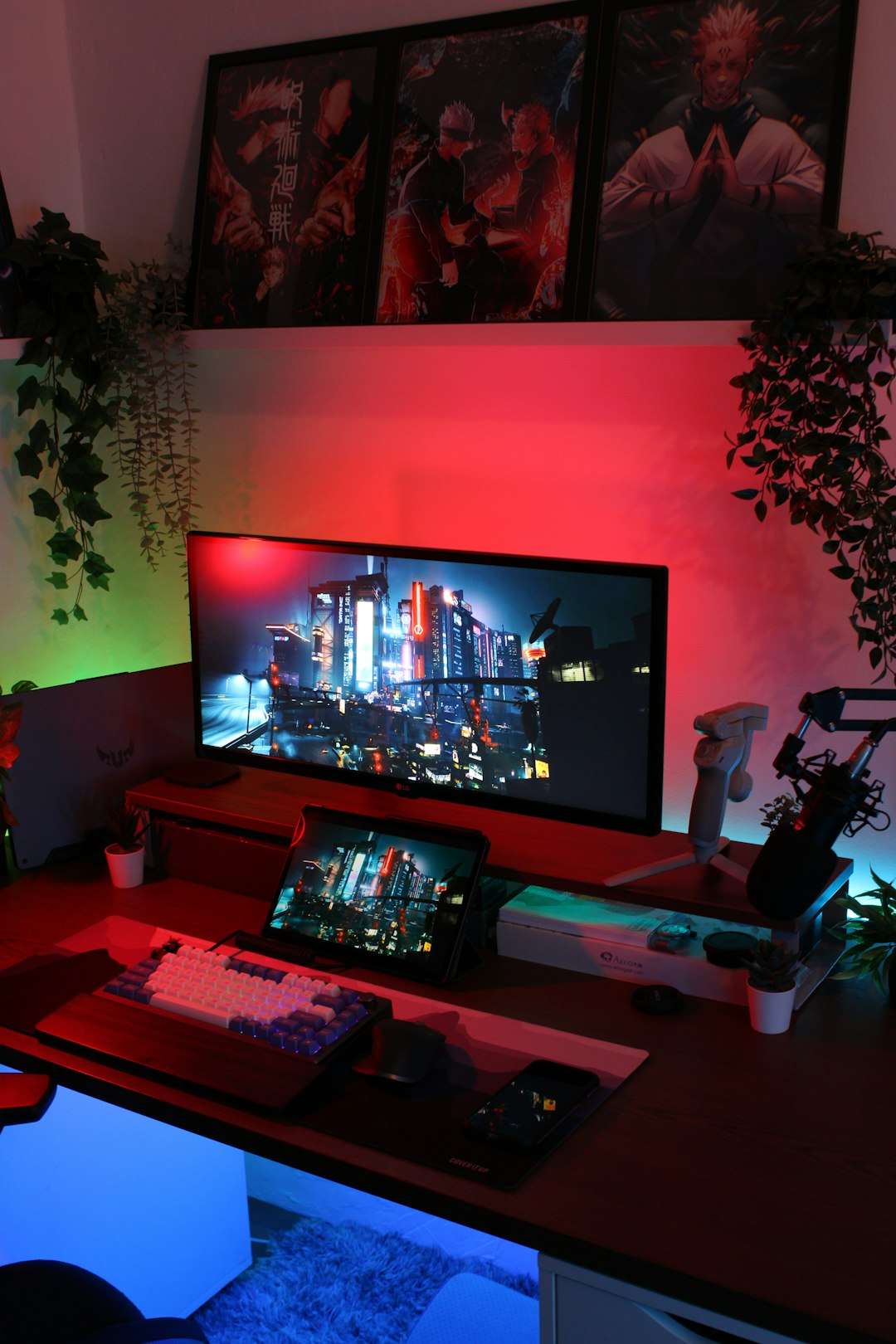
Make sure your TV is wall-mounted or positioned in a way that gives you access to the rear panel, as you’ll need space to attach the LED strip.
Step 1: Connect the HDMI Devices Properly
The core of the Sync Box 2 setup lies in proper HDMI routing. Here’s the correct connection method:
- Connect your streaming device, console, or Blu-ray player to one of the HDMI input ports on the Sync Box.
- Connect the HDMI output port from the Sync Box to your TV’s HDMI input (preferably HDMI 2.1 or eARC if supported).
- Plug in the power adapter for the Sync Box.
This setup allows the Sync Box to analyze the video signal before passing it through to your TV.
Pro Tip: If you use multiple HDMI devices, connect them all to the Sync Box inputs rather than running them directly into your TV. This ensures consistent lighting sync no matter which device you’re using.
Step 2: Attach the LED Strip Correctly
The LED strip installation determines how polished your setup looks. Take your time with this step.
- Clean the back surface of your TV before applying adhesive.
- Start from one bottom corner and work around the perimeter.
- Avoid bending the strip sharply at corners; follow designated fold points.
- Keep the strip aligned with the outer edge for consistent light diffusion.
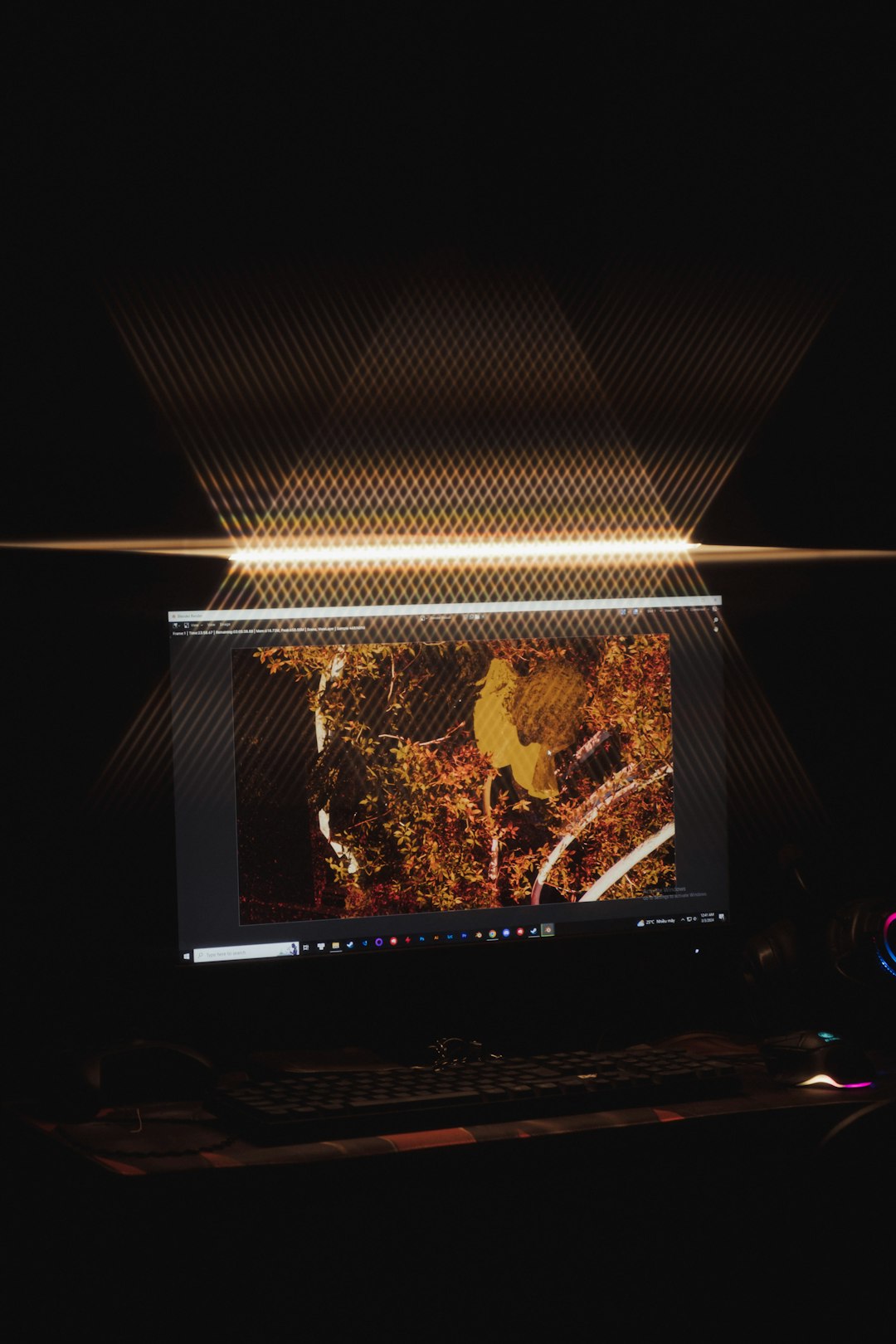
If your kit includes light bars, position them vertically on either side of the TV for expanded ambient coverage.
Step 3: Download and Configure the Govee Home App
Once hardware installation is complete, download the Govee Home app on your Android or iOS device.
- Create or log into your Govee account.
- Add a new device and select AI Sync Box 2.
- Connect it to your Wi-Fi network (2.4GHz is typically required).
- Follow the in-app pairing instructions.
The app is where the real magic happens. It allows you to:
- Adjust brightness and saturation
- Select scene modes
- Enable AI gaming lighting effects
- Calibrate lighting zones
- Group with other Govee smart lights
Step 4: Calibrate for Accurate Color Matching
Calibration ensures that what appears on screen reflects accurately on your wall. Improper calibration can result in mismatched or delayed color responses.
In the app:
- Set your TV size accurately.
- Confirm LED strip orientation.
- Adjust brightness levels relative to room lighting.
- Select the correct TV mounting type (wall-mounted or stand).
For best results:
- Turn off other room lights during initial calibration.
- Use neutral TV picture settings (avoid extreme vivid modes).
- Enable Game Mode on your TV if you’re gaming.
Step 5: Optimize HDMI and TV Settings
To fully unlock the potential of the Sync Box 2, configure your TV and console settings carefully.
TV Settings Checklist
- Enable HDMI Enhanced Format or Deep Color.
- Turn on Game Mode for consoles.
- Disable excessive motion smoothing if it causes lag.
- Ensure resolution and refresh rate match console output.
Gaming Console Settings
- Set resolution to 4K (if supported).
- Enable HDR.
- Activate 120Hz refresh rate if available.
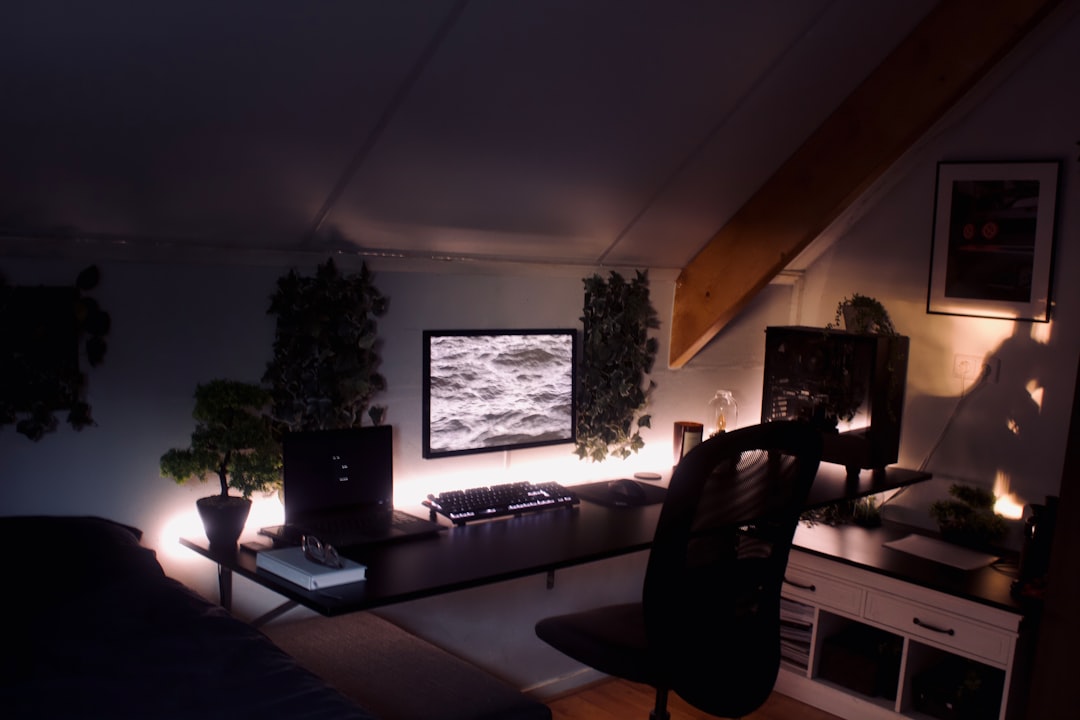
These adjustments reduce latency and ensure the Sync Box reacts instantly to fast-moving scenes.
Understanding AI Lighting Modes
What sets the AI Sync Box 2 apart is its intelligent scene detection. Instead of simply mirroring dominant colors, it interprets content categories.
Common AI modes include:
- Movie Mode: Expands cinematic tones for dramatic immersion.
- Game Mode: Enhances quick flashes and action-heavy sequences.
- Music Mode: Syncs to beats and rhythm.
- Sports Mode: Amplifies field and team colors dynamically.
Experiment with sensitivity settings. Higher sensitivity means faster color transitions, while lower settings create smoother gradients.
How to Group With Other Govee Lights
If you own additional Govee products—such as floor lamps, wall lights, or light panels—you can group them together in the app.
Steps:
- Go to the “Group Control” feature.
- Select compatible devices.
- Assign them to the Sync Box as the master controller.
This creates whole-room synchronization, transforming your space into a fully immersive environment rather than just a glowing TV border.
Troubleshooting Common Issues
No Signal on TV
- Check HDMI cable connections.
- Ensure Sync Box is powered on.
- Test device directly into TV to confirm source works.
Lights Not Syncing Correctly
- Recalibrate in the app.
- Restart Sync Box.
- Check for firmware updates.
Wi-Fi Connection Problems
- Confirm you are using a 2.4GHz network.
- Restart router.
- Move router closer if signal is weak.
Keeping the firmware updated via the Govee Home app ensures better compatibility and performance over time.
Placement Tips for Maximum Impact
Even perfectly synced lights can underperform if your room setup limits diffusion.
- Use a light-colored wall for better glow reflection.
- Leave at least 2–4 inches between TV and wall.
- Avoid blocking light with cables or mounts.
- Dim surrounding lights for cinematic experiences.
If your wall is dark, consider increasing brightness slightly to compensate for reduced reflection.
Is the Govee AI Sync Box 2 Worth It?
If you care about immersion, the answer is yes. The HDMI-based syncing method provides more reliability and precision compared to camera-based alternatives. Gamers benefit from low latency performance, while movie lovers will appreciate deeper visual engagement.
It’s particularly valuable if:
- You own next-gen gaming consoles.
- You frequently watch action-packed content.
- You want a cleaner setup without camera calibration.
- You already use Govee smart lighting products.
Final Thoughts
The Govee AI Sync Box 2 is more than just decorative LED lighting—it’s an intelligent expansion of your screen. While setup requires careful cable routing and calibration, the payoff is a dynamic lighting system that reacts instantly and accurately to your content.
By following proper HDMI configuration, precise LED placement, and thorough app calibration, you can unlock its full potential. Add in optimized TV settings and AI scene modes, and your living room transforms into an immersive theater or high-performance gaming arena.
With the right setup and a bit of fine-tuning, you won’t just watch content—you’ll experience it.
Leave a Reply