Few computer problems are as instantly annoying as clicking a video, joining a meeting, or launching a game in Windows 11 and hearing absolutely nothing. Audio issues can appear suddenly after an update, a driver change, a Bluetooth switch, or even a simple settings mishap. The good news is that most Windows 11 sound problems can be fixed without replacing hardware or reinstalling the operating system.
TLDR: If your Windows 11 sound is not working, start by checking volume, mute status, and the selected output device. Then restart audio services, run the built-in troubleshooter, and update or reinstall your audio drivers. If the problem started after a Windows update or app change, rolling back a driver, checking app permissions, or disabling audio enhancements may restore sound quickly.
- Start With the Obvious: Volume, Mute, and Output Device
- Check App-Specific Volume Settings
- Restart Your PC and Reconnect Audio Devices
- Run the Windows 11 Audio Troubleshooter
- Make Sure the Correct Device Is Set as Default
- Check Whether the Audio Device Is Disabled
- Restart Windows Audio Services
- Update Your Audio Driver
- Reinstall the Audio Driver
- Roll Back the Driver After a Bad Update
- Disable Audio Enhancements
- Check the Audio Format
- Inspect Cables, Ports, and Hardware
- Check Windows Updates
- Look for Conflicts With Exclusive Mode
- When Nothing Works: Use System Restore or Reset Sound Settings
- Final Thoughts
Start With the Obvious: Volume, Mute, and Output Device
Before diving into drivers and system services, check the basics. Windows 11 makes it easy to accidentally route sound to the wrong device, especially if you use Bluetooth headphones, HDMI monitors, USB speakers, docking stations, or virtual audio tools.
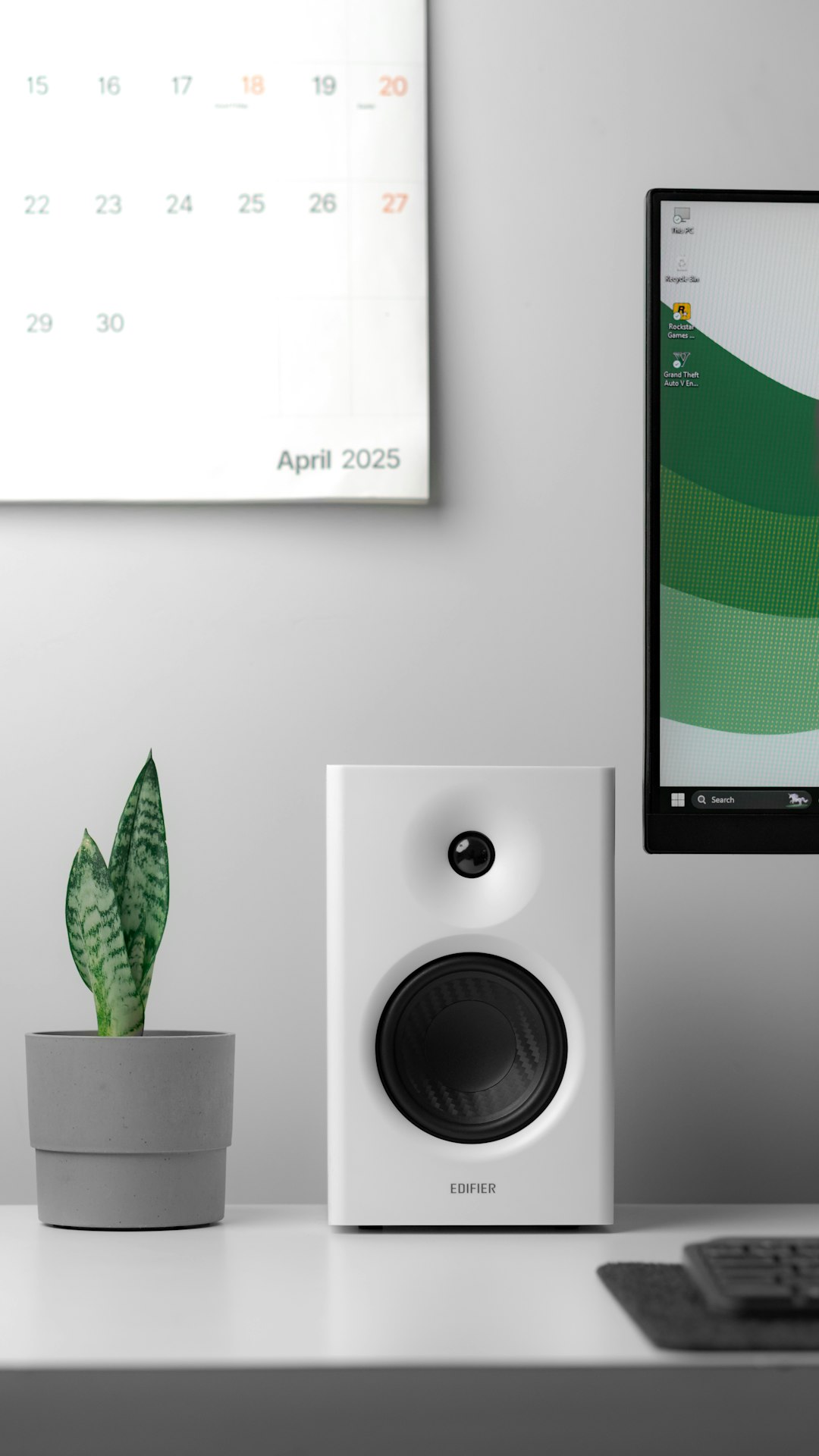
Click the speaker icon in the taskbar, then confirm that the volume slider is not muted or set too low. Next, click the small arrow beside the volume control to open the list of available playback devices. Make sure Windows is sending sound to the device you actually want to use, such as Speakers, Headphones, or your monitor’s audio output.
- Speakers: Choose this if you use built-in laptop speakers or desktop speakers connected by audio jack.
- Headphones: Select this for wired or Bluetooth headphones.
- HDMI or DisplayPort audio: Select your monitor or TV if sound should come through the display.
- USB audio device: Select a USB headset, DAC, soundbar, or external sound card.
If you recently connected a monitor or headset, Windows may have automatically switched output devices. This is one of the most common reasons Windows 11 appears to have “lost” sound.
Check App-Specific Volume Settings
Windows 11 lets you control the volume of individual apps. That is useful, but it can also create confusion. For example, your system volume may be loud, while your browser, media player, or game is muted separately.
To check this, go to Settings > System > Sound > Volume mixer. Under Apps, look for the program that has no sound. Confirm that it is not muted and that its volume slider is raised. Also check that the app is using the correct output device.
This is especially important for communication apps like Microsoft Teams, Zoom, Discord, and Skype, because they often have their own internal audio device settings. Open the app’s audio settings and confirm that the correct speakers or headset are selected.
Restart Your PC and Reconnect Audio Devices
It may sound too simple, but restarting your computer can resolve temporary audio glitches caused by stuck services, failed driver loading, or device handoff problems. If you are using an external audio device, disconnect it before restarting. Then reconnect it after Windows fully loads.
For Bluetooth audio, try this sequence:
- Turn off the Bluetooth headphones or speaker.
- Open Settings > Bluetooth & devices.
- Remove or disconnect the device if it appears stuck.
- Restart Windows 11.
- Pair the device again and test audio.
Bluetooth devices can sometimes connect for calls only, media only, or with the wrong audio profile. Re-pairing often clears that confusion.
Run the Windows 11 Audio Troubleshooter
Windows 11 includes an audio troubleshooter that can automatically detect common problems, such as disabled devices, incorrect default output, service issues, and driver conflicts. It does not fix everything, but it is worth running because it can solve simple configuration problems quickly.
To run it, open Settings > System > Sound, scroll down, and select Troubleshoot common sound problems. Choose the output device you want to fix and follow the prompts.
You can also go to Settings > System > Troubleshoot > Other troubleshooters, then run the Audio troubleshooter. If Windows suggests applying a fix, accept it and test your sound afterward.
Make Sure the Correct Device Is Set as Default
Sometimes an audio device appears in Windows but is not set as the default playback device. This can happen after installing a new monitor, connecting a controller with a headphone jack, using remote desktop software, or adding virtual audio software.
To set your preferred output as default:
- Open Settings.
- Select System, then Sound.
- Under Output, choose your desired device.
- Click the device name to open its properties.
- Make sure it is allowed and selected for audio playback.
You can also use the classic sound panel by pressing Windows + R, typing mmsys.cpl, and pressing Enter. In the Playback tab, right-click your preferred device and choose Set as Default Device.
Check Whether the Audio Device Is Disabled
Windows may list an audio device as disabled, especially after driver updates or after changing privacy and device settings. In Settings > System > Sound, scroll down to Advanced and open All sound devices. Select your speaker, headset, or audio output and check whether it is allowed.
If you see an Allow button, click it. That means the device was blocked. After enabling it, return to the Sound page and test playback.
Restart Windows Audio Services
Audio in Windows depends on background services. If one of these services freezes or fails to start correctly, sound may stop working even though everything appears normal in Settings.
To restart audio services:
- Press Windows + R.
- Type services.msc and press Enter.
- Find Windows Audio.
- Right-click it and choose Restart.
- Do the same for Windows Audio Endpoint Builder.
After restarting these services, play a test sound or open a video. If audio returns, the issue was likely a temporary service failure.

Update Your Audio Driver
Audio drivers act as translators between Windows 11 and your sound hardware. If a driver is outdated, corrupted, or incompatible with a recent Windows update, sound may stop working, crackle, lag, or disappear from the output list entirely.
To update your audio driver:
- Right-click the Start button.
- Select Device Manager.
- Expand Sound, video and game controllers.
- Right-click your audio device, such as Realtek Audio, Intel Smart Sound Technology, or a USB headset.
- Select Update driver.
- Choose Search automatically for drivers.
If Windows says the best driver is already installed, that does not always mean the newest manufacturer driver is installed. Visit your laptop, motherboard, or sound device manufacturer’s support page and download the latest Windows 11 audio driver available for your exact model.
Reinstall the Audio Driver
If updating does not help, reinstalling the driver may fix corrupted driver files. This process sounds intimidating, but Windows can usually reinstall a basic working driver automatically.
Open Device Manager, expand Sound, video and game controllers, right-click your audio device, and choose Uninstall device. If you see a checkbox for Attempt to remove the driver for this device, use it only if you plan to install a fresh driver from the manufacturer afterward.
Restart your PC. Windows should detect the audio hardware and reinstall the driver. If it does not, install the driver manually from your device manufacturer’s website.
Roll Back the Driver After a Bad Update
If your sound stopped working immediately after a Windows update or driver update, the new driver may be the problem. In that case, rolling back to the previous version can restore audio.
In Device Manager, right-click the audio device and select Properties. Open the Driver tab and click Roll Back Driver if the option is available. Follow the prompts, then restart your PC.
If the button is greyed out, Windows does not have a previous driver stored. You may still be able to download an older driver from the manufacturer’s support page.
Disable Audio Enhancements
Audio enhancements can improve sound by adding equalization, spatial effects, loudness normalization, or virtual surround. However, they can also cause silence, distortion, low volume, or compatibility issues with certain drivers and apps.
To disable them, go to Settings > System > Sound, select your output device, and look for Audio enhancements. Set it to Off. If you see Spatial sound, turn that off temporarily as well.
Test your audio again. If it works, you can re-enable enhancements one at a time to find the feature that caused the issue.
Check the Audio Format
An unsupported audio format can prevent sound from playing correctly through certain speakers, headsets, or external DACs. For example, a device may not handle a very high sample rate selected in Windows.
Open Settings > System > Sound, click your output device, and look for Format. Try a common option such as 24 bit, 48000 Hz or 16 bit, 44100 Hz. Then click Test if available.
This is a small setting, but it can make a big difference when using studio equipment, USB audio interfaces, or older speaker systems.
Inspect Cables, Ports, and Hardware
If you use wired speakers or headphones, rule out physical problems. Make sure the plug is fully inserted into the correct port. On many desktops, the green port is used for speakers or headphones. If your case has front and rear audio ports, try both.
For USB devices, try another USB port. Avoid unpowered hubs while troubleshooting. For HDMI audio, confirm that your monitor or TV volume is not muted and that the display itself supports audio output.
Also test the same speakers or headphones on another device. If they do not work anywhere, the problem is probably the accessory rather than Windows 11.
Check Windows Updates
Windows Update can both cause and fix sound problems. If your issue appeared after a recent update, check whether Microsoft or your hardware manufacturer has already released a fix.
Go to Settings > Windows Update and click Check for updates. Then open Advanced options > Optional updates. Look for driver updates related to audio, chipset, Intel, Realtek, AMD, NVIDIA, or your device manufacturer.
Be selective with optional drivers. If your sound is completely broken, they may help. If your audio is currently working, avoid installing optional drivers unnecessarily.
Look for Conflicts With Exclusive Mode
Some apps can take exclusive control of an audio device. This is common with digital audio workstations, recording tools, certain games, and communication apps. When exclusive mode causes trouble, one app may have sound while others remain silent.
To change this behavior, open the classic sound panel by pressing Windows + R, typing mmsys.cpl, and pressing Enter. Select your playback device, click Properties, then open the Advanced tab. Uncheck Allow applications to take exclusive control of this device, click Apply, and test again.
When Nothing Works: Use System Restore or Reset Sound Settings
If audio stopped working after a major system change, System Restore may be the fastest way back. Search for Create a restore point, open System Restore, and choose a restore point from before the issue began. This will not remove personal files, but it may undo driver, registry, and system setting changes.
You can also reset app volume and device preferences by going to Settings > System > Sound > Volume mixer and selecting Reset. This restores audio routing and app volumes to Microsoft’s recommended defaults.
Final Thoughts
Windows 11 audio problems can feel mysterious, but they usually come down to one of a few causes: the wrong output device, muted app volume, a stuck audio service, a bad driver, or a device conflict. Work through the fixes in order, starting with the simplest checks before moving to driver reinstallations or system recovery.
Most importantly, pay attention to what changed right before the sound stopped working. A new headset, a Windows update, a monitor connection, or an app installation can provide the clue you need. With a methodical approach, you can usually restore your audio and get back to listening, watching, meeting, or gaming without much downtime.


Leave a Reply