If you are using ChatGPT and want to tell OpenAI whether an answer was helpful, inaccurate, unsafe, incomplete, or simply not what you expected, the feedback option is usually built directly into the conversation interface. However, its exact location can vary depending on whether you are using ChatGPT on the web, in the mobile app, in a desktop app, or inside a specific feature such as a custom GPT. This guide explains where to find the feedback controls, what each option is for, and how to submit useful feedback in a way that is clear, responsible, and more likely to be actionable.
TLDR: The main feedback option in ChatGPT is usually found near each assistant response, often as a thumbs up or thumbs down icon. On mobile, you may need to tap or press near the response to reveal feedback controls. For technical issues, billing problems, account access, or safety concerns, use the OpenAI Help Center rather than only rating a response. The most useful feedback is specific, factual, and includes what went wrong and what you expected instead.
- Where the Feedback Option Usually Appears in ChatGPT
- How to Give Feedback on the ChatGPT Web Version
- How to Give Feedback in the ChatGPT Mobile App
- What Happens When You Click Thumbs Up or Thumbs Down?
- What Kind of Feedback Should You Submit?
- Is Feedback the Same as Contacting Support?
- How to Report a Serious Safety or Policy Concern
- Why You May Not See the Feedback Option
- Can You Give Feedback on Custom GPTs?
- Tips for Writing Feedback That Actually Helps
- Final Thoughts
Where the Feedback Option Usually Appears in ChatGPT
In most versions of ChatGPT, the quickest way to give feedback is from the toolbar attached to an individual assistant message. After ChatGPT responds, look beneath or near the answer for small action icons. These may include options such as copy, read aloud, regenerate, thumbs up, and thumbs down. The feedback buttons are generally represented by the thumbs up and thumbs down icons.
The purpose of these controls is straightforward: they let you indicate whether the response was useful or problematic. A thumbs up usually means the answer was helpful, accurate, or satisfactory. A thumbs down is used when the response was wrong, incomplete, misleading, irrelevant, unsafe, poorly formatted, or otherwise unhelpful.
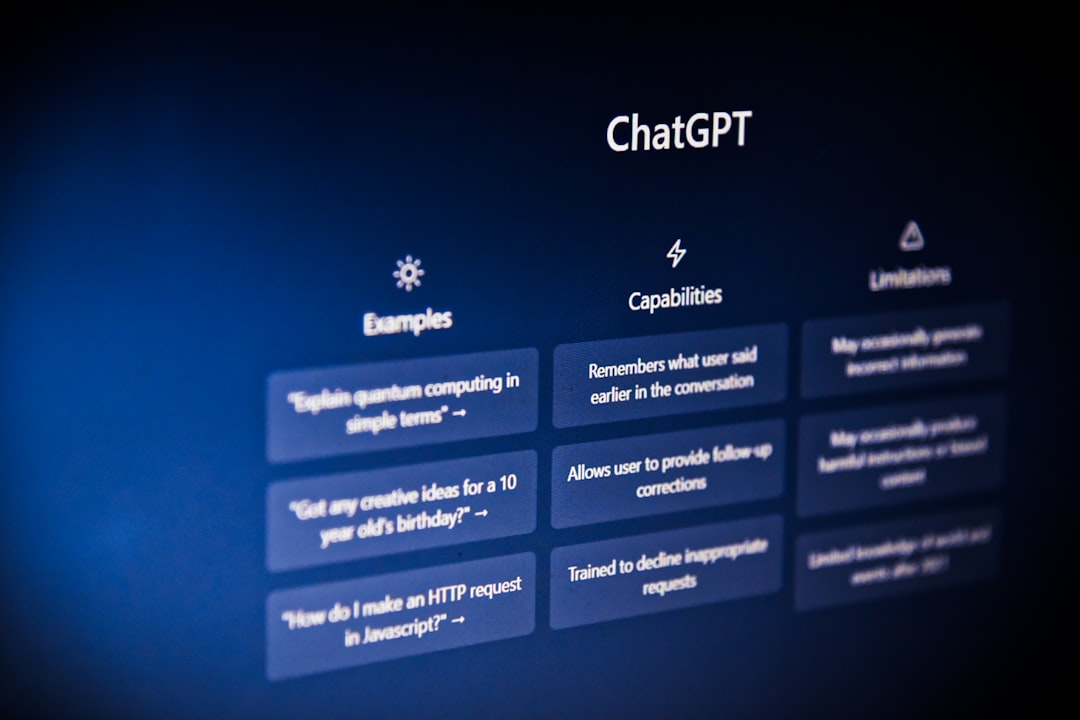
Depending on product updates, your interface may look slightly different. OpenAI frequently tests and improves layouts, so the feedback option may be visible immediately, hidden until you hover over a response, or available after tapping a menu. If you cannot see it at first, move your cursor over the assistant’s response on desktop, or tap the message area on mobile.
How to Give Feedback on the ChatGPT Web Version
If you are using ChatGPT in a web browser, the feedback controls are typically located directly under the response you want to rate. Follow these steps:
- Open the conversation containing the response you want to review.
- Find the specific assistant message that you want to give feedback on.
- Look below the message for the response toolbar.
- Click the thumbs up icon if the answer was helpful.
- Click the thumbs down icon if the answer was incorrect, incomplete, unsafe, or not useful.
- Add written details if a feedback box appears. This is optional in some cases, but strongly recommended.
When you select negative feedback, ChatGPT may ask you why the answer did not meet your expectations. You might see choices such as the answer being inaccurate, harmful, irrelevant, overly long, not following instructions, or missing key information. If there is a text box, use it to explain the issue clearly.
A useful example would be: “The answer says the policy changed in 2025, but the official source still lists the 2024 rule. Please verify the date and cite a reliable source.” This is more helpful than simply writing “wrong” because it identifies the exact issue.
How to Give Feedback in the ChatGPT Mobile App
On the ChatGPT mobile app, the feedback option is usually available near each response, but it may be less visible because of limited screen space. You may need to tap the message, press and hold near the response, or look for a small menu icon. In many app versions, the thumbs up and thumbs down icons appear under the assistant’s message after you interact with it.
To submit feedback on mobile:
- Open the ChatGPT app and go to the relevant conversation.
- Scroll to the assistant response you want to rate.
- Tap the response area or look below the message for icons.
- Select thumbs up for helpful feedback or thumbs down for a problem.
- If prompted, choose a reason and add a short explanation.
If the icons do not appear, make sure your app is updated. Interface changes often arrive through app updates, and older versions may not display the same controls. You can also close and reopen the app if the toolbar is not responding correctly.
What Happens When You Click Thumbs Up or Thumbs Down?
When you rate a response, you are sending a signal about the quality of that specific answer. This feedback may be used to improve systems, identify common failure patterns, and evaluate model behavior. In some cases, your feedback may be reviewed along with the conversation context, depending on your settings and applicable policies.
The thumbs up option generally communicates that the response was useful. The thumbs down option communicates that something was wrong or unsatisfactory. Negative feedback is often more valuable when you provide details, because a simple downvote does not explain whether the problem was factual accuracy, tone, formatting, safety, missing context, or failure to follow instructions.
Before submitting sensitive details, remember that feedback may involve sending information related to the conversation. Avoid adding private data such as passwords, confidential business information, medical record numbers, financial account details, or personal identifiers unless absolutely necessary and appropriate.
What Kind of Feedback Should You Submit?
Good feedback is specific, neutral, and focused on the response. A serious and actionable feedback report usually includes three elements: what happened, why it was a problem, and what you expected instead.
Here are examples of useful feedback:
- Accuracy issue: “The response states that this law applies nationwide, but it only applies in California.”
- Instruction issue: “I asked for a 200 word summary, but the response is over 700 words.”
- Formatting issue: “I requested a table with three columns, but the answer is written as paragraphs.”
- Relevance issue: “The answer discusses marketing strategy, but my question was about customer support workflows.”
- Safety issue: “The response provides instructions that could enable harmful activity.”
Poor feedback is vague or emotional without details. For example, “bad answer” or “this is useless” does not provide enough information to understand the failure. It may still register dissatisfaction, but it is less helpful than a precise explanation.
Is Feedback the Same as Contacting Support?
No. This is an important distinction. The thumbs up and thumbs down buttons are primarily for rating the quality of ChatGPT’s responses. They are not the best channel for urgent account problems, billing disputes, login failures, subscription issues, or technical bugs that require direct assistance.
If you need help with your account or a product issue, you should use the official OpenAI Help Center. In many cases, you can access it through a help icon, a question mark menu, or by visiting the Help Center in your browser. There may also be a support chat or message option available depending on your location, account type, and the nature of the issue.

Use response feedback for problems such as:
- The answer is factually wrong.
- The answer ignores your instructions.
- The answer is incomplete or unclear.
- The tone is inappropriate.
- The model refuses when it should not, or answers when it should refuse.
Use support channels for problems such as:
- You cannot log in.
- You were charged incorrectly.
- Your subscription is not working.
- The app crashes repeatedly.
- You need help with account security or data controls.
How to Report a Serious Safety or Policy Concern
If ChatGPT produces content that appears dangerous, abusive, illegal, or otherwise unsafe, the thumbs down button is a reasonable first step. Select the option that best describes the issue if a feedback form appears. Be concise but specific about why the response is concerning.
For more serious matters, especially those involving potential harm, impersonation, security threats, or abuse, consider using the appropriate official reporting or support route. Feedback attached to a response may help improve the model, but it may not function as an urgent escalation channel.
When reporting safety concerns, do not add unnecessary sensitive information. Explain the nature of the risk without expanding harmful details. For example, instead of repeating dangerous instructions, you can write: “The answer gave step by step instructions for harmful activity and should have refused or redirected to safe information.”
Why You May Not See the Feedback Option
If you cannot find the feedback option, there are several possible reasons. The interface may have changed, the response toolbar may be hidden, your app may be outdated, or the feature may appear differently on your device. Some workplace, educational, or enterprise versions may also have customized settings.
Try the following troubleshooting steps:
- Hover over the response if you are using a desktop browser.
- Tap the response if you are using a mobile device.
- Look for a three dot menu near the message.
- Update the app if you are using iOS, Android, or desktop software.
- Refresh the page or restart the app.
- Check another browser if the toolbar appears broken.
If none of these steps work, use the Help Center to report that the feedback controls are missing or not functioning. Include your device type, browser or app version, operating system, and a short description of what you expected to see.
Can You Give Feedback on Custom GPTs?
Custom GPTs may include their own behavior, instructions, knowledge files, or connected actions. If a custom GPT gives a poor answer, you can usually still use the same response feedback controls near the assistant message. However, the cause of the problem may be different. The issue could come from the underlying model, the GPT creator’s instructions, outdated uploaded knowledge, or the way the GPT is configured.
If the custom GPT has a creator profile or reporting option, you may also see ways to report the GPT itself, especially if it appears misleading, abusive, or policy violating. For ordinary answer quality issues, the thumbs down button on the specific response remains the simplest feedback route.
Tips for Writing Feedback That Actually Helps
To make your feedback more useful, follow these principles:
- Be specific: Identify the exact sentence, claim, or behavior that caused the issue.
- Be factual: If possible, mention the correct information or the standard you expected.
- Be brief: A few clear sentences are better than a long complaint.
- Be objective: Avoid insults or emotional language that does not clarify the problem.
- Include context: If the model ignored your prompt, explain which instruction it failed to follow.

For example, strong feedback might say: “The response did not follow my request to avoid legal advice. It should have provided general information and suggested consulting a qualified professional.” This identifies the instruction, the failure, and the preferred response style.
Final Thoughts
The option to give feedback on ChatGPT is usually located directly beside or below each assistant response, most commonly through thumbs up and thumbs down icons. If you do not see the controls immediately, hover over the message on desktop or tap near it on mobile. For answer quality, use the built in feedback buttons; for account, billing, access, or technical problems, use the official support channels.
Feedback is most valuable when it is precise and responsible. A clear note about what went wrong, why it matters, and what should have happened instead can help improve future responses and make the system more reliable for everyone.



Leave a Reply