Holographic technology is no longer confined to science fiction or large-scale concert productions. With the rise of accessible AI avatars, projection systems, and real-time rendering software, organizations and individuals can now create convincing hologram-style experiences for events, education, retail, and communication. While true volumetric holography remains complex and expensive, practical and visually impressive hologram simulations are achievable with today’s tools and a structured approach.
TL;DR: Creating a hologram using an AI avatar involves designing a realistic digital persona, generating animation or speech-driven video, and projecting it using specialized display methods such as hologram fans, transparent screens, or Pepper’s Ghost setups. The process requires selecting the right avatar platform, preparing a 3D-compatible visual output, and aligning it with suitable hardware for projection. With careful planning and professional-grade tools, you can produce a highly convincing holographic experience for events, marketing, or education.
This article outlines the tools, technical considerations, and step-by-step process required to create a hologram using an AI avatar in a reliable and professional manner.
- Understanding What “Hologram” Means in Practice
- Core Components You Will Need
- Step 1: Create or Select an AI Avatar
- Step 2: Animate and Generate Output
- Step 3: Choose a Hologram Display Method
- Step 4: Format Content for the Display Type
- Step 5: Integrate AI Interactivity (Optional Advanced Step)
- Step 6: Test Environment and Lighting Conditions
- Common Mistakes to Avoid
- Estimated Budget Overview
- Professional Use Cases
- Conclusion
Understanding What “Hologram” Means in Practice
Before diving into tools and steps, it is essential to clarify terminology. Most commercially available “holograms” are not laser-based volumetric holograms. Instead, they are:
- Projection illusions (e.g., Pepper’s Ghost effect)
- 3D volumetric LED fan displays
- Transparent OLED or projection surfaces
- AR-based holographic simulations
For most applications involving AI avatars, the objective is to create a three-dimensional visual illusion that appears to float in space. The realism depends more on lighting, perspective, and animation quality than on expensive hardware alone.
Core Components You Will Need
Creating an AI-driven hologram requires combining software generation with physical projection technology. The process involves three main layers:
- AI Avatar Creation and Animation
- Rendering and Output Formatting
- Holographic Display Hardware
Step 1: Create or Select an AI Avatar
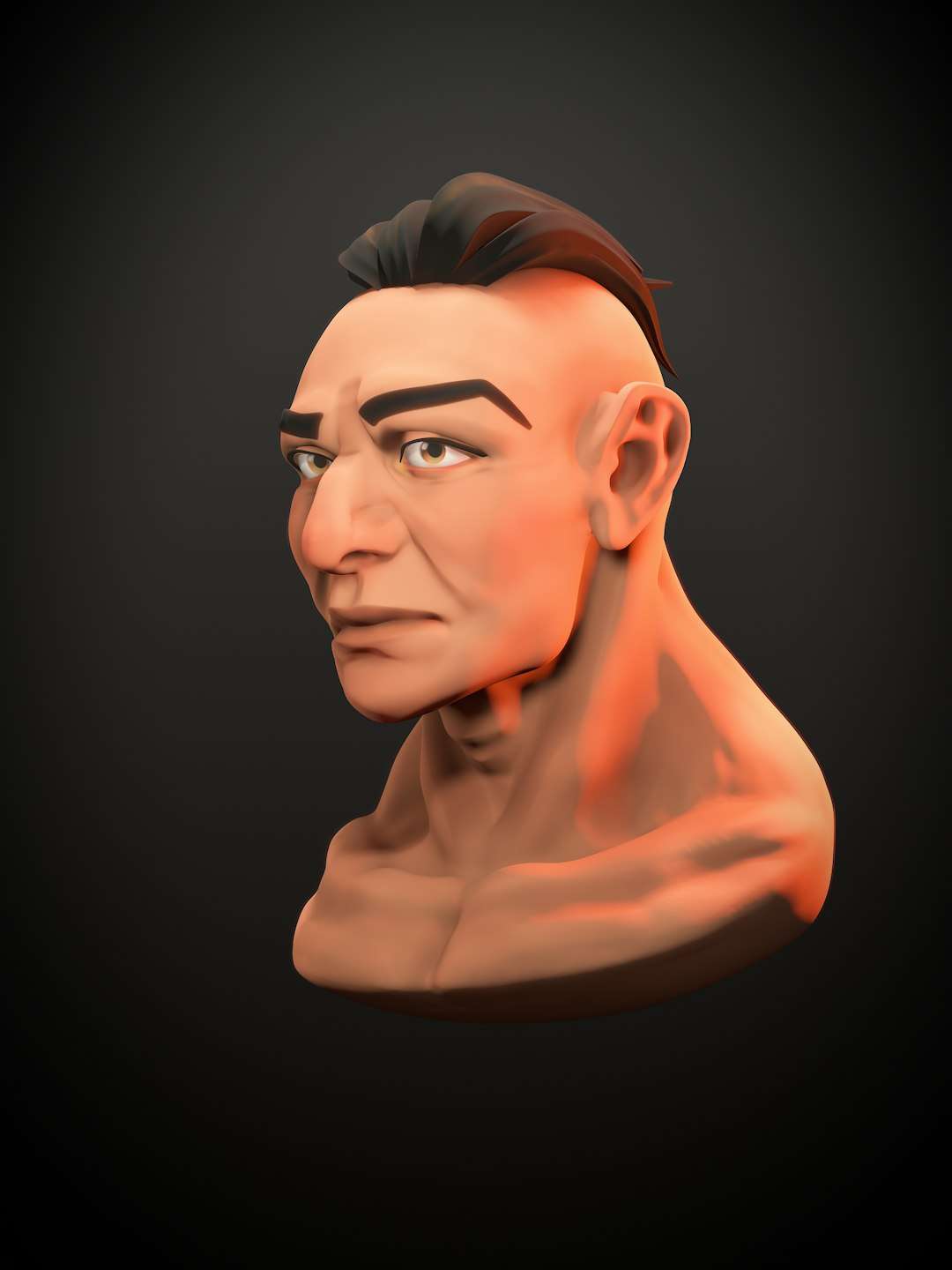
The foundation of your hologram is a high-quality digital persona. A professional result requires more than a static portrait — you need a fully animated character capable of realistic movement and speech synchronization.
Key Requirements for an AI Avatar
- Realistic facial animations
- Natural lip synchronization
- Customizable voice synthesis
- High-resolution video or 3D model export
- Transparent background export capability (alpha channel)
Popular AI Avatar Tools
| Tool | Best For | 3D Model Export | Transparent Background | Real-Time Capable |
|---|---|---|---|---|
| Synthesia | Business presenters | No (2D video) | Limited | No |
| HeyGen | Marketing avatars | No (2D video) | Yes (Pro workflows) | No |
| Ready Player Me | 3D custom avatars | Yes | Yes | Yes |
| MetaHuman Creator | Ultra realistic humans | Yes (via Unreal Engine) | Yes | Yes |
| D-ID | Photo based animation | No | Limited | No |
For professional holographic projection, 3D avatars are typically preferable because they integrate better with real-time engines like Unity or Unreal Engine.
Step 2: Animate and Generate Output
Once your avatar is created, you must animate it. This can be done in several ways:
- Pre-recorded scripted speech
- AI-generated speech from text input
- Real-time motion capture
- Live voice-driven animation
Important Technical Settings
When preparing your animated output for holographic display:
- Use a transparent background (alpha channel or green screen removal).
- Export in high resolution (minimum 1080p, ideally 4K for large displays).
- Use vertical framing for hologram fans.
- Ensure strong contrast between the avatar and surroundings.
Lighting simulation matters significantly. Dark backgrounds enhance the illusion of floating visuals. Bright ambient light reduces hologram visibility.
Step 3: Choose a Hologram Display Method
Your hardware choice determines how convincing your hologram appears. The most common display methods include:
1. Pepper’s Ghost Setup
This classic illusion uses angled transparent glass or acrylic to reflect a projected image, creating a floating 3D effect.
Advantages:
- Cost effective
- Large stage compatibility
- Widely used in events
Requirements:
- High brightness projector or LED screen
- Transparent reflective film
- Controlled lighting environment
2. Hologram Fan Display
LED fan displays use rapidly spinning blades with attached LEDs to create a volumetric illusion.
Advantages:
- Compact and self-contained
- Strong floating effect
- Effective for retail environments
Limitations:
- Size constraints
- Moderate brightness limitations
- Requires properly formatted video
3. Transparent OLED or Projection Film
These displays use transparent panels to create a semi-floating effect.
- High professional finish
- Suitable for corporate installations
- Supports interactive systems
Step 4: Format Content for the Display Type
Each hardware method requires specific formatting:
For Pepper’s Ghost:
- Flip image vertically if required.
- Position subject against pure black background.
- Align perspective to projection angle.
For Hologram Fans:
- Use black backgrounds only.
- Center subject precisely.
- Avoid small details that blur during rotation.
For Transparent Screens:
- Brightness calibration is critical.
- Avoid thin lines or low contrast elements.
- Test viewing angles from multiple positions.
Step 5: Integrate AI Interactivity (Optional Advanced Step)
To increase realism, you can connect your AI avatar to:
- Speech recognition systems
- Chatbot language models
- Live data feeds
- Touch or gesture interfaces
This requires integration between:
- Avatar engine (e.g., Unreal or Unity)
- AI conversation model
- Text to speech system
- Audio playback synchronization
This configuration allows the hologram to respond dynamically, making it suitable for:
- Trade shows
- Museums
- Corporate lobbies
- Product launches
Step 6: Test Environment and Lighting Conditions
Even high-quality content can appear unconvincing in poor conditions. Before deployment:
- Test brightness levels in real lighting.
- Minimize overhead light interference.
- Adjust avatar scale for human realism.
- Verify synchronization between audio and animation.
Professional installations often fail not because of software limitations, but because of improper environmental calibration.
Common Mistakes to Avoid
- Using low-resolution exported video
- Choosing bright backgrounds instead of black
- Ignoring viewing angle limitations
- Overcomplicating animation with excessive movement
- Failing to test projection alignment
Maintaining simplicity improves realism. Subtle motion appears more convincing than exaggerated gestures.
Estimated Budget Overview
A practical hologram AI avatar project may range in cost:
- $0–$100/month: Basic AI avatar software subscription
- $1,000–$3,000: Professional hologram fan hardware
- $2,000–$10,000+: Stage-based Pepper’s Ghost setup
- $5,000–$20,000+: Transparent OLED installations
Budgets vary significantly based on scale, realism requirements, and interactivity features.
Professional Use Cases
Organizations are increasingly deploying AI holograms for:
- Virtual receptionists
- Executive keynote simulations
- Retail product demonstrations
- Educational tutors
- Museum guides
The advantage lies in the combination of visual presence and automated intelligence. An AI hologram can deliver consistent messaging without fatigue, travel costs, or scheduling constraints.
Conclusion
Creating a hologram using an AI avatar involves more coordination than many expect. It requires a deliberate combination of content generation, animation technology, output formatting, and physical projection systems. When approached systematically, however, the process is entirely achievable with current tools.
The key to a professional outcome lies not in expensive hardware alone, but in thoughtful execution: high-quality avatar design, proper background contrast, appropriate projection formatting, and controlled lighting conditions.
As AI continues to advance, holographic simulations will become more immersive, interactive, and indistinguishable from physical presence. Organizations that understand the technical framework today will be well-positioned to deploy increasingly sophisticated holographic experiences in the near future.



Leave a Reply