A Redtiger 4K dash cam is designed to give you crisp, reliable front and rear footage every time you hit the road. But like any advanced piece of technology, it can occasionally run into issues—blank screens, rear camera not displaying, freezing recordings, or corrupted video files. When your dash cam stops working properly, it can be frustrating, especially when you rely on it for protection and evidence.
TLDR: If your Redtiger 4K dash cam isn’t working, most issues stem from power supply problems, faulty SD cards, loose rear camera connections, outdated firmware, or incorrect settings. Start with simple checks like inspecting cables and formatting your SD card before moving on to firmware updates or hardware inspection. In many cases, you can fix front and rear camera problems at home without professional repair. This guide walks you through eight practical solutions step by step.
- Common Symptoms of Redtiger 4K Dash Cam Issues
- 1. Check the Power Source and Hardwire Kit
- 2. Inspect the Rear Camera Cable Connection
- 3. Format or Replace the SD Card
- 4. Perform a Factory Reset
- 5. Update the Firmware
- 6. Check Resolution and Recording Settings
- 7. Inspect the Mount and Camera Angle
- 8. Test the Internal Battery or Capacitor
- Helpful Tools Comparison Chart
- When to Contact Redtiger Support
- Preventing Future Dash Cam Problems
- Final Thoughts
Common Symptoms of Redtiger 4K Dash Cam Issues
Before diving into fixes, it helps to identify what problem you’re facing. The most common complaints include:
- Front camera not recording
- Rear camera not displaying
- Device won’t power on
- Screen frozen or black
- Recording stops randomly
- SD card error messages
Now let’s break down the eight most effective fixes for these issues.
1. Check the Power Source and Hardwire Kit
If your Redtiger dash cam won’t turn on—or randomly shuts off—the issue often lies with the power supply.
What to check:
- Cigarette lighter adapter is firmly plugged in
- USB cable has no visible damage
- Hardwire kit fuse is intact
- Vehicle outlet is functioning
Try plugging another device into the same socket. If it doesn’t work, the socket may be faulty. If you’re using a hardwire kit, inspect the fuse tap and grounding point. Loose connections here commonly cause intermittent power loss.
Pro tip: Use a multimeter to test voltage output. Your camera typically requires 5V input.
2. Inspect the Rear Camera Cable Connection
If the front camera works but the rear camera doesn’t display, the culprit is usually the extension cable.
Rear camera cables run along the headliner and can become pinched or slightly unplugged. Even a minor looseness can prevent signal transmission.
Steps:
- Power off the dash cam.
- Unplug and reseat both ends of the rear camera cable.
- Check for visible wear or bent connector pins.
- Restart the unit and check the display.
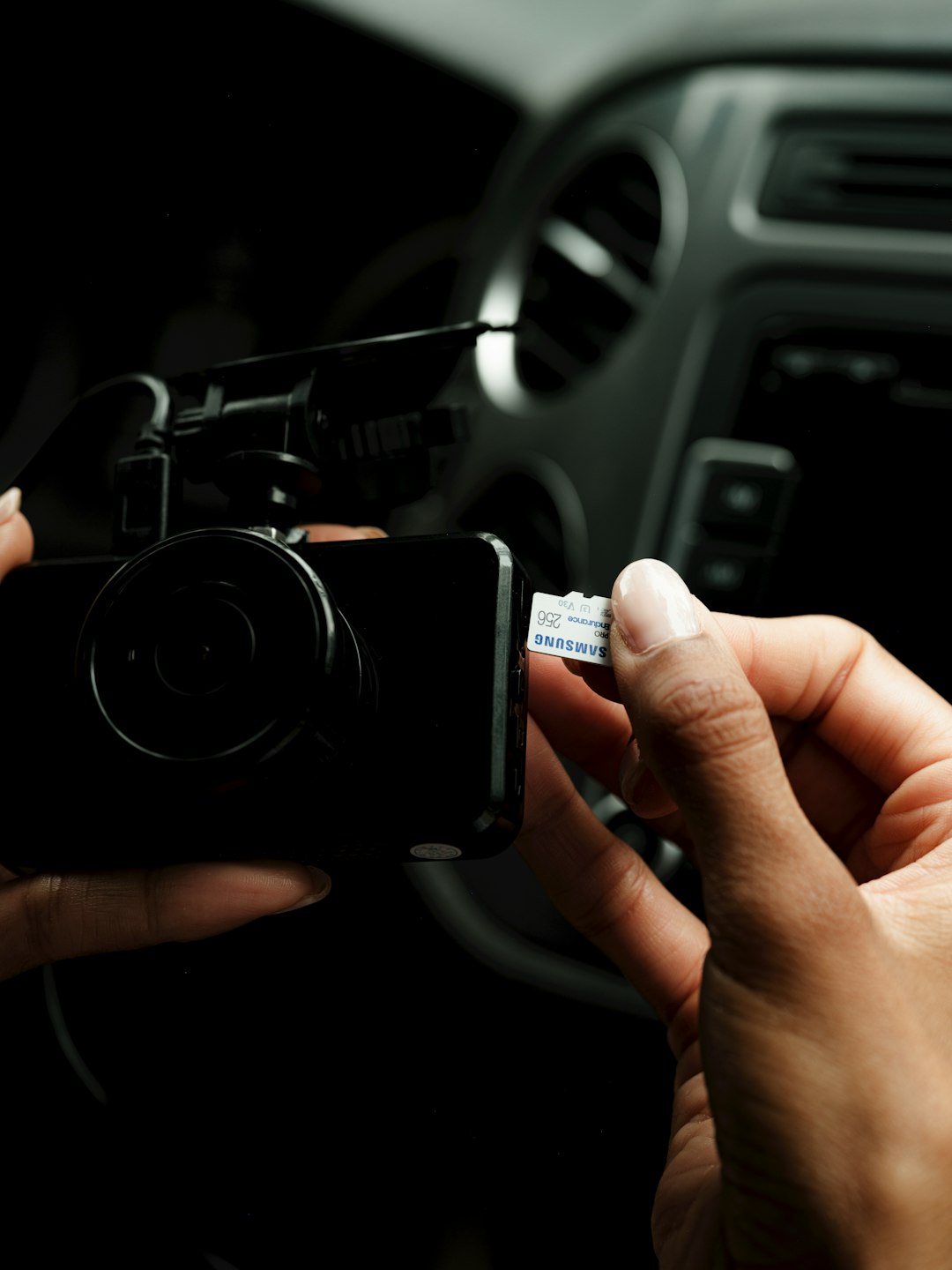
If the problem persists, consider replacing the rear cable before replacing the entire camera unit.
3. Format or Replace the SD Card
A surprising number of dash cam problems trace back to the SD card.
Redtiger 4K dash cams require high-endurance microSD cards, typically Class 10 or U3. Using a standard card can result in:
- Recording failures
- Corrupted files
- Freezing
- “Card Error” notifications
Fix:
- Format the SD card through the dash cam’s settings menu.
- If errors continue, format it on a computer using FAT32.
- If still malfunctioning, replace it with a high-endurance card (64GB–256GB).
A worn-out SD card is one of the most common causes of front and rear recording failure.
4. Perform a Factory Reset
If your dash cam is glitching, freezing, or behaving unpredictably, a factory reset can clear software bugs.
How to reset:
- Navigate to Settings > Default Settings
- Confirm reset
- Restart the device
This restores original configurations but won’t permanently damage your system. However, you may need to reconfigure date, time, and resolution settings afterward.
5. Update the Firmware
Outdated firmware can cause display errors, rear camera communication issues, and random shutdowns.
Visit the official Redtiger support page and check whether your model has a newer firmware version available.
Update process generally involves:
- Downloading firmware files to your computer
- Transferring them to a formatted SD card
- Inserting the SD card into the dash cam
- Powering on to initiate automatic update
Important: Follow the instructions carefully. Incorrect firmware installation may cause additional issues.
6. Check Resolution and Recording Settings
Running both front and rear cameras at maximum resolution can strain storage and processing power.
If your rear camera keeps cutting out:
- Lower front resolution from 4K to 2.5K
- Adjust rear resolution settings
- Disable unnecessary features like constant WiFi
This reduces system load and can stabilize dual recording performance.
7. Inspect the Mount and Camera Angle
If your video appears black or partially obstructed, the issue might not be electronic at all.
Common physical issues include:
- Lens blocked by tint strip
- Misaligned rear camera
- Dirty lens surface
- Loose mount causing vibration
Remove the camera and clean the lens gently with a microfiber cloth. Check the rear lens, especially if mounted near a heated rear window grid.
8. Test the Internal Battery or Capacitor
If your dash cam shuts off immediately after the engine turns off, the internal battery or capacitor may be failing.
Although most Redtiger models use capacitors (which are more durable), extreme heat can degrade them over time.
Signs of failure include:
- Date/time constantly resetting
- Camera powers down instantly
- Files not saving properly
If confirmed, you may need professional servicing or full unit replacement.
Helpful Tools Comparison Chart
If you’re troubleshooting your Redtiger dash cam, these tools can make the process easier:
| Tool | Purpose | Best For | Cost Level |
|---|---|---|---|
| Multimeter | Testing voltage output | Power related issues | Low |
| High Endurance SD Card | Reliable recording storage | Recording failures | Medium |
| Fuse Tap Kit | Hardwire installation | Direct to fuse box setups | Low |
| Trim Removal Tool | Accessing rear cable routing | Rear camera adjustments | Low |
When to Contact Redtiger Support
If you’ve tried all eight fixes and still experience front or rear camera failures, the issue may involve internal hardware damage.
Contact customer support if:
- The screen remains completely blank despite power
- Rear camera isn’t detected at all in settings
- Device overheats excessively
- Firmware updates fail repeatedly
Most Redtiger models come with a warranty, so check your purchase documentation before attempting complex repairs.
Preventing Future Dash Cam Problems
Once your dash cam is working again, follow these maintenance tips to prevent future issues:
- Format your SD card once a month
- Avoid cheap generic SD cards
- Keep firmware updated
- Inspect wiring every six months
- Protect camera from excessive heat exposure
Consistent maintenance dramatically reduces the likelihood of recording failures.
Final Thoughts
A malfunctioning Redtiger 4K dash cam doesn’t automatically mean it’s broken beyond repair. In most cases, problems with both the front and rear cameras stem from power interruptions, SD card corruption, cable issues, or outdated firmware. By systematically working through these eight fixes—from basic cable checks to firmware updates—you can usually restore full functionality without professional help.
Dash cams are designed to protect you when it matters most. Taking the time to troubleshoot properly ensures your investment continues working reliably every time you drive.



Leave a Reply