Seeing green lines across your screen can be alarming—especially if you’ve invested in a powerful NVIDIA graphics card. Whether the lines are thin and flickering or thick and persistent, they often point to an issue somewhere between your GPU, drivers, monitor, or cables. The good news? Not all green line problems mean your graphics card is dying. In many cases, the cause is software-related and completely fixable.
TL;DR: Green lines on an NVIDIA-powered display can be caused by outdated drivers, cable issues, overheating, or even GPU hardware failure. Start by checking your display cables and updating or reinstalling drivers. Monitor temperatures and test the card in another system to rule out hardware damage. If artifacts persist across multiple displays and fresh driver installs, the GPU itself may need repair or replacement.
- Why Do Green Lines Appear on the Screen?
- Step 1: Check the Basics First
- Step 2: Update or Reinstall NVIDIA Drivers
- Step 3: Check GPU Temperatures
- Step 4: Disable Overclocks
- Step 5: Check for VRAM Issues
- Step 6: Power Supply Considerations
- Step 7: Operating System or Software Conflicts
- Step 8: Physical GPU Inspection
- When Is It Time to Replace the GPU?
- Prevention Tips for the Future
- Final Thoughts
Why Do Green Lines Appear on the Screen?
Green lines—whether vertical, horizontal, or scattered—are a form of display artifacting. Artifacting happens when something disrupts the data flowing from your GPU to your monitor. The distortion can range from minor color streaks to full-screen graphical corruption.
Common causes include:
- Outdated or corrupted NVIDIA drivers
- Loose or damaged display cables
- Monitor panel defects
- Overheating GPU
- Failing VRAM (video memory)
- Improper overclock settings
Understanding the distinction between software-related and hardware-related causes is critical before you panic and assume your GPU is dead.
Step 1: Check the Basics First
Before diving into driver reinstalls and hardware diagnostics, start with the simplest potential fixes.
Inspect Your Display Cable
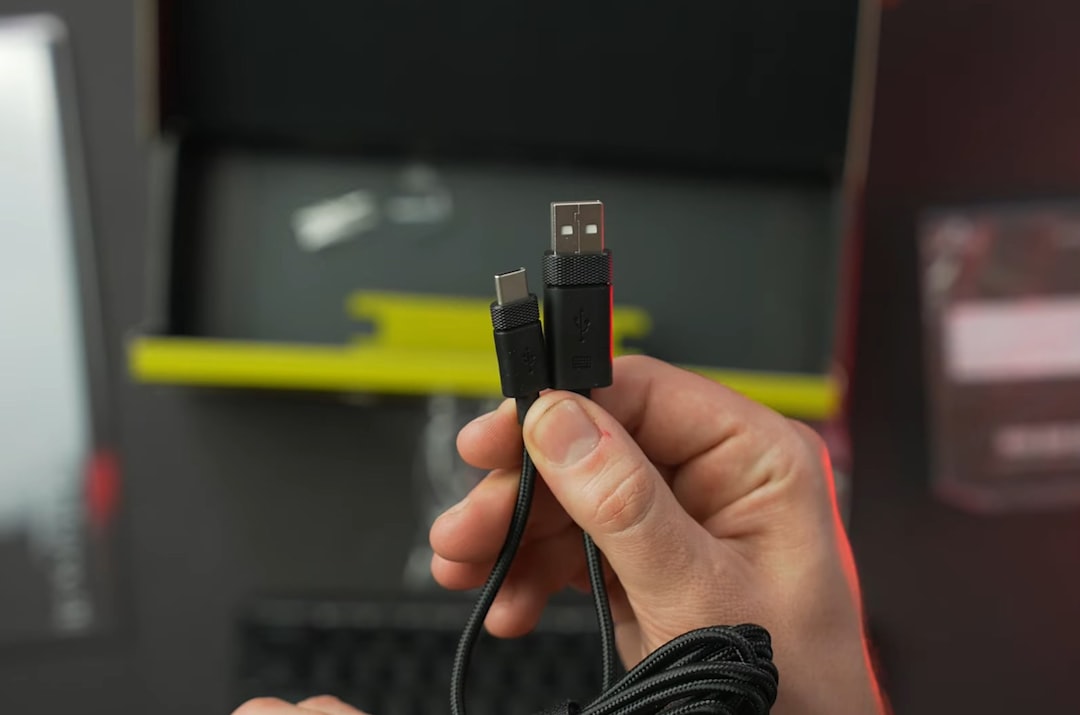
A faulty HDMI or DisplayPort cable is one of the most common—and overlooked—causes of green lines.
- Unplug and firmly reconnect both ends.
- Try a different cable.
- Switch to another port on your GPU.
- Test the monitor with another device.
High refresh rate monitors especially depend on high-quality cables. A partially damaged cable might still transmit data but produce colored artifacts.
Test Another Monitor
If the lines disappear when using a different monitor, your GPU may be fine—and your display panel might be failing. Monitor panel damage often presents as perfectly straight vertical or horizontal colored lines that never move.
Step 2: Update or Reinstall NVIDIA Drivers
Driver corruption is one of the most frequent software-related causes of green lines and artifacting.
Perform a Clean Driver Installation
Instead of simply updating, it’s better to perform a clean reinstall:
- Download the latest drivers from NVIDIA’s official website.
- Use Display Driver Uninstaller (DDU) in Safe Mode.
- Remove all NVIDIA graphics drivers.
- Reboot and install the fresh driver package.
This eliminates leftover corrupted files that might be interfering with display output.
Roll Back Recent Driver Updates
If green lines appeared right after a driver update, the newest version could be unstable for your configuration. In this case:
- Uninstall the current driver.
- Install a slightly older, stable version.
Driver conflicts sometimes occur after Windows updates as well, so check your recent update history.
Step 3: Check GPU Temperatures
Overheating can cause temporary green lines, flickering, and graphical corruption. When a GPU overheats, memory modules (VRAM) can start producing errors.
Use software such as:
- MSI Afterburner
- HWMonitor
- NVIDIA Performance Overlay
Normal gaming temperatures typically range between 65°C and 85°C. If you’re seeing temperatures above 90°C regularly, overheating may be contributing to display artifacts.
Fixes for High Temperatures
- Clean dust from fans and heatsinks.
- Improve case airflow.
- Replace thermal paste (advanced users).
- Reduce overclock settings.
Step 4: Disable Overclocks
If you’ve manually overclocked your GPU—or enabled factory OC modes—instability can appear as colored lines or flickering.
Reset your GPU settings to default via:
- MSI Afterburner reset option
- NVIDIA Control Panel
- BIOS (if applicable)
Even slight VRAM instability often manifests as green or purple lines before complete crashes occur.
Step 5: Check for VRAM Issues
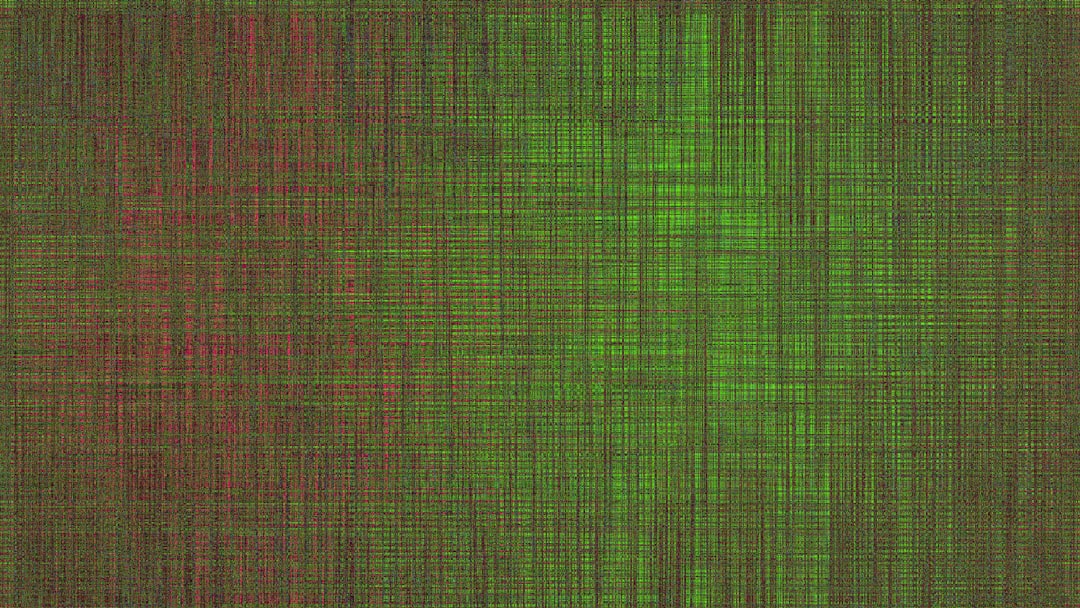
Persistent green lines that appear:
- During boot (before Windows loads)
- Inside BIOS
- Across multiple monitors
may indicate failing VRAM.
VRAM problems tend to produce:
- Colored blocks or checkerboard patterns
- Horizontal or vertical fixed lines
- Crashes during gaming
- Driver timeouts
You can stress test VRAM using benchmarking tools such as:
- FurMark
- 3DMark
- Unigine Heaven
If artifacts appear immediately under stress, hardware damage becomes more likely.
Step 6: Power Supply Considerations
An insufficient or failing power supply can cause unstable GPU behavior. When your graphics card doesn’t receive stable voltage:
- Green flickering lines may appear
- The system may crash under load
- Artifacts may worsen during gaming
Make sure:
- Your PSU meets NVIDIA’s wattage recommendation.
- PCIe power connectors are fully seated.
- You are not using cheap splitters or adapters.
If possible, test with a known-good power supply.
Step 7: Operating System or Software Conflicts
Sometimes green lines only appear in specific programs or games. This suggests a software or rendering issue rather than hardware damage.
Try:
- Switching between DirectX 11 and DirectX 12.
- Disabling hardware acceleration in browsers.
- Reinstalling the affected game.
- Running Windows System File Checker (sfc /scannow).
If the issue disappears outside a particular application, your GPU hardware is likely safe.
Step 8: Physical GPU Inspection
If none of the previous steps helped, turn off your PC and inspect the GPU physically.
Look for:
- Sagging in the PCIe slot
- Burn marks
- Damaged capacitors
- Dust buildup inside fans
Reseat the GPU carefully:
- Power down and unplug the system.
- Remove the graphics card.
- Reconnect it firmly into the PCIe slot.
- Reconnect power cables securely.
Sometimes a slightly loose connection can disrupt signal output.
When Is It Time to Replace the GPU?
Unfortunately, if green lines:
- Appear in BIOS
- Persist after clean driver installs
- Remain across multiple monitors and cables
- Worsen under light load
the GPU hardware may be failing.
Modern NVIDIA cards include error detection, but failing memory chips and core components can’t always be repaired affordably. If your card is still under warranty, initiate an RMA immediately. Avoid continued heavy use, as further stress may worsen the damage.
Prevention Tips for the Future
Green lines are often preventable with good maintenance habits:
- Keep drivers updated—but avoid unstable beta releases.
- Maintain proper airflow inside your case.
- Use high-quality certified display cables.
- Avoid aggressive overclocking without stress testing.
- Use a reliable power supply with sufficient headroom.
Regular temperature monitoring can help you detect problems before visible artifacts appear.
Final Thoughts
Green lines on your NVIDIA graphics card output can range from a simple cable issue to serious VRAM failure. The key is systematic troubleshooting. Start with easy fixes—cables, monitors, and drivers—before assuming hardware damage. In many cases, a clean driver reinstall or cable replacement solves the issue within minutes.
However, if artifacts persist across BIOS screens and multiple displays, hardware degradation becomes the most likely explanation. While that scenario is less common, recognizing the signs early can save you time, frustration, and potentially your data.
Don’t panic at the first sign of green lines—but don’t ignore them either. With careful diagnosis, you can determine whether you’re dealing with a minor software glitch or a GPU that’s nearing retirement.


Leave a Reply