Microsoft apps are everywhere. Word. Excel. Teams. Outlook. They run offices, schools, and small businesses. But sometimes, they also feel like they run you. Corporate controls, forced updates, admin restrictions, and data tracking can make things frustrating. The good news? You have options. You can take back control. And it is easier than you think.
TLDR: You can reduce or remove corporate control from Microsoft apps by switching to personal accounts, adjusting privacy settings, disabling admin restrictions, or replacing Microsoft tools with independent alternatives. Open-source apps like LibreOffice and Google Docs alternatives give you freedom. Removing device management profiles and using local accounts also helps. You do not need to be a tech wizard to do it.
- Why Corporate Control Exists
- Step 1: Check If Your Device Is Managed
- Step 2: Switch to a Local Account
- Step 3: Remove Work Licenses From Office Apps
- Step 4: Adjust Privacy Settings
- Step 5: Ditch OneDrive If Needed
- Step 6: Replace Microsoft Apps Entirely
- Step 7: Remove Device Management (Advanced)
- Step 8: Use Offline Installers
- Step 9: Control Updates
- What About Microsoft Teams?
- The Nuclear Option: Install Linux
- Things to Watch Out For
- Simple Freedom Checklist
- Final Thoughts
Why Corporate Control Exists
First, let’s be clear. Corporate control is not always evil. Businesses use it to protect data. Schools use it to prevent cheating. IT departments use it to manage devices.
But.
If you are no longer part of that company, or you use your own device, those controls can feel limiting.
- Apps may require company login.
- Files may be stored on corporate cloud servers.
- You may not control updates.
- Privacy settings may be locked.
- Some features may be disabled.
If that sounds familiar, keep reading.
Step 1: Check If Your Device Is Managed
Before changing anything, see if your device is under management.
On Windows:
- Go to Settings
- Click Accounts
- Select Access work or school
If you see a connected organization, your PC is managed.
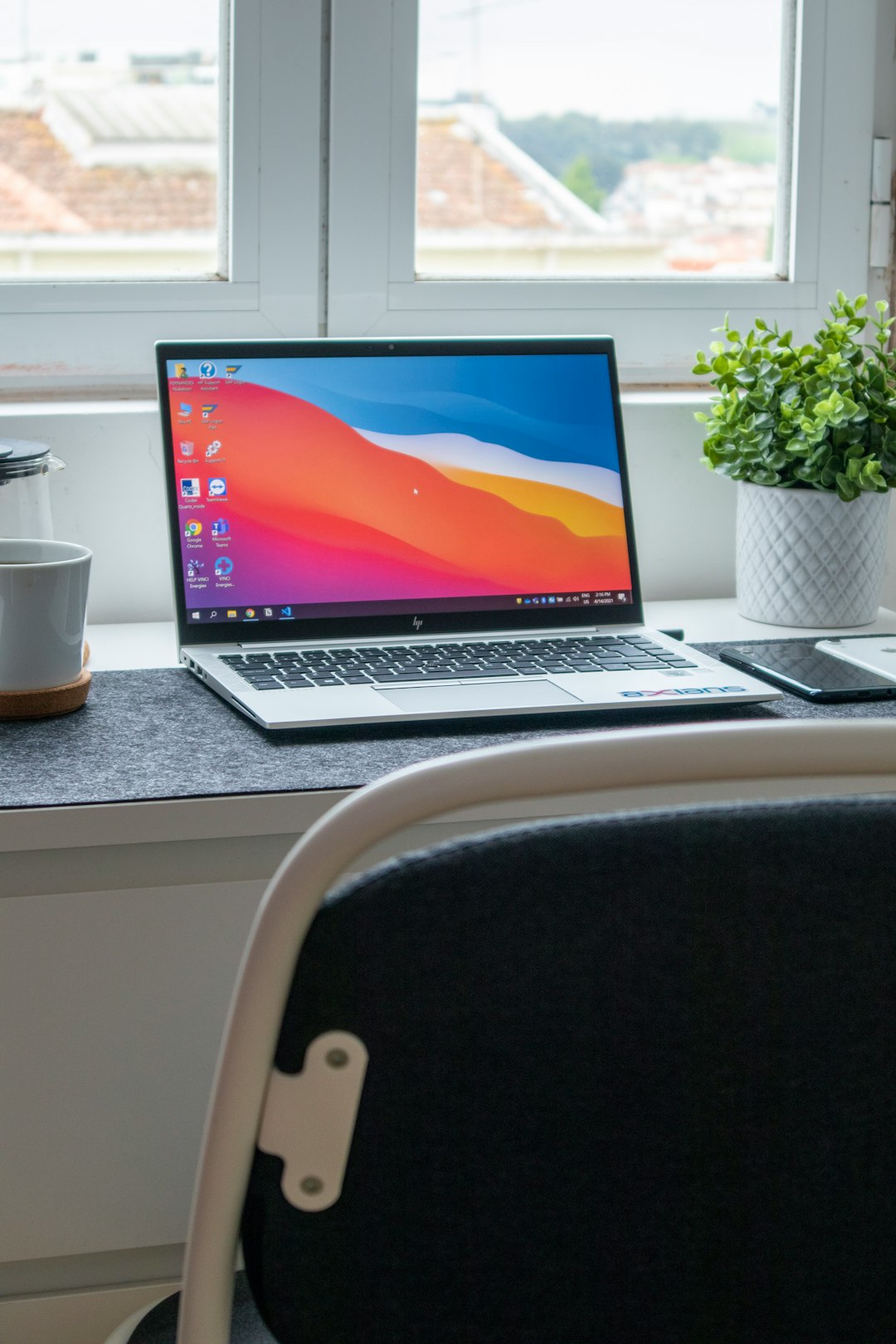
If it is your personal device and should not be managed, disconnect it.
Important: If it is actually a company-owned device, do not remove management without permission. That may violate policy.
Step 2: Switch to a Local Account
Microsoft prefers cloud-based accounts. That gives them control over syncing, OneDrive, and permissions.
You can switch to a local account.
- Open Settings
- Go to Accounts
- Click Your info
- Choose Sign in with a local account instead
This reduces cloud syncing. It puts control back on your PC.
Bonus: Your login works even without internet.
Step 3: Remove Work Licenses From Office Apps
Microsoft Office can hold multiple licenses. If your apps still show your company name, you need to remove that license.
Open Word or Excel:
- Go to File
- Click Account
- Under Connected Services, remove work accounts
Then log in with your personal Microsoft account. Or install a standalone version.
This step alone solves many “locked feature” issues.
Step 4: Adjust Privacy Settings
Microsoft apps collect diagnostic data. Some of it is optional.
To adjust:
- Open any Office app
- Go to File
- Select Options
- Click Trust Center
- Choose Privacy Options
Turn off optional connected experiences if you prefer more privacy.
You can also manage Windows-wide privacy:
- Settings
- Privacy and Security
- Review permissions one by one
Yes. It takes time. But it is worth it.
Step 5: Ditch OneDrive If Needed
OneDrive is deeply baked into Windows.
If your company forced file syncing, you can unlink it.
- Click the cloud icon in the taskbar
- Go to Settings
- Select Account
- Click Unlink this PC
You can also uninstall OneDrive completely.
This prevents automatic corporate backups.
Step 6: Replace Microsoft Apps Entirely
Now we get to the fun part.
If you want true freedom, replace Microsoft apps with independent tools.
Here are strong alternatives:
Popular Microsoft Alternatives
| Tool | Best For | Cost | Cloud Based | Open Source |
|---|---|---|---|---|
| LibreOffice | Full office suite offline | Free | No | Yes |
| OnlyOffice | Modern office feel | Free / Paid | Optional | Yes |
| Google Docs | Collaboration online | Free | Yes | No |
| WPS Office | Microsoft look alike | Free / Paid | Yes | No |
Quick Breakdown
- LibreOffice: Completely offline. No corporate lock-in. Great for privacy.
- OnlyOffice: Clean design. Good compatibility with Microsoft files.
- Google Docs: Easy sharing. But still cloud controlled.
- WPS Office: Very similar interface. Some ads in free version.
If control is your main goal, LibreOffice is often the winner.
Step 7: Remove Device Management (Advanced)
Some PCs are enrolled in Mobile Device Management (MDM). This gives organizations deep control.
To check:
- Settings
- Accounts
- Access work or school
- Select the account
- Click Info
If enrolled, you may see management settings.
If it is your device and safe to remove, disconnect the organization account.
If it refuses?
You may need a full Windows reset.
- Settings
- System
- Recovery
- Reset this PC
This wipes management profiles clean.
Warning: Back up your files first.
Step 8: Use Offline Installers
Subscription Office versions stay connected. They check licenses often.
If you prefer independence:
- Use a standalone Office 2021 version
- Avoid Microsoft 365 subscriptions
- Disable auto login features
This reduces account-based restrictions.
Step 9: Control Updates
Forced updates can change features overnight.
You can limit this.
- Open Settings
- Go to Windows Update
- Set active hours
- Pause updates temporarily
For advanced users, Group Policy Editor offers more control.
But only use advanced tools if you understand them.
What About Microsoft Teams?
Teams is heavily business-controlled.
If linked to a company:
- Sign out completely
- Remove the work account from Windows
- Uninstall Teams
You can switch to alternatives like:
- Zoom
- Slack free version
- Discord
Each gives different levels of independence.
The Nuclear Option: Install Linux
Want full freedom?
Install Linux.
Image not found in postmetaLinux operating systems like Ubuntu or Linux Mint:
- Do not include Microsoft tracking
- Support LibreOffice by default
- Offer full system control
It sounds scary. It is not.
Modern Linux installs like a regular app.
This step completely removes Microsoft corporate influence.
Things to Watch Out For
Before removing corporate controls, think about this:
- Do you still need access to company files?
- Are you violating any agreement?
- Will you lose encrypted data?
Sometimes corporate protection also protects you.
Make smart decisions.
Simple Freedom Checklist
If you just want a quick path, here it is:
- Disconnect work account
- Switch to local Windows account
- Remove Office work licenses
- Unlink OneDrive
- Adjust privacy settings
- Install LibreOffice
Done.
Final Thoughts
Corporate control in Microsoft apps exists for structure and security. But when that structure becomes a cage, you have choices. You can adjust settings. You can remove accounts. You can uninstall. You can replace. You can even change operating systems.
You do not need to do everything at once.
Start small.
Disconnect one account today. Install one alternative app tomorrow.
Freedom in software is not about rebellion. It is about control. Your control.
And now you know exactly how to take it back.



Leave a Reply