Use Topaz Video AI when the footage itself is damaged, soft, noisy, interlaced, or too low resolution; use DaVinci Resolve when the footage needs editing, color correction, stabilization, grading, delivery, and polish. If your goal is to turn old 720p or 1080p clips into cleaner 4K exports, Topaz is usually the sharper tool. If your goal is to finish a film, YouTube video, ad, interview, or music video, Resolve is the better home base, especially since DaVinci Resolve has a free version and the Studio version is listed at $295 [source: Blackmagic Design].
TLDR: Topaz Video AI is best for repairing and enhancing footage; DaVinci Resolve is best for editing and finishing footage. For example, a 12-minute 1080p family video can often look cleaner after Topaz upscaling to 4K, but the export may take 1 to 3 hours depending on your GPU. Resolve can then cut, color, stabilize, add titles, and export the final version in minutes or longer based on effects. A smart workflow is simple: Topaz first for restoration, Resolve second for creative control.
What “improving video quality” really means
Video quality is not one thing. It is a bundle of problems. A clip may be low resolution, blurry, shaky, noisy, overexposed, flat, compressed, or badly colored. One program rarely fixes all of that perfectly.
Topaz Video AI focuses on machine learning enhancement. It can upscale, reduce noise, sharpen details, recover some texture, create slow motion, and deinterlace old footage. It is built for the kind of footage that makes you sigh before you even open it.
DaVinci Resolve is a full post-production suite. It handles editing, color grading, audio, visual effects, stabilization, titles, and final delivery. Its quality tools are strong, but they sit inside a much larger workflow.
Topaz Video AI: best for restoration and upscaling
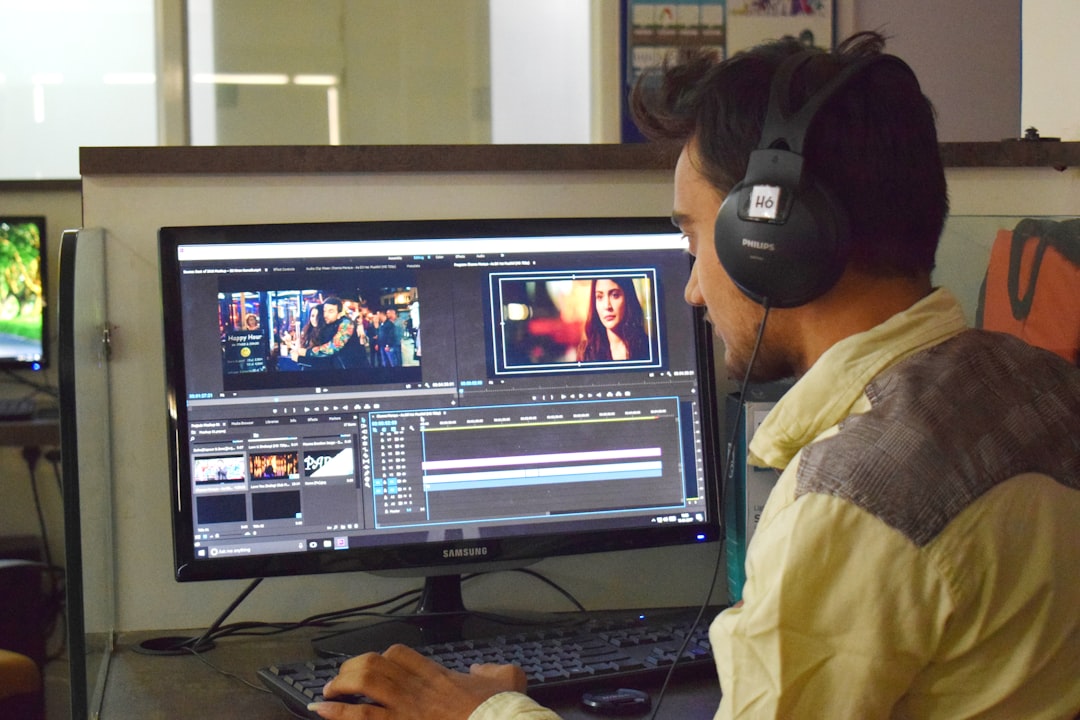
Topaz Video AI shines when your source video is weak. Old phone clips, VHS transfers, DVD rips, archive footage, security camera clips, and early digital camera videos are all common candidates.
Its biggest strength is AI upscaling. Taking footage from 720p to 1080p, or from 1080p to 4K, can produce a cleaner result than basic scaling. Instead of simply stretching pixels, Topaz analyzes frames and predicts missing detail. When it works, faces look clearer, edges look cleaner, and compression mush becomes less painful.
It also handles noise reduction well. Low-light footage often contains dancing grain, color blotches, or crawling artifacts. Topaz can smooth those issues while keeping more detail than many standard denoisers. That said, push it too hard and people start to look waxy. Plastic skin is not an upgrade.
Another major use is deinterlacing. If you work with old camcorder footage, this matters. Interlaced video can show comb-like lines during motion. Topaz can convert it into cleaner progressive footage, which is much easier to edit and export for modern screens.
Where Topaz gets annoying
The biggest pain is speed. Expect to waste time on previews, model tests, and long exports. A clip that takes 4 minutes to export in a normal editor might take 40 minutes or more in Topaz, depending on resolution, model, GPU, and settings. It can feel brutal when you only want to fix one shaky old clip for a birthday montage.
Topaz is also easy to overuse. Strong AI enhancement can create fake detail. Hair may shimmer. Textures may crawl. Faces may look “improved” in one frame and strange in the next. The best results usually come from moderate settings, not the most aggressive ones.
DaVinci Resolve: best for editing, grading, and finishing
Resolve is the better choice once the footage is technically usable. It gives you control over the whole project. You can trim clips, sync sound, balance exposure, fix white balance, grade skin tones, stabilize shots, add music, mix dialogue, and export to formats for YouTube, broadcast, or clients.
The Color page is where Resolve feels especially strong. You can use curves, color wheels, masks, qualifiers, tracking, and LUTs. If a shot looks flat, green, too warm, or too contrasty, Resolve gives you precise controls to fix it.
Resolve also has useful image-quality tools. The Studio version includes advanced noise reduction and effects such as Super Scale. These can improve footage, but they are not always as specialized as Topaz for heavy restoration. For light cleanup, they may be enough. For rough old footage, Topaz often wins.
Where Resolve can frustrate you
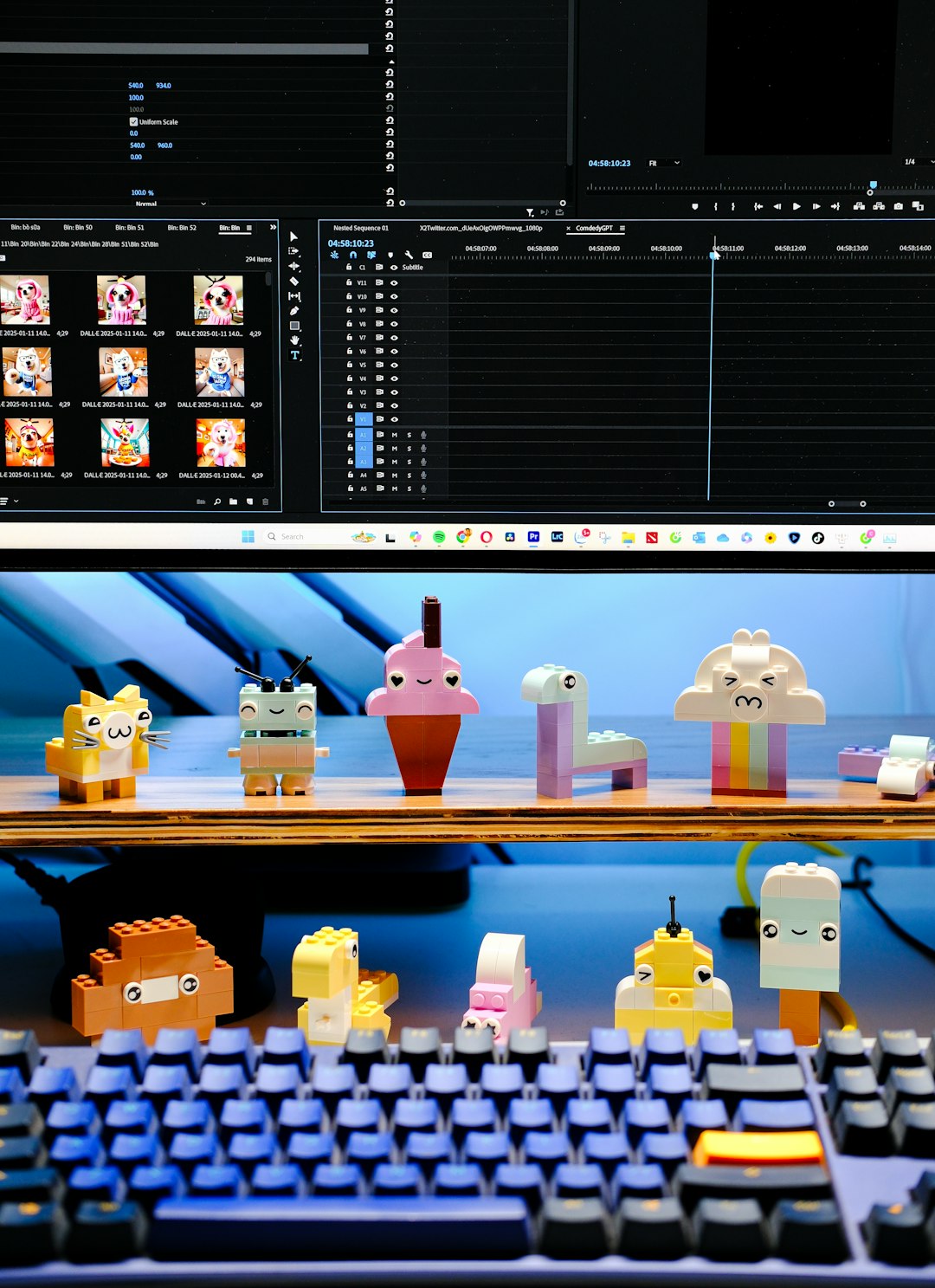
Resolve has a learning curve. The tabs alone can scare new users: Media, Cut, Edit, Fusion, Color, Fairlight, Deliver. Honestly, it feels like a cockpit the first time you open it. Even simple tasks can take longer until you learn where everything lives.
Performance also depends on hardware. 4K timelines, noise reduction, Fusion effects, and heavy grades can slow down older computers. You can use proxies and optimized media, but that adds setup time. Resolve rewards patience. It does not always reward impatience.
Side-by-side comparison
| Task | Topaz Video AI | DaVinci Resolve |
|---|---|---|
| Upscaling | Excellent for 720p to 1080p or 1080p to 4K | Good, especially with Studio tools, but less specialized |
| Noise reduction | Strong for damaged or low-light clips | Very good in Studio, especially for color workflows |
| Color correction | Basic | Excellent and highly precise |
| Editing | Not intended for full edits | Excellent |
| Speed | Often slow due to AI processing | Usually faster for normal post work |
| Best user | Restorers, archivists, creators fixing weak footage | Editors, colorists, filmmakers, YouTubers, agencies |
Best workflow: use both, but in the right order
If you own both tools, the best order is usually:
- Review the source footage. Check resolution, noise, blur, interlacing, and compression.
- Process problem clips in Topaz. Upscale, denoise, deinterlace, or sharpen only the clips that need it.
- Export a high-quality intermediate file. Avoid crushing the image with a tiny bitrate.
- Bring the enhanced files into Resolve. Edit, grade, stabilize, mix sound, and add titles.
- Export the final master from Resolve. Choose settings based on platform or client needs.
This keeps Topaz from becoming a bottleneck on every single shot. You do not need AI enhancement on clean 4K footage. Use it only where it helps.

Which one should you choose?
Choose Topaz Video AI if your main issue is poor source quality. It is the better pick for old family videos, archived footage, blurry clips, noisy scenes, and resolution upgrades. It is also useful when you need to rescue footage that cannot be reshot.
Choose DaVinci Resolve if you need to make a finished video. It is the stronger all-around tool for creators who cut videos, grade footage, mix audio, add graphics, and deliver final exports. Even the free version is powerful enough for many serious projects.
For many users, the answer is not Topaz or Resolve. It is Topaz then Resolve. Topaz repairs the image. Resolve shapes the story. That split keeps each tool doing what it does best, and it saves you from forcing one program to solve every problem.
Final recommendation: If you can buy only one, pick based on your main pain. Bad footage? Pick Topaz. Full video production? Pick Resolve. If you care about both restoration and polished delivery, use them together and keep your settings restrained. Better video quality is not about making every slider stronger. It is about making the footage look cleaner without making it look fake.