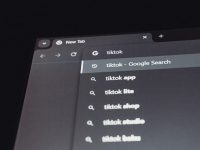
Use direct URL entry when you already know the website, and use Google Search when you are unsure, comparing options, or checking credibility. That simple rule saves time and reduces risk. Chrome, Firefox, and Opera GX all merge search and address entry into one bar, but they guide users in slightly different ways. Chrome remains the most used browser globally, with roughly two thirds of worldwide browser market share reported by StatCounter in 2024 [source: StatCounter].
TLDR: Direct URL entry is best for known sites, such as typing examplebank.com instead of searching “Example Bank login” and risking ads or copycat pages. Google Search is better when the user only remembers part of a name, wants reviews, or needs several options. In a small team of 20 people, saving just 5 seconds on 200 repeated site visits a month adds up to about 17 minutes recovered. Chrome is strongest for Google-driven discovery, Firefox gives more control, and Opera GX adds gaming-focused shortcuts and speed features.
- Search bar or address bar: what is really happening?
- Google Search: best for discovery and verification
- Direct URL entry: faster and safer for known websites
- How Chrome helps users find websites
- How Firefox helps users find websites
- How Opera GX helps users find websites
- When to search and when to type the URL
- Which browser does the job best?
Search bar or address bar: what is really happening?
Modern browsers no longer treat the address bar as a simple place for web addresses. Chrome calls it the Omnibox. Firefox calls it the address bar, but it also searches, suggests pages, and pulls from history. Opera GX uses a similar combined bar, with extra sidebar tools and gaming services close by.
When a user types words like best budget monitor, the browser sends the query to the selected search engine. When a user types mozilla.org, the browser treats it as a web address. The split is usually automatic. Most of the time it works well. Honestly, it feels like magic until one mistyped address becomes a search you did not ask for.

Google Search: best for discovery and verification
Google Search helps when users do not know the exact destination. It can correct spelling, suggest related brands, show maps, display business hours, and surface news or reviews. This is useful for vague tasks:
- Finding an official site when the name is unclear.
- Comparing vendors, prices, services, or reviews.
- Checking recent information, such as outages or policy changes.
- Finding local services, where maps and ratings matter.
The risk is that search results add a layer between the user and the site. Ads may appear above organic results. Similar domains can look legitimate at a glance. A user searching PayPal login or bank support number may see results that require careful review. That extra review is not optional. It is basic safety.
Direct URL entry: faster and safer for known websites
Direct URL entry means typing the actual web address, such as irs.gov, wikipedia.org, or a company’s known customer portal. It is usually faster for repeat visits. It also avoids sponsored search results and reduces exposure to misleading pages.
For finance, healthcare, legal, and workplace tools, direct entry is often the better habit. The same applies to bookmarked sites. If a payroll admin uses the same HR platform every Monday, searching for it each time is needless friction. Expect to waste time on tiny delays: a search results page, a click, maybe a cookie popup, and sometimes the wrong landing page.
Still, direct entry is not perfect. Typos can lead to dead pages or, in rare cases, unrelated domains. Autocomplete can also suggest an old or incorrect page from browsing history. Users should watch for the lock icon, the exact domain, and a clean HTTPS connection.
How Chrome helps users find websites
Chrome is tightly linked with Google Search. Its Omnibox offers search predictions, history matches, bookmarked pages, and direct answers. If Google is the default search engine, Chrome is quick at turning rough ideas into useful results.
Chrome also syncs bookmarks, history, passwords, and open tabs across devices when users sign in. That matters for people who move between a desktop, laptop, and phone. A site visited at work can appear as a suggestion later on mobile.
Useful Chrome strengths include:
- Strong search prediction for incomplete names and common queries.
- Fast autocomplete from history and bookmarks.
- Google account sync across devices.
- Safe Browsing warnings for many harmful or deceptive sites.
The tradeoff is privacy. Chrome’s convenience often depends on sending typed input, search data, and history signals to Google services, depending on settings. Users who value tight data control should review sync, search prediction, and Safe Browsing settings.
How Firefox helps users find websites
Firefox gives users more control over search behavior. Its address bar can show suggestions from history, bookmarks, open tabs, and search engines. Users can also add search shortcuts for specific sites. For example, a user can type a shortcut to search Wikipedia, Amazon, or a workplace knowledge base directly from the bar.
Firefox is especially strong for people who use many bookmarks. Its address bar is good at matching page titles, tags, and saved URLs. A user does not need to remember the full address. Typing a few words from the page title may be enough.
Privacy is also a major part of Firefox’s appeal. Enhanced Tracking Protection is on by default, blocking many trackers across the web [source: Mozilla]. That does not make every search private, but it does reduce some background tracking after users click through to websites.

How Opera GX helps users find websites
Opera GX is built for gamers, but its site-finding tools are useful beyond gaming. The address bar supports search, URL entry, history, and suggestions. The browser also includes a sidebar with services such as messengers, music apps, and gaming features, which reduces the need to hunt for certain web apps.
Its start page, speed dial tiles, and workspaces make repeated visits easy. A user can pin Twitch, Discord web, YouTube, game stores, and forums. That works well for people who open the same mix of sites daily.
Opera GX also includes resource controls, such as CPU and RAM limiters. These do not directly improve search accuracy, but they help users keep the browser usable while games or heavy apps are running. The annoying part is setup. If the start page gets crowded with tiles, offers, and side panels, finding the cleanest route to a site can take longer than expected.
When to search and when to type the URL
The right method depends on the task. The safest routine is simple:
- Use direct URL entry for banks, government services, healthcare portals, payroll systems, and known business tools.
- Use bookmarks for sites visited weekly or daily.
- Use Google Search for research, comparisons, local results, and uncertain names.
- Check the domain before entering passwords or payment details.
- Avoid clicking ads for sensitive logins unless you can verify the destination.
A practical example: if a user needs the official passport renewal site, searching can help identify the correct government page. But once found, the user should bookmark it. Next time, the bookmark or typed address is safer than repeating the search.

Which browser does the job best?
Chrome is best for users who want the fastest Google-based discovery and strong cross-device sync. It suits people who rely heavily on Google services.
Firefox is best for users who want more control, strong bookmark matching, and better privacy defaults. It suits researchers, professionals, and users who dislike being locked into one ecosystem.
Opera GX is best for users who want quick access to entertainment, gaming, and social tools in one browser. It suits streamers, gamers, and multitaskers who value built-in shortcuts.
The core habit matters more than the browser. Search when you are unsure. Type or bookmark when you know the destination. That one choice can save time, cut confusion, and reduce the chance of landing on the wrong website.