Anyone who has ever played an online game, hosted a video call, or streamed a high-definition movie knows the frustration of laggy, choppy connections. At the heart of many of these issues is a problem called packet loss. Understanding what it is, how it happens, and—most importantly—how to fix it can dramatically improve your online experience, whether you’re gaming, working, or just browsing the web.
TLDR:
Packet loss occurs when data packets traveling across a network fail to reach their destination. This leads to stuttering, delays, and interrupted communication. It can be caused by everything from bad cables and overloaded routers to software bugs and ISP issues. Fortunately, identifying the cause and applying targeted fixes can drastically improve network performance.
What is Packet Loss?
When you access a website, make a video call, or use online services, your computer sends and receives data in small units called packets. Each packet contains part of the information being transmitted, along with sender and receiver details. Ideally, these packets travel through the network and arrive in sequence and uncorrupted. However, sometimes packets are dropped along the way—this is called packet loss.
Even small amounts of packet loss—less than 1%—can cause noticeable disruptions, especially in real-time applications like VOIP and gaming. In severe cases, packet loss can make a connection completely unusable.
Common Causes of Packet Loss
There are several potential culprits behind packet loss. Identifying the cause is the first step in finding the right fix. Here are some of the most common reasons:
- Network Congestion: When too many devices use the network at the same time, especially on slower connections, routers may drop some packets they can’t process in time.
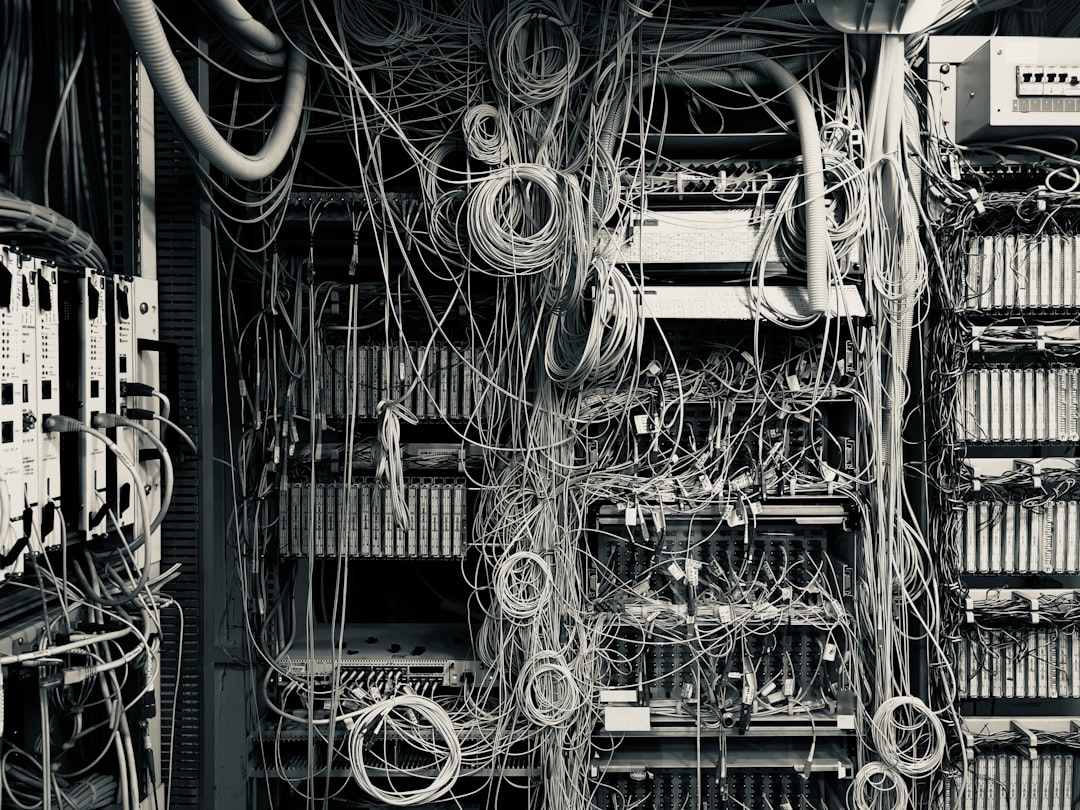
- Faulty Hardware: Failing routers, switches, or Ethernet cables can introduce errors and drop packets.
- Software Bugs: Misconfigured routers or outdated firmware can cause performance issues, including packet loss.
- Wireless Interference: Other electronic devices, physical barriers, or signal overlap from nearby networks affect Wi-Fi quality and may cause dropped data.
- ISP Issues: Sometimes the issue lies beyond your control—your internet provider may be dealing with network-level problems.
How to Diagnose Packet Loss
Before fixing anything, you need to confirm packet loss is occurring and figure out whether it’s your equipment or something external. Here’s how you can do that:
- Use the Ping Command: By pinging websites or your router, you can check for response time and packet loss. For example, open a command line terminal and type:
ping google.com -t
Over a few minutes, look for the message “Request timed out” or any packet loss percentages.
- Use Traceroute: This command shows the path a packet takes through the network, helping identify at which hop packets are being lost.
tracert google.com
- Network Monitoring Tools: Tools like Wireshark, PingPlotter, or NetSpot provide detailed diagnostics on packet flow and signal strength, especially helpful for identifying issues on a larger network.
Fixes for Packet Loss: Step-by-Step
Once you’ve pinpointed packet loss in your network, it’s time to fix it. Here are practical solutions from simple to advanced:
1. Check Physical Connections
- Inspect all Ethernet cables for visible damage or wear.
- Ensure cables are securely plugged into the ports on routers, switches, and devices.
- Consider replacing old cables, especially if they’re rated below Cat5e (older standards are not optimized for modern speeds).
2. Restart Networking Equipment
Sometimes the simplest fix is the right one. Restarting your modem, router, or even computer flushes temporary configurations and re-establishes optimal routing paths for packets.
3. Update Router Firmware
Router manufacturers frequently release firmware updates to fix bugs or improve stability. Check your router’s admin page (usually something like 192.168.1.1) for options under Firmware Update.
4. Reduce Network Congestion
If too many people or devices are using the internet simultaneously, especially for bandwidth-heavy tasks like streaming or gaming, packet loss is more likely. You can:
- Schedule large downloads or software updates during off-peak hours.
- Use Quality of Service (QoS) in your router settings to prioritize high-importance traffic (e.g., voip or gaming).
- Disconnect idle devices from the network.
5. Switch to Wired Connections
Whenever possible, connect computers or game consoles to your router with an Ethernet cable instead of relying on Wi-Fi. Wired connections are less prone to interference and packet loss.
6. Change Wi-Fi Channel or Band
Wireless networks often suffer from interference due to overcrowding, especially on the 2.4 GHz band. Try switching to:
- 5 GHz band for less interference and faster speeds (shorter range).
- A different channel in your router’s wireless settings menu.
7. Upgrade Outdated Hardware
If your router is more than 5–6 years old, it may lack modern technologies to handle today’s bandwidth needs. Look for routers with:
- Dual-band or Tri-band support
- Gigabit Ethernet ports
- MU-MIMO and Beamforming for better multi-device performance
8. Call Your ISP
If everything looks fine on your end but packet loss persists, it might be an issue with your internet provider. When calling support:
- Provide results from ping and traceroute tests.
- Ask if there are outages or maintenance on your line.
- Inquire about a technician visit if needed to check for line noise or interference outside your home.
Advanced Fixes and Enterprise-Level Solutions
If your network supports a business or if you’re a pro user with high-performance needs, there are more advanced ways to eliminate packet loss:
- Use Redundant Networks: Load balancing using dual WAN connections can automatically switch to a backup if one fails.
- Install Managed Switches: These allow you to monitor traffic paths and detect faulty devices or links.
- Use Ethernet Over Powerlines: For hard-to-wire areas, this tech lets you use existing power outlets as network connections.
Preventing Packet Loss in the Future
Mitigating packet loss isn’t a one-time job. Ongoing care and monitoring is key for a healthy network. Here are habits worth adopting:
- Regularly restart routers and modems to refresh connections.
- Keep firmware and device drivers updated for maximum performance and compatibility.
- Secure your Wi-Fi network to prevent bandwidth leeching by unauthorized users.
- Monitor network performance monthly using tools like Ookla’s Speedtest, PingPlotter, or your router’s analytics.
Conclusion
Packet loss is a critical issue that can sabotage your online activities, but it’s not insurmountable. By methodically checking each part of your network—from cables and devices to configurations and ISP services—you can dramatically reduce or even eliminate it altogether. Whether you’re a casual user or a power user, a smoother, more reliable online experience is just a few fixes away.
So the next time a Zoom call freezes or your in-game character teleports across the map, don’t just throw your hands up in frustration—track down the cause, apply the right fix, and take back control of your digital life.



Leave a Reply