The Apple Watch is packed with smart features, and one of the coolest (and potentially life-saving) is the ECG app. It records your heart’s electrical activity and can even look out for irregular rhythms like atrial fibrillation. But what happens when it just doesn’t work?
Don’t worry—we’ve got you. If your Apple Watch ECG feature is acting up, here are some fun and easy fixes to try before panicking or heading to the Genius Bar.
- TLDR:
- 1. First things first: Is your watch even ECG-compatible?
- 2. Is ECG available in your region?
- 3. Restart both your Apple Watch and iPhone
- 4. Make sure the ECG app is installed
- 5. Check app permissions
- 6. Clean your wrist and the watch
- 7. Hold your finger correctly during the reading
- 8. Change your iPhone’s region (last resort!)
- 9. Update everything!
- 10. When all else fails…
- Final Thoughts
TLDR:
- If your ECG isn’t working, try restarting your Apple Watch and iPhone.
- Make sure your watch is compatible and ECG is available in your country.
- ECG needs skin contact and a clear signal—clean your watch and skin.
- Still stuck? Check permissions, region settings, and update your devices.
1. First things first: Is your watch even ECG-compatible?
Not all Apple Watches support the ECG feature. That’s Step Number One—make sure you have the right model.
- Supported models: Apple Watch Series 4 and later (including SE 2nd gen, but not original SE).
- OS required: Your Apple Watch should be running WatchOS 5.1.2 or later. Your iPhone should have iOS 12.1.1 or later.
Using an older model or outdated OS? Time for an upgrade or software update!
2. Is ECG available in your region?
ECG isn’t available everywhere. Apple only enables it in countries where they’ve gotten medical approval.
You can check the official Apple website for an updated list, or simply try this:
- Go to the Watch app on your iPhone.
- Tap on Health > Heart > Electrocardiograms (ECG).
- If you don’t see the ECG option, your region may not support it yet.
Hint: Traveling or moving? Sometimes it helps to change your iPhone region (more on that later!).
3. Restart both your Apple Watch and iPhone
This sounds simple, but you’d be surprised how many glitches a quick restart can fix!
Here’s how:
- Turn off your Apple Watch (press and hold the side button, then slide to power off).
- Restart your iPhone (press and hold volume + side button, then slide).
Wait for both devices to turn back on, then try using the ECG app again.
4. Make sure the ECG app is installed
If you’ve just set up the watch, the ECG app might not appear right away. It may be waiting for Health permissions or regional activation.
Try this:
- Open the Health app on your iPhone.
- Set up your Health Profile completely.
- Then go to Heart and tap on Set Up ECG App.
Follow the steps, and voilà! The ECG app should now be on your watch.
5. Check app permissions
If it says “ECG Not Available” or the app won’t open, permissions might be the problem.
- Open your iPhone’s Settings.
- Go to Privacy & Security > Health.
- Tap Apple Watch and make sure everything is switched ON.
Still nothing? Try removing and re-pairing your Apple Watch.
6. Clean your wrist and the watch
It’s not glamorous, but it works! Dirty sensors or sweaty skin can mess with the ECG readings.
To get a proper signal, the back of your Apple Watch must make clean contact with your skin.
Try this:
- Wash your wrist and dry it properly.
- Wipe off the back of your watch with a soft, lint-free cloth.
- Make sure your band isn’t too loose or too tight!
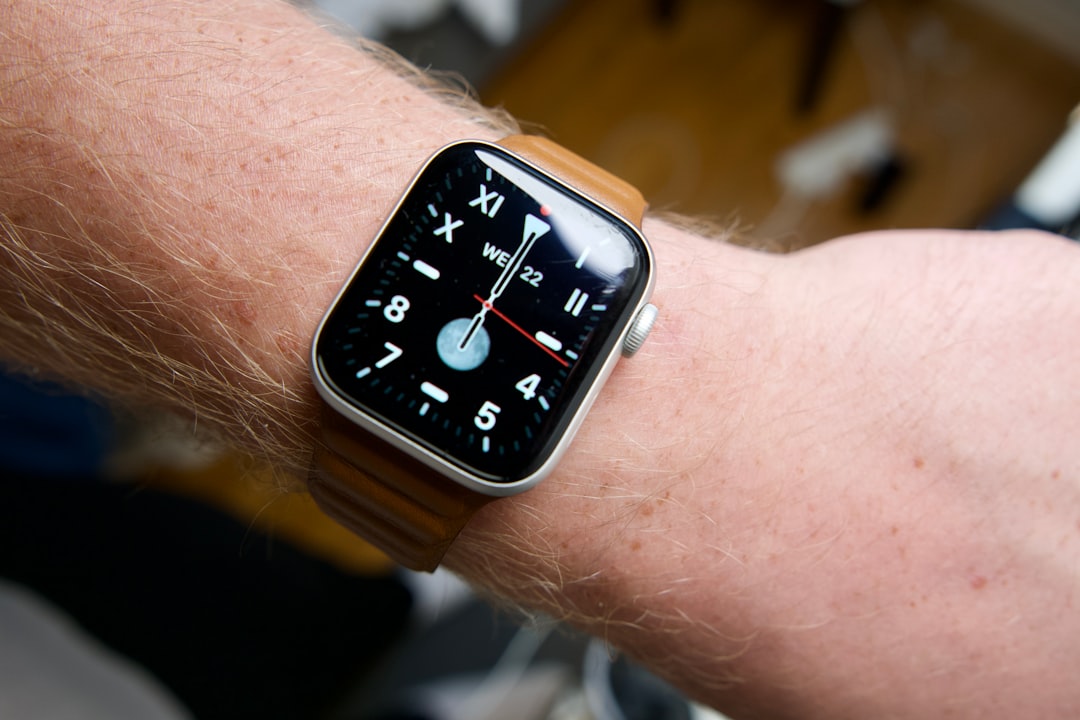
Once you’ve cleaned everything, try testing ECG again. You might be amazed how often this quick fix works!
7. Hold your finger correctly during the reading
The ECG function needs you to place your finger gently on the Digital Crown for 30 seconds.
If you’re tapping, moving, or not touching it right, the app can glitch or restart.
Pro tip: Don’t press hard—just rest your fingertip on the crown like you’re turning down a volume knob.
8. Change your iPhone’s region (last resort!)
If you’re in a country that doesn’t support ECG and don’t mind bending the rules a liiiittle bit, this might help.
Warning: For advanced users only!
To change your region:
- Open Settings on iPhone.
- Tap on Apple ID > Media & Purchases > View Account.
- Go to Country/Region and pick a country that supports ECG (like the US or UK).
After your region is set, restart your devices, open the Health app, and walk through ECG setup again.
NOTE: Changing your region could affect some other apps and services like billing and subscriptions. Proceed with caution!
9. Update everything!
Like everything tech-related, software updates can fix tons of issues.
Update your devices to the latest versions:
- On iPhone, go to Settings > General > Software Update.
- On Apple Watch, open the Watch app > General > Software Update.
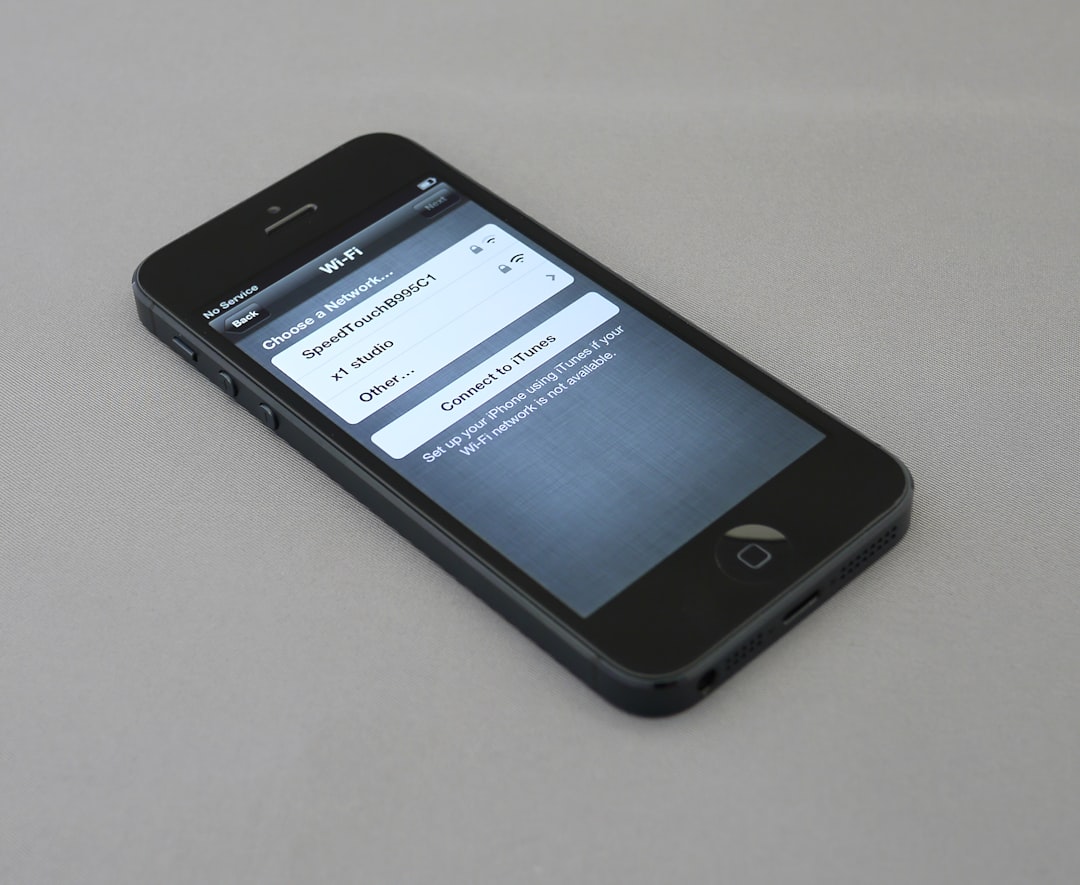
After updating, test the ECG app again. Sometimes the fix is just one update away.
10. When all else fails…
If none of the steps above get ECG working, there may be a deeper issue.
Try these last moves:
- Unpair your Apple Watch and pair it again from scratch.
- Contact Apple Support (they don’t bite, we promise 🌟).
You could also visit an Apple Store for a Genius Bar appointment. Just bring your devices and your sunny personality!
Final Thoughts
Having the ECG feature stop working can be frustrating—especially when you rely on it. But most problems have easy fixes. A little patience, a clean wrist, and some setting tweaks can go a long way.
If you’ve tried everything on this list, you’re basically a watch-wizard now. Go forth, record those heartbeats, and let tech do its magic. 💓⌚



Leave a Reply