Want to grab what’s on your screen in seconds? You’re in the right place. Taking a screenshot on an HP laptop is easy once you know the shortcuts. Whether you want to save a funny meme, capture an error message, or keep notes from a meeting, there’s a method that fits your style.
TLDR: You can screenshot on an HP laptop using six fast methods. The quickest way is pressing PrtScn or Windows + PrtScn. For more control, use Snipping Tool or Snip & Sketch. Each method is simple, and you can choose full screen, partial screen, or one window.
- Why Screenshots Matter
- Method 1: The Classic PrtScn Button
- Method 2: Windows + PrtScn (Auto Save Magic)
- Method 3: Alt + PrtScn (Capture One Window Only)
- Method 4: Snipping Tool (Precise and Flexible)
- Method 5: Snip & Sketch (Modern Shortcut Way)
- Method 6: Xbox Game Bar (Great for Gamers)
- Quick Comparison Chart
- Bonus Tips for Better Screenshots
- Common Problems (And Quick Fixes)
- Which Method Should You Choose?
- Final Thoughts
Why Screenshots Matter
Screenshots save time. They help you explain things faster. They are perfect for:
- Saving online receipts
- Capturing error messages
- Sharing game scores
- Keeping social media posts
- Creating tutorials
The good news? Your HP laptop already has everything you need.
Method 1: The Classic PrtScn Button
This is the old-school way. It’s quick and simple.
How to do it:
- Find the PrtScn key on your keyboard. It may say “Print Screen” or “PrtSc.”
- Press it once.
- Open Paint or Word.
- Press Ctrl + V to paste.
- Save your file.
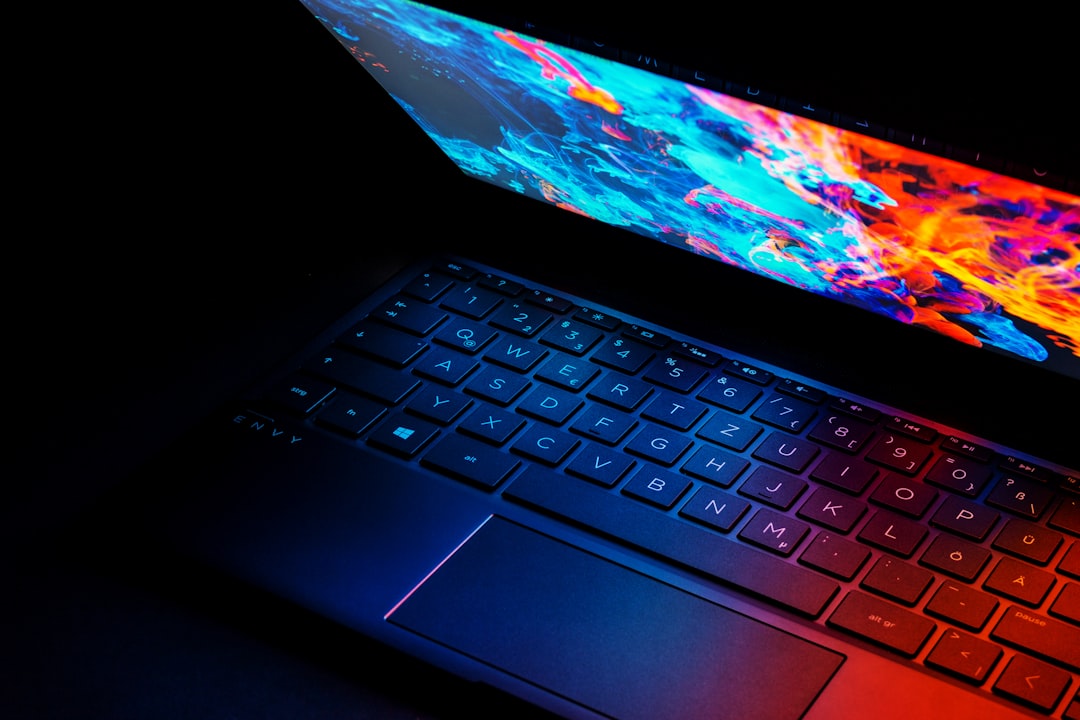
What happens? The entire screen is copied to your clipboard. It does not save automatically. You must paste it somewhere.
Best for: Quick full-screen captures when you’re already using a document.
Method 2: Windows + PrtScn (Auto Save Magic)
If you don’t want to paste, this method is better.
Steps:
- Press Windows key + PrtScn at the same time.
Your screen will dim for a second. That means it worked.
Where is the screenshot saved?
- Go to File Explorer
- Click Pictures
- Open the Screenshots folder
The image is already saved as a PNG file.
Best for: Fast saving without extra steps.
Method 3: Alt + PrtScn (Capture One Window Only)
Sometimes you don’t want the whole screen. Maybe you only want one app.
This method captures just the active window.
How it works:
- Click on the window you want to capture.
- Press Alt + PrtScn.
- Open Paint or Word.
- Press Ctrl + V.
- Save the file.
Why use this?
- No extra cropping
- Cleaner screenshots
- Perfect for tutorials
Simple. Focused. Clean.
Method 4: Snipping Tool (Precise and Flexible)
The Snipping Tool is built into Windows. It gives you more control.
To open it:
- Click the Start menu
- Type Snipping Tool
- Click to open

You can choose from four snip types:
- Free-form Snip – Draw any shape
- Rectangular Snip – Drag a box
- Window Snip – Capture one window
- Full-screen Snip – Capture everything
After capturing, you can:
- Highlight text
- Use a pen tool
- Save or share
Best for: Detailed screenshots and editing right away.
Method 5: Snip & Sketch (Modern Shortcut Way)
This is the upgraded version of Snipping Tool on Windows 10 and 11.
Shortcut:
Press Windows + Shift + S
Your screen will dim. A small menu appears at the top.
- Rectangular snip
- Freeform snip
- Window snip
- Full-screen snip
Select your option. Drag to capture.
The screenshot goes to your clipboard. A notification pops up. Click it to edit and save.
Why people love it:
- Fast keyboard shortcut
- Built-in editing tools
- No need to open an app first
This is one of the most popular methods today.
Method 6: Xbox Game Bar (Great for Gamers)
Did you know your HP laptop has a gaming overlay? Even if you don’t play games, you can use it.
Open it by pressing:
Windows + G

You’ll see a capture widget.
Click the camera icon to take a screenshot.
Where to find it:
- Go to Videos
- Open the Captures folder
Best for:
- Gaming screenshots
- Recording screen videos
- Quick sharing
Quick Comparison Chart
| Method | Shortcut | Auto Save | Best For | Editing Tools |
|---|---|---|---|---|
| PrtScn | PrtScn | No | Quick full screen copy | No |
| Windows + PrtScn | Win + PrtScn | Yes | Instant full screen save | No |
| Alt + PrtScn | Alt + PrtScn | No | Single window capture | No |
| Snipping Tool | Search manually | Yes | Custom selections | Yes |
| Snip & Sketch | Win + Shift + S | No (Clipboard first) | Fast partial captures | Yes |
| Xbox Game Bar | Win + G | Yes | Gaming and video | Basic |
Bonus Tips for Better Screenshots
Want cleaner captures? Try these tricks.
- Close unused tabs.
- Hide desktop icons if needed.
- Zoom in before capturing small text.
- Crop unnecessary parts.
- Use arrows or highlights to explain things.
Small details make screenshots look professional.
Common Problems (And Quick Fixes)
Problem: PrtScn key not working.
Fix: Try holding the Fn key with it. Some HP models require this.
Problem: Screenshot not saving.
Fix: Use Windows + PrtScn instead.
Problem: Can’t find the file.
Fix: Search “Screenshots” in File Explorer.
Most issues are small. The solution is usually simple.
Which Method Should You Choose?
Here’s a quick cheat guide:
- Want fastest full screen save? → Windows + PrtScn
- Only one window? → Alt + PrtScn
- Need custom area? → Windows + Shift + S
- Need editing tools? → Snipping Tool
- Gaming? → Windows + G
There is no “best” method. Only the best method for your task.
Final Thoughts
Taking a screenshot on an HP laptop is not complicated. It’s fast. It’s built in. And you have options.
Start with the simple PrtScn key. Then try advanced tools when you need more control. After a few tries, it becomes second nature.
Screenshots are powerful. They help you communicate clearly. They save proof. They capture memories.
Now you know six easy ways to capture your screen. Go ahead. Try them out. Your HP laptop is ready.


Leave a Reply