Voice assistants have become deeply embedded in everyday life, but not everyone feels comfortable saying a wake phrase like “Hey Meta” out loud. Whether it is a matter of privacy, convenience, accessibility, or simple personal preference, many users are looking for alternative ways to activate and control Meta AI. Fortunately, Meta provides several methods to interact with its AI tools without relying solely on voice triggers.
TLDR: Meta AI can be used without saying “Hey Meta” by relying on manual activation, app-based controls, hardware buttons, shortcuts, and accessibility tools. Users can type prompts, customize device settings, or trigger AI through touch gestures and system integrations. These alternatives provide greater flexibility, privacy, and accessibility. With the right setup, Meta AI can be as seamless without voice commands as it is with them.
- Why Skip the Wake Phrase?
- 1. Using the Meta AI App Directly
- 2. Hardware Button Activation
- 3. Turning Off Voice Activation Entirely
- 4. Using Quick Settings and Shortcuts
- 5. Accessibility Features and Assistive Technologies
- 6. Browser-Based Access
- 7. Messaging-Based Interaction
- Comparison of Voice Control Alternatives
- Improving the Experience Without Voice
- Is Voice Control Still Useful?
- Frequently Asked Questions (FAQ)
Why Skip the Wake Phrase?
While voice activation is designed for convenience, it is not always the preferred method of interaction. Common reasons users avoid saying “Hey Meta” include:
- Privacy concerns about always-on microphones.
- Shared environments where voice commands may disturb others.
- Speech impairments or accessibility challenges.
- Noisy surroundings where voice recognition struggles.
- Personal preference for typing or tapping.
Understanding the available alternatives empowers users to tailor their experience according to their needs.
1. Using the Meta AI App Directly
The simplest way to avoid saying “Hey Meta” is to open the Meta AI app manually. Available within platforms such as Facebook, Instagram, WhatsApp, and Meta’s standalone AI experiences, users can access AI features through a dedicated icon or chat interface.

How it works:
- Open the supported Meta app.
- Tap the Meta AI icon or search bar.
- Type your query instead of speaking it.
This method works especially well in quiet environments like offices, libraries, or public transport. It also allows users to carefully edit prompts before submitting them, resulting in more precise responses.
Best for: Text-based users, workplaces, and people who prefer manual control.
2. Hardware Button Activation
On supported Meta devices, such as Ray-Ban Meta smart glasses or Portal devices (where available), users can activate AI using built-in hardware buttons instead of voice commands.
For example, pressing and holding a specific button can wake the assistant without requiring the wake phrase. This creates a controlled activation process, ensuring that the AI listens only when intentionally triggered.
Steps typically include:
- Enable manual activation in device settings.
- Disable or limit wake word detection (optional).
- Press the activation button to interact.
This approach appeals to users concerned about passive listening or accidental activations.
3. Turning Off Voice Activation Entirely
Many Meta-enabled devices allow users to disable the wake phrase in settings. Once disabled, AI can still function through manual triggers.
Typical process:
- Open device or app settings.
- Navigate to Voice or Assistant preferences.
- Toggle off “Hey Meta” detection.
Disabling wake word detection can also help extend battery life on portable devices and improve peace of mind for privacy-conscious users.
4. Using Quick Settings and Shortcuts
Modern smartphones allow users to create shortcuts that launch apps or specific actions instantly. Instead of saying “Hey Meta,” a custom shortcut can open Meta AI with a single tap.
On both Android and iOS devices, users can:
- Create home screen shortcuts.
- Use widget panels.
- Assign Meta AI to gesture controls.
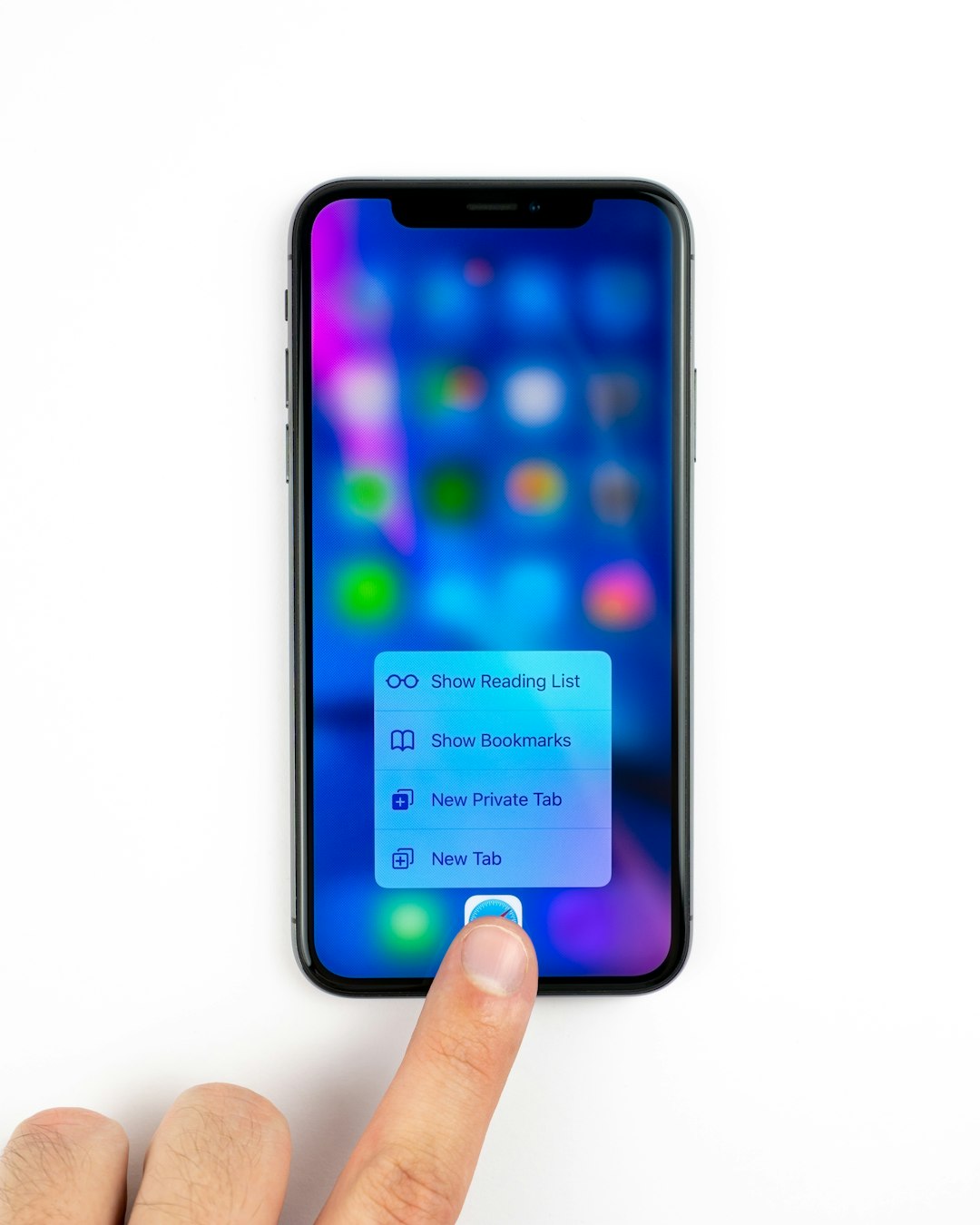
For example, a double-tap gesture on the back of a phone (where supported) can open the AI chat interface automatically. This method provides near-instant access without speaking a word.
Advantages:
- Fast activation.
- No public speaking required.
- Highly customizable experience.
5. Accessibility Features and Assistive Technologies
Users with accessibility needs can rely on built-in assistive tools to interact with Meta AI differently. Screen readers, switch controls, and alternative input devices can all enable non-verbal activation.
Examples include:
- Using switch-access devices to select the AI interface.
- Navigating with screen reader gestures.
- Typing through adaptive keyboards.
In some cases, external keyboards connected via Bluetooth provide a faster and more efficient method of AI interaction than voice.
This expands access to individuals who may find traditional voice commands impractical or difficult.
6. Browser-Based Access
Meta AI can often be accessed via web browsers, depending on availability in your region. Instead of relying on voice-enabled devices, users can log in through a desktop or mobile browser.
This method offers:
- Full typing control.
- Large-screen visibility.
- No microphone dependency.
For professionals working on laptops or desktops, browser-based AI access may be the most efficient option overall.
7. Messaging-Based Interaction
In platforms like WhatsApp, Messenger, or Instagram DMs (where Meta AI is integrated), users can treat the assistant like a regular chat contact.
Instead of speaking aloud, they can simply send a message prompt.

This creates a natural conversational flow without requiring any voice engagement. It also provides a written record of requests and answers for later reference.
Comparison of Voice Control Alternatives
| Method | Voice Required | Best For | Privacy Level | Ease of Use |
|---|---|---|---|---|
| App Manual Activation | No | General users | High | Very Easy |
| Hardware Button | Optional | Smart device users | High | Easy |
| Shortcuts and Gestures | No | Power users | High | Moderate |
| Browser Access | No | Desktop users | Very High | Easy |
| Messaging Interface | No | Social media users | High | Very Easy |
Improving the Experience Without Voice
To maximize efficiency while avoiding “Hey Meta,” users should consider the following strategies:
- Pin the app to the main screen for fast access.
- Enable notifications for quicker responses.
- Explore customization settings to adjust interface layout.
- Use saved prompts for repetitive tasks.
By combining shortcuts, manual controls, and typing features, Meta AI becomes just as fluid without voice triggers.
Is Voice Control Still Useful?
While many users seek alternatives, voice control remains valuable for hands-free scenarios such as driving or cooking. The key is flexibility. Meta’s ecosystem allows for both vocal and silent interaction, ensuring users are not locked into one mode of engagement.
The choice ultimately depends on context. In private spaces, voice commands may feel natural. In public or professional settings, silent interaction methods often feel more appropriate.
Frequently Asked Questions (FAQ)
1. Can “Hey Meta” be permanently disabled?
Most supported devices and apps allow users to disable wake word detection in settings. However, features may vary depending on device type and region. Users should check their device’s voice assistant settings for specific options.
2. Does disabling the wake phrase improve privacy?
Disabling wake word detection can reduce concerns about accidental voice activation. It limits when the assistant listens actively, which many users consider a privacy benefit.
3. Is typing slower than using voice commands?
Typing may take slightly longer for simple requests, but it often produces more accurate results for complex prompts. It also allows users to edit before sending.
4. Can Meta AI be used without a microphone?
Yes. Users can interact entirely through text in apps, messaging platforms, or browser-based experiences. A microphone is not required for these interactions.
No. Hardware activation options depend on the specific device model. Users should consult their product documentation to confirm button-based activation support.
6. Which alternative method is best?
The best option depends on the user’s needs. App-based manual activation is simple and accessible for most people, while shortcuts and browser access offer enhanced control for more advanced users.
Ultimately, Meta AI does not require the phrase “Hey Meta” to be useful. Through thoughtful customization and awareness of available tools, users can build an experience that feels private, efficient, and entirely tailored to their preferences.



Leave a Reply