Apple Music is one of the most reliable music streaming services available, but even the most stable platforms can encounter occasional technical issues. One such problem users report is Apple Music Error 43173. This error can interrupt playback, prevent downloads, or stop songs from syncing properly across devices. Fortunately, in most cases, it can be resolved with a few targeted troubleshooting steps. Below, you’ll find a comprehensive guide to diagnosing and fixing this issue efficiently.
TL;DR: Apple Music Error 43173 is usually caused by connectivity problems, corrupted cache files, outdated software, or account sync conflicts. Start by checking your internet connection and restarting your device. If that doesn’t work, update Apple Music, sign out and back into your Apple ID, or reinstall the app. In persistent cases, resetting network settings or contacting Apple Support may be necessary.
- Understanding Apple Music Error 43173
- 1. Check Your Internet Connection
- 2. Force Close and Restart Apple Music
- 3. Restart Your Device
- 4. Sign Out and Back Into Your Apple ID
- 5. Update iOS, macOS, or the Apple Music App
- 6. Reinstall Apple Music
- 7. Reset Network Settings
- 8. Check Apple’s System Status Page
- Troubleshooting Methods Comparison
- When to Contact Apple Support
- Preventing Future Apple Music Errors
- Final Thoughts
Understanding Apple Music Error 43173
Error 43173 typically appears during streaming, downloading, or syncing music. While Apple does not always provide detailed public documentation about specific error codes, reports from users indicate the issue often stems from:
- Network interruptions
- Corrupted app cache or temporary data
- Outdated iOS, macOS, or Apple Music app versions
- Apple ID authentication conflicts
- Server-side synchronization errors
Because the root cause can vary, following a structured troubleshooting approach is essential.
1. Check Your Internet Connection
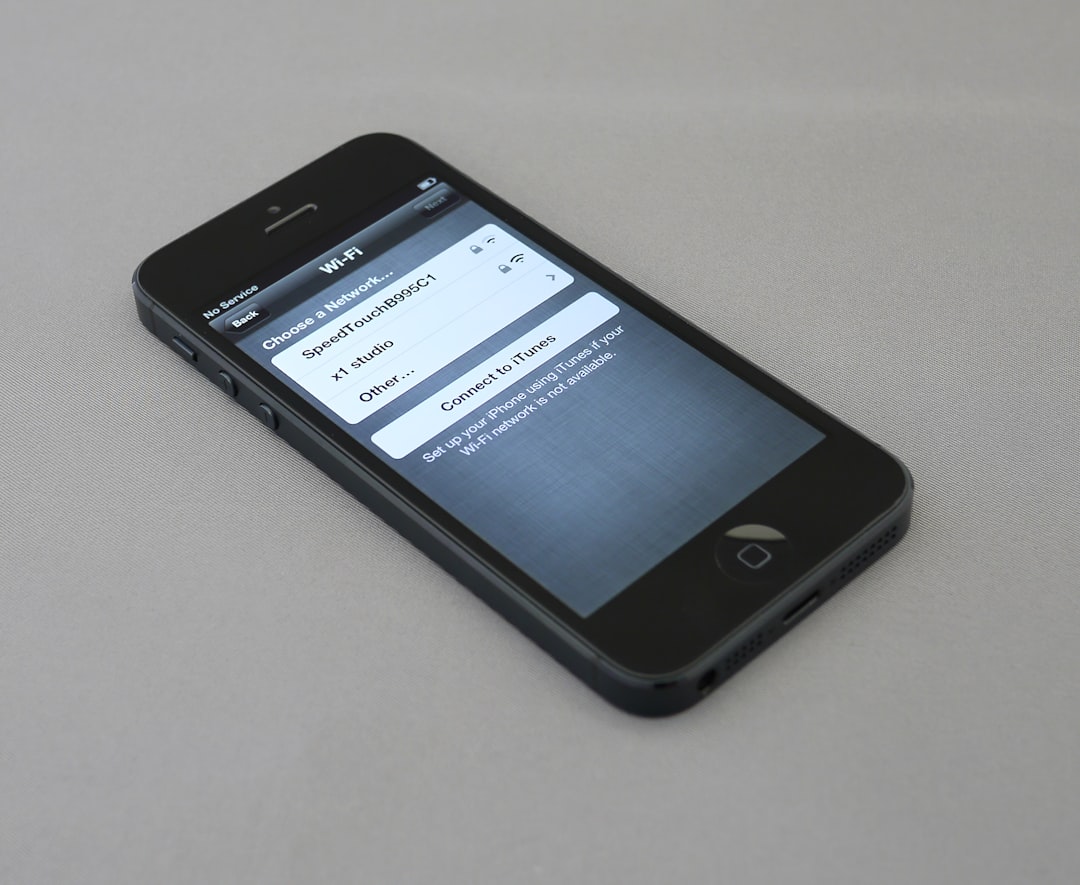
Streaming services rely heavily on stable internet connectivity. If your connection is unstable, Apple Music may trigger Error 43173.
What to Do:
- Switch between Wi-Fi and mobile data to test stability.
- Restart your router or modem.
- Move closer to the Wi-Fi router to improve signal strength.
- Run a speed test to ensure sufficient bandwidth (at least 5 Mbps for smooth streaming).
Tip: If you’re using a public or restricted network, firewall settings may block certain Apple Music services.
2. Force Close and Restart Apple Music
Temporary app glitches can lead to unexpected error codes. Restarting the app refreshes its session and clears temporary faults.
On iPhone or iPad:
- Swipe up from the bottom of the screen (or double-click the Home button).
- Find Apple Music in the app switcher.
- Swipe it away to force close it.
- Reopen the app.
On Mac:
- Right-click the Apple Music icon in the Dock.
- Select Quit.
- Reopen the application.
This simple step often resolves minor playback or sync errors.
3. Restart Your Device
A full device restart clears temporary system memory and can resolve background process conflicts.
- Power off your iPhone, iPad, or Mac completely.
- Wait 30–60 seconds.
- Turn the device back on.
Although basic, this step is highly effective.
4. Sign Out and Back Into Your Apple ID
Apple Music is directly tied to your Apple ID. Authentication or token errors can result in Error 43173.

Steps:
- Go to Settings.
- Tap your Apple ID profile at the top.
- Scroll down and tap Sign Out.
- Restart your device.
- Sign back in with your Apple ID credentials.
Important: Ensure you remember your Apple ID password before signing out.
5. Update iOS, macOS, or the Apple Music App
Outdated software is a common cause of compatibility issues. Apple frequently releases updates that fix known bugs and improve performance.
To Check for Updates on iPhone/iPad:
- Go to Settings > General > Software Update.
- If available, tap Download and Install.
On Mac:
- Go to System Settings > General > Software Update.
After updating, launch Apple Music again and test playback.
6. Reinstall Apple Music
If corrupted app files are the cause, reinstalling may eliminate the issue.
- Delete the Apple Music app from your device (if removable).
- Restart your device.
- Download Apple Music again from the App Store.
Reinstallation removes damaged cache data and reinstalls fresh application files.
7. Reset Network Settings
If network-related issues persist, resetting network settings may resolve deeper configuration problems.
Steps on iPhone:
- Go to Settings > General.
- Select Transfer or Reset iPhone.
- Tap Reset.
- Choose Reset Network Settings.
Warning: This will erase saved Wi-Fi passwords and VPN settings.
8. Check Apple’s System Status Page
Occasionally, the problem may not be on your end. Apple Music servers can experience outages.
- Visit Apple’s official System Status webpage.
- Look for Apple Music service interruptions.
If there’s an active outage, the only solution is to wait for Apple to resolve it.
Troubleshooting Methods Comparison
| Method | Difficulty | Time Required | Data Loss Risk | Effectiveness |
|---|---|---|---|---|
| Check Internet Connection | Easy | 5 minutes | None | High |
| Restart App | Easy | 1 minute | None | Moderate |
| Restart Device | Easy | 3 minutes | None | High |
| Sign Out Apple ID | Medium | 5–10 minutes | Low | High |
| Update Software | Medium | 15–30 minutes | None | Very High |
| Reinstall App | Medium | 10 minutes | Low | High |
| Reset Network Settings | Advanced | 5 minutes | Moderate | Very High |
When to Contact Apple Support
If none of the above steps resolve Apple Music Error 43173, professional support may be required. Contact Apple Support if:
- The error persists across multiple devices.
- You suspect an account-related billing issue.
- Your entire music library fails to sync.
- You recently changed regions or Apple ID settings.
Be prepared to provide device details, iOS or macOS version numbers, and screenshots of the error message.
Preventing Future Apple Music Errors
While not all technical issues are avoidable, you can reduce the chances of encountering future errors by adopting these best practices:
- Keep your device software updated.
- Maintain a stable internet connection.
- Avoid using unofficial system cleaners or optimization tools.
- Regularly restart your device to clear memory.
- Ensure your Apple ID details remain accurate and secure.
Final Thoughts
Apple Music Error 43173 may appear disruptive, but it is rarely permanent or catastrophic. In most cases, the fix involves basic troubleshooting steps such as checking connectivity, updating software, or refreshing account authentication. By following the structured methods in this guide, you can systematically identify and resolve the root cause.
If the problem persists despite all corrective measures, Apple Support can provide advanced diagnostics and account-level assistance. Acting promptly and methodically is the best way to restore uninterrupted access to your Apple Music library.
Technical issues are frustrating, but with the right approach, they are almost always manageable.



Leave a Reply