Puzzles & Survival has become one of the most popular survival strategy games on mobile, combining match-3 puzzle mechanics with base-building, hero collection, and zombie combat. While it is designed primarily for smartphones, many players prefer the enhanced control, larger screen, and improved performance that come with playing on a PC. Installing Puzzles & Survival on a computer is not complicated, but it does require the right tools and proper setup to ensure smooth gameplay.
TL;DR: You can install Puzzles & Survival on your PC by using a trusted Android emulator such as BlueStacks, LDPlayer, or NoxPlayer. Download the emulator from its official website, install it, sign in with a Google account, and download the game from the Google Play Store within the emulator. Make sure your PC meets the minimum system requirements for optimal performance. With proper configuration, you can enjoy smoother gameplay, better controls, and improved visuals on a larger screen.
- Why Play Puzzles & Survival on PC?
- System Requirements for Playing on PC
- Best Emulators for Installing Puzzles & Survival
- Step-by-Step Guide: Installing Puzzles & Survival on PC
- Optimizing Performance for Smooth Gameplay
- Synchronizing Mobile Progress with PC
- Common Installation Issues and Solutions
- Is It Safe to Play Puzzles & Survival on PC?
- Final Thoughts
Why Play Puzzles & Survival on PC?
Although the game performs well on most modern smartphones, there are several compelling reasons to install it on a PC:
- Larger display: Enjoy detailed base layouts and combat animations on a bigger screen.
- Improved performance: PCs often provide better processing power and stability.
- Mouse and keyboard controls: More precise navigation and faster menu management.
- Longer play sessions: No battery drain concerns.
- Multitasking capabilities: Easily switch between the game and other applications.
For competitive players and those managing multiple building upgrades or alliance activities, a PC setup can offer a measurable advantage.
System Requirements for Playing on PC
Before proceeding, confirm that your computer meets at least the minimum requirements for running an Android emulator efficiently.
- Operating System: Windows 10 or later (Windows 11 recommended)
- Processor: Intel or AMD Dual-Core CPU
- RAM: Minimum 4GB (8GB recommended)
- Storage: At least 5GB of free disk space
- Graphics: Updated graphics drivers
- Virtualization: Enabled in BIOS/UEFI
Enabling virtualization significantly improves emulator performance. You can usually enable it in your computer’s BIOS settings under CPU Configuration.
Best Emulators for Installing Puzzles & Survival
Since Puzzles & Survival is a mobile game, you will need an Android emulator. These programs replicate Android on your computer.
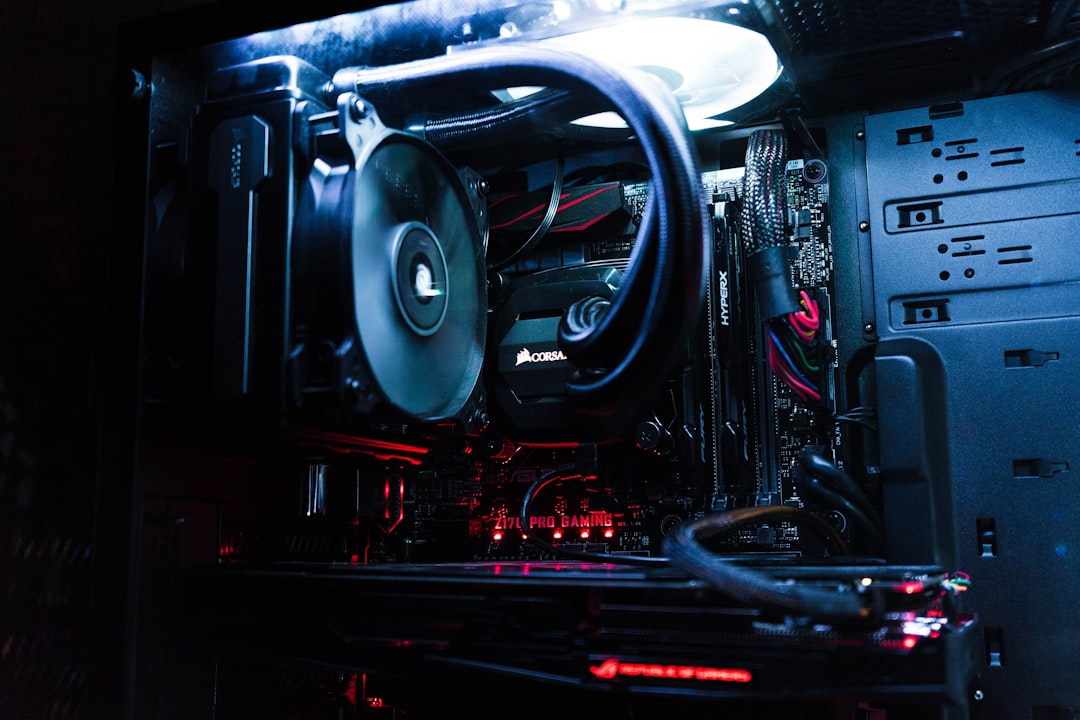
Below is a comparison of the most reliable emulators available:
| Emulator | Best For | Ease of Use | Performance | Recommended? |
|---|---|---|---|---|
| BlueStacks | Overall stability and features | Very Easy | High | Yes |
| LDPlayer | Lightweight performance | Easy | High on mid-range PCs | Yes |
| NoxPlayer | Customization options | Moderate | Moderate to High | Yes, with proper setup |
BlueStacks is generally recommended for most users because of its stability, strong developer support, and frequent updates.
Step-by-Step Guide: Installing Puzzles & Survival on PC
Step 1: Download an Emulator
- Visit the official website of your chosen emulator (e.g., BlueStacks).
- Click the Download button.
- Run the downloaded installer file.
- Follow on-screen instructions to complete installation.
Important: Only download emulators from official websites to avoid malware or modified software.
Step 2: Set Up the Emulator
- Launch the emulator after installation.
- Sign in using your Google account.
- Complete basic Android setup steps.
Signing in allows you to access the Google Play Store and sync progress if you previously played on mobile.
Step 3: Install Puzzles & Survival
- Open the Google Play Store inside the emulator.
- Search for Puzzles & Survival.
- Click Install.
- Wait for the download to complete.
Once installation is finished, you can launch the game directly from the emulator’s home screen.
Step 4: Configure Controls
Most emulators automatically map keyboard and mouse controls. However, you can customize them:
- Open the emulator’s Key Mapping settings.
- Assign shortcuts to frequently used functions.
- Adjust sensitivity for smoother navigation.
This step enhances efficiency during base management and large-scale alliance activities.
Optimizing Performance for Smooth Gameplay
Even on powerful PCs, proper configuration ensures optimal performance.
- Enable Virtualization: Improves CPU allocation and stability.
- Allocate More RAM: Adjust settings in your emulator to use 4GB or more if available.
- Update Graphics Drivers: Ensures smoother rendering.
- Close Background Applications: Prevent resource conflicts.
- Select High Performance Mode: Use Windows power settings optimized for performance.
If you experience lag, lowering the emulator resolution slightly can improve frame rates without significantly affecting visuals.
Synchronizing Mobile Progress with PC
If you already play Puzzles & Survival on mobile, you can sync your account:
- Connect your mobile account to Google, Facebook, or another supported method.
- Log in using the same account inside the emulator.
- Your progress should load automatically.
This ensures seamless switching between devices without losing progress.
Common Installation Issues and Solutions
While installation is typically straightforward, some users encounter issues. Below are common problems and their solutions:
- Emulator Won’t Start: Ensure virtualization is enabled and antivirus software is not blocking it.
- Game Crashes Frequently: Update the emulator and allocate more RAM.
- Low FPS: Reduce resolution settings within the emulator.
- Login Errors: Verify your Google account credentials and sync settings.
Always keep both the emulator and your graphics drivers updated to maintain compatibility.
Is It Safe to Play Puzzles & Survival on PC?
Using reputable emulators such as BlueStacks or LDPlayer is generally safe. These programs are widely recognized and used by millions of players worldwide. However:
- Download only from official sources.
- Avoid modified APK files.
- Do not use unauthorized automation or cheating tools.
Following these precautions minimizes risk and ensures compliance with the game’s terms of service.
Final Thoughts
Installing Puzzles & Survival on a PC is a practical solution for players seeking enhanced control, improved performance, and a more immersive visual experience. With a reliable Android emulator, the process takes only a few minutes and does not require advanced technical knowledge. By meeting system requirements, enabling virtualization, and optimizing settings, you can enjoy stable and smooth gameplay.
For players heavily involved in alliance warfare, resource management, or multi-hour play sessions, transitioning to PC can provide both comfort and competitive benefits. When set up correctly, the experience is secure, efficient, and fully synchronized with your mobile account.
By following the steps outlined above, you can confidently install and play Puzzles & Survival on your computer and enjoy everything the game offers on a much larger and more capable platform.


Leave a Reply