Your gaming session was going great. You were right about to beat the final boss when suddenly — black screen flickering. Your PS5 starts flashing like it’s trying to signal aliens. Sound familiar? You’re not alone.
TL;DR:
PS5 black screen flickering can be caused by a bad HDMI connection, software issues, or incompatible resolution settings. The good news? Most of these issues have simple solutions. Try checking cables, tweaking display settings, and updating firmware. If all else fails, there’s always Safe Mode or Sony support.
Why Is My PS5 Screen Flickering?
Let’s break it down in a fun and simple way. Flickering can happen for several reasons but don’t worry — you won’t need a PhD in rocket science to fix it.
Common Causes of Screen Flickering:
- HDMI Cable Issues: Damaged or loose cables can mess with your display.
- Resolution or Refresh Rate Conflicts: Your TV and PS5 may not be on the same page.
- Software Glitches: Bugs from updates or overwriting files can cause chaos.
- TV Firmware Problems: It’s not always the PS5’s fault — sometimes it’s your TV.
- VRR (Variable Refresh Rate) Feature: It’s cool but can cause problems with certain TVs.
Now let’s tackle these one by one like a boss.
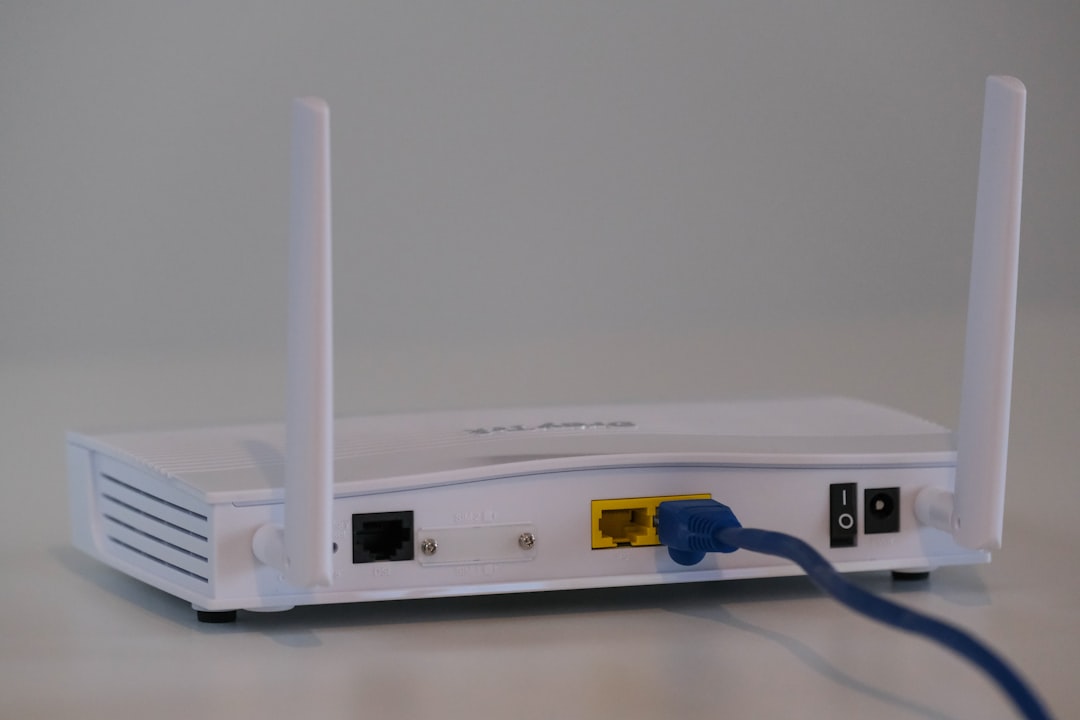
1. Check the HDMI Cable
This is a biggie. A lot of flickering issues come from a bad HDMI connection. If your cable is old, frayed, or not plugged in fully, you’ll see screen drama.
Here’s what to do:
- Unplug and replug both ends of the HDMI cable.
- Check the cable for visible damage.
- Try a different HDMI port on your TV.
- Use the HDMI 2.1 port (if your TV has one) for full PS5 compatibility.
If that doesn’t work, try a different HDMI cable. Trust us, it might just do the trick.
2. Lower the Resolution
Sometimes your PS5 and your TV are having a little miscommunication. They can’t agree on which resolution to display. This can cause weird stuff like flickering or a totally black screen.
Try this:
- Go to Settings on your PS5.
- Select Screen and Video.
- Go to Video Output settings.
- Change Resolution to 1080p or something your TV supports.
This might fix the flicker instantly, especially if it was trying to do 4K or HDR on a TV that just can’t handle it well.
3. Turn Off HDR or VRR
High-tech features like HDR (High Dynamic Range) and VRR (Variable Refresh Rate) are awesome — when they work. But they can fry your brain and your display if not set right.
To disable HDR:
- Blast into Settings > Screen and Video.
- Select Video Output.
- Turn off HDR.
To disable VRR:
- Head into Settings > Screen and Video.
- Click Video Output.
- Set VRR to Off.
If either of these features are clashing with your TV’s capabilities — boom, problem solved.
4. Update Your PS5 and Your TV
Sometimes a flickering screen is just your PS5 crying out for an update. Same goes for your smart TV.
To update your PS5:
- Go to Settings > System.
- Choose System Software > System Software Update and Settings.
- Hit Update System Software.
To update your TV:
- Check your TV’s manual or settings menu.
- Look for “Software Update” under settings.
- Connect your TV to the internet and update it just like you do with your console.
Outdated firmware can cause display bugs, so keep your gadgets fresh!
5. Boot into Safe Mode
If flickering is out of control, Safe Mode might be your hero. It lets you adjust important settings without the usual flashy graphics interfering.
How to enter Safe Mode on PS5:
- Turn off your PS5 completely — don’t just put it in rest mode.
- Hold down the power button until you hear the second beep (takes about 7 seconds).
- Connect your controller with a USB cable and press the PS button.
- Choose Change Video Output then set the resolution to 720p or 1080p.
It’s not pretty, but Safe Mode can help reset display output and stop flickering cold.
6. Try Another Monitor or TV
If nothing works — maybe it’s not the PS5.
Hook up your console to a different display. If flickering stops, your original TV might be the real troublemaker. Time for a new one? Or at least a chat with customer support.
Bonus Tip: Disable HDCP
HDCP (High-bandwidth Digital Content Protection) is a security feature. It’s meant to stop piracy, but can sometimes interfere with your display.
Here’s how to disable it:
- Go to Settings > System.
- Select HDMI.
- Turn off Enable HDCP.
Just note: if you disable it, some streaming apps like Netflix might not work.
Still Flickering? Contact Sony
If you’ve tried everything and nothing works — it might be a deeper issue. Either a hardware problem or a faulty GPU. If your PS5 is still under warranty, contact Sony support. They might repair or replace it.
Visit the official support site and submit a ticket. Keep your serial number ready!
Final Thoughts
PS5 black screen flickering is super annoying — but usually fixable. From checking your HDMI cable to adjusting simple settings, you’ve got this.
The key is patience. Try one fix at a time. That flickering screen doesn’t stand a chance.
Now, back to that boss battle!

Leave a Reply